Sigma360 AI
AI Entity Summary
Sigma360’s AI generates streamlined entity summaries by analyzing watchlists, corporate registries, and adverse media. Each summary is linked to underlying Sigma IDs, providing comprehensive risk attribution and faster insights.
Sigma360 AI provides on-demand summaries to help users quickly understand the risk landscape of an entity. Summaries include key sections such as:
- Registration Information
- Bio
- Direct Risk
- Indirect Risk
- Associations
- News
- Reference Links
Each summary links directly to underlying Sigma IDs, providing full traceability.
On the Sigma ID Page:
- A “Sigma360 AI” button now appears on the bottom-right corner for users with appropriate permissions.
- Clicking the button opens a popup with the AI-generated summary.
- All news links in the summary are interactive, allowing users to click and open the underlying article in a new browser tab.
In Investigate:
- Each match row now includes a “Summary” button.
- Users can multi-select matches and click “Summarize Matches” from the table header to produce a combined summary.
- Users can download the PDF summary report.
- Users can like or dislike the content to provide feedback and help Sigma360 continuously improve the summaries.
- Users can copy the content to easily add notes, insert comments, or make adjustments to the summary.
Contact support@sigma360.com for more information about adding Entity Summaries for your organization.
AI Level 1 Agent
Sigma360’s AI L1 Agent** **designed to streamline match review and accelerate alert resolution.
The L1 Agent is an AI-powered match review agent that reduces the burden of manual alert review by automatically clearing false positives - helping your team focus on real threats.
Accessing the Sigma AI Control Panel
- Users should navigate to **Profile → Settings, **and on the left-hand menu access the AI L1 Agent Control Panel.
Managing L1 Agents
-
Users can edit an agent by clicking the Edit button.
-
Agents can be duplicated using the duplicate icon.
-
To archive an agent, users should click the bin icon.
- By clicking the info icon, users can view a detailed grid with the agent’s configuration.
- The search field allows users to locate agents by name.
- To view archived (inactive) agents, users can enable the checkbox labeled "Show Archived Agents".
Creating a New Agent
- To create a new agent, users should click the “Add New Agent” button in the upper-right corner.
-
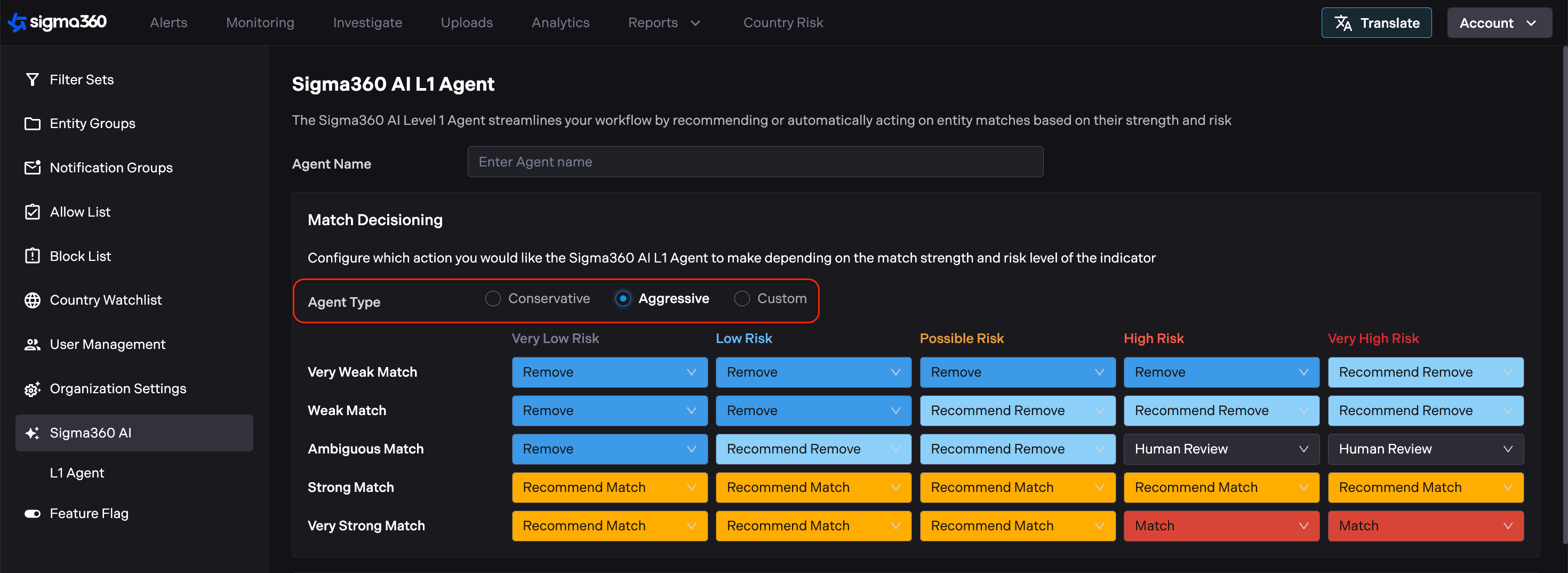
The user will be presented with three options for configuring the Agent Grid:
-
Aggressive Agent – This agent both provides recommendations and automatically decisions certain matches as either Match or Remove Match.
-
Conservative Agent – This agent provides only recommendations and does not take any automatic decisions.
-
Custom Agent – All fields are initially set to Human Review, allowing the user to fully configure the agent based on their organization’s needs.
-
-
Users can edit the Aggressive and Conservative agent presets. As soon as any field is modified, the preset will automatically switch to Custom.
- Important: If user configured grid in the Custom option and then switch to Aggressive or Conservative, Custom configuration will be lost unless the user save it first.
-
All fields in the grid must be filled out; otherwise, the default behavior will be Human Review for any unconfigured match types.
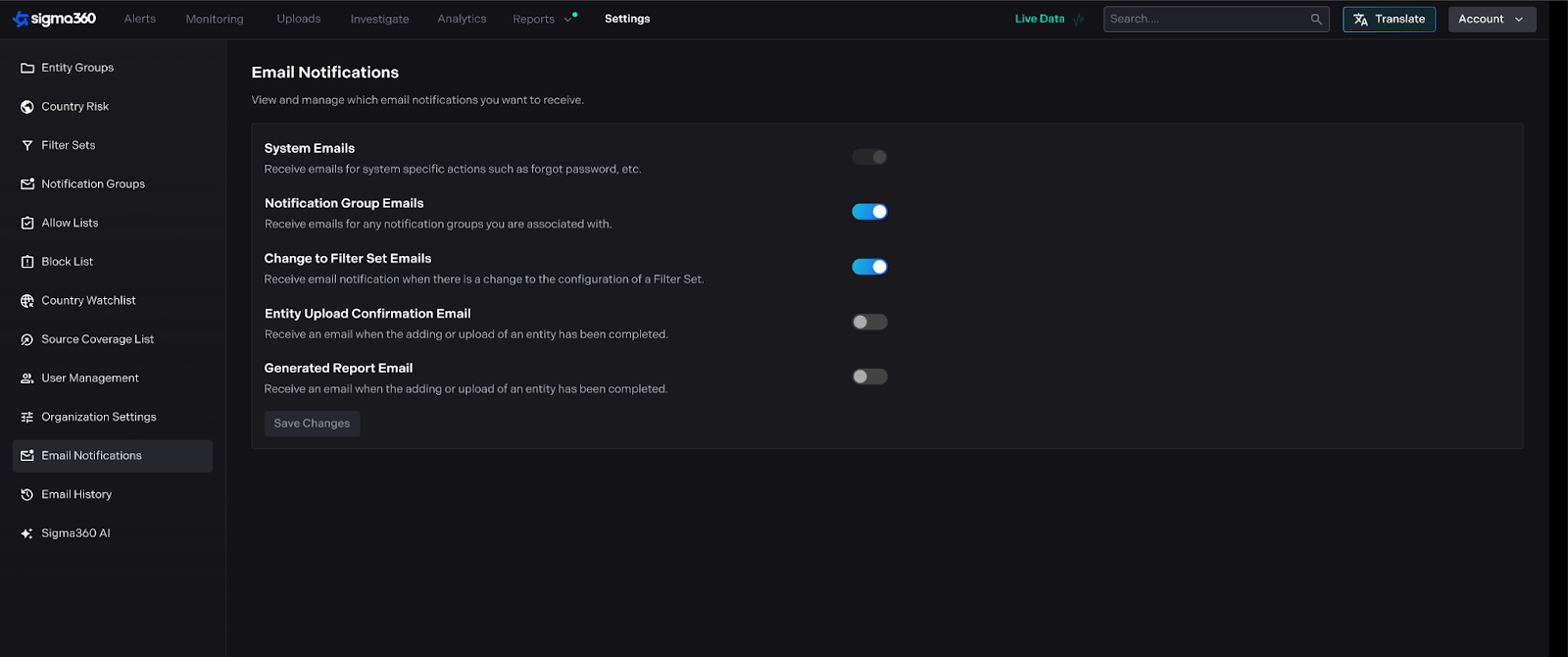
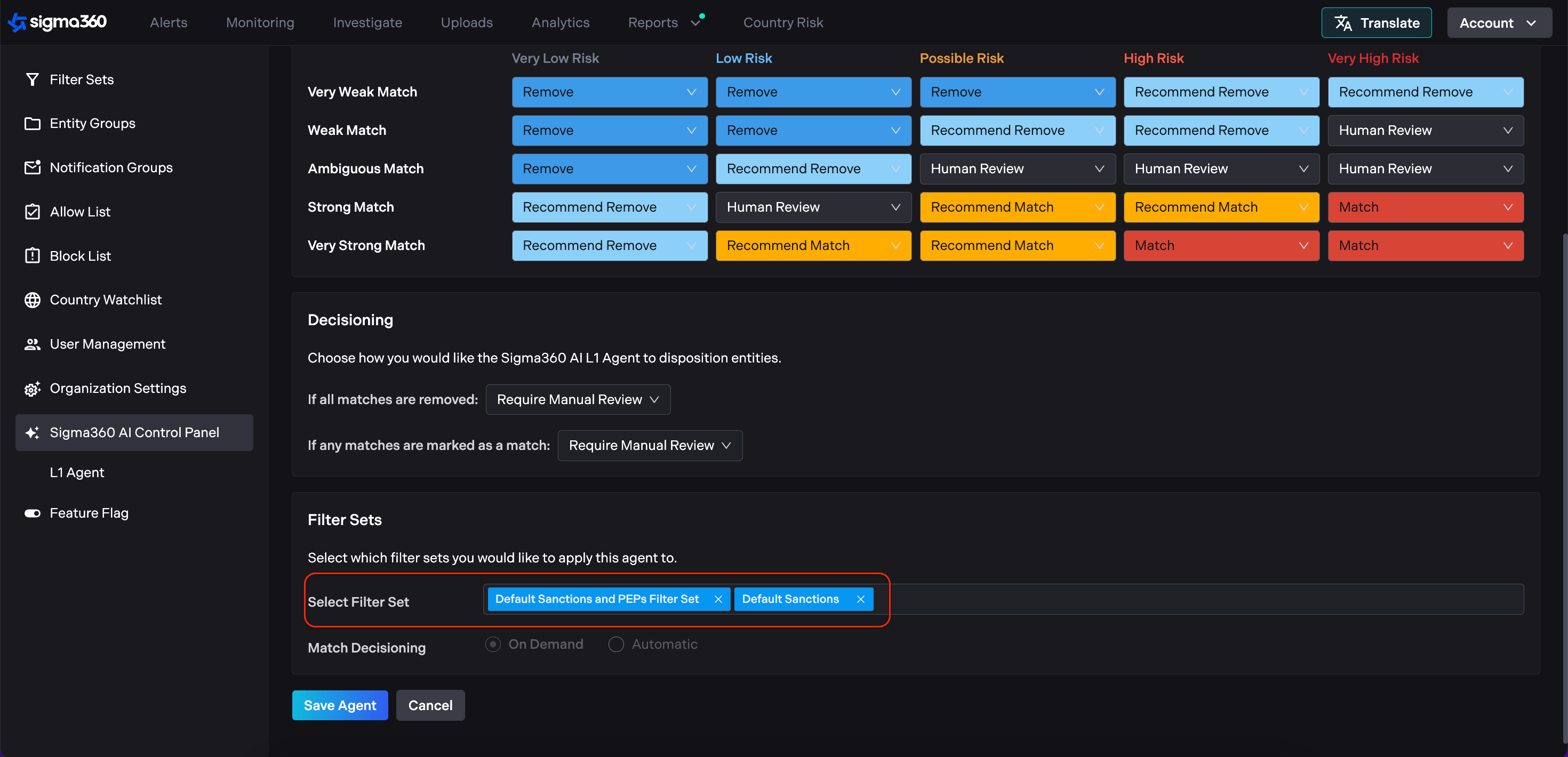
The configuration grid allows users to define the action the Sigma360 AI L1 Agent should take based on the Match Strength and the Match Risk Level. The purpose is to streamline alert handling by automating decisions where confidence is high, and ensuring human review where needed.
The grid is a matrix where:
-
Rows represent the Match Strength between the screened entity and the watchlist entry.
-
Columns represent the** Risk Level** of the match, based on the score.
Each cell in the grid allows the users to choose an action the L1 Agent should take when a match falls into the respective Match Strength and Risk Level combination.
Match Strength (Rows)
Match Strength is determined by how closely the entity’s information matches with the data from a watchlist or other risk source. The evaluation includes attributes like:
-
Name
-
Date of Birth
-
Location
Match Strength Levels:
-
**Very Strong Match **- All key attributes strongly align
-
Strong Match - Major attributes align but some variation exists
-
Ambiguous Match - Partial alignment; unclear determination
-
Weak Match - Limited overlap in attributes
-
Very Weak Match - Minimal or no meaningful similarity
Match Risk Level (Columns)
Risk Level is determined by a score assigned to the match based on the underlying risk indicators (e.g., sanctions, adverse media, PEP, etc.).
Risk Level Tiers:
-
Very High Risk: Score > 90
-
High Risk: Score between 65 – 89
-
Possible Risk: Score between 40 – 64
-
Low Risk: Score between 15 – 39
-
Very Low Risk: Score < 15
Available Actions (Dropdown Options)
Each cell in the grid lets users define what the L1 Agent should do:
-
Remove - The decision "Not a Match" is highlighted but the match remains in the Unreviewed tab until recommendation is accepted or manually overridden.
-
Recommend Remove - The decision "Not a Match" is highlighted but the match remains in the Unreviewed tab until recommendation is accepted or manually overridden.
-
Recommend Match - The decision "Match" is highlighted but the match remains in the Unreviewed tab until recommendation is accepted or manually overridden.
-
Match - The decision "Match" is highlighted but the match remains in the Unreviewed tab until recommendation is accepted or manually overridden.
-
Human Review - No decision is highlighted and the match remains in the Unreviewed tab and needs to be reviewed by the user.
Example Use Case
-
"Remove" very weak matches with very low risk,
-
"Recommend Match" or "Match" when there’s a very strong match with a very high-risk score,
-
And leave ambiguous matches in the possible risk range for "Human Review".
This grid gives users the flexibility to tailor AI behavior based on risk appetite and review capacity.
Decisioning Setting
Depending on how the matches are decisioned, users have the following options:
-
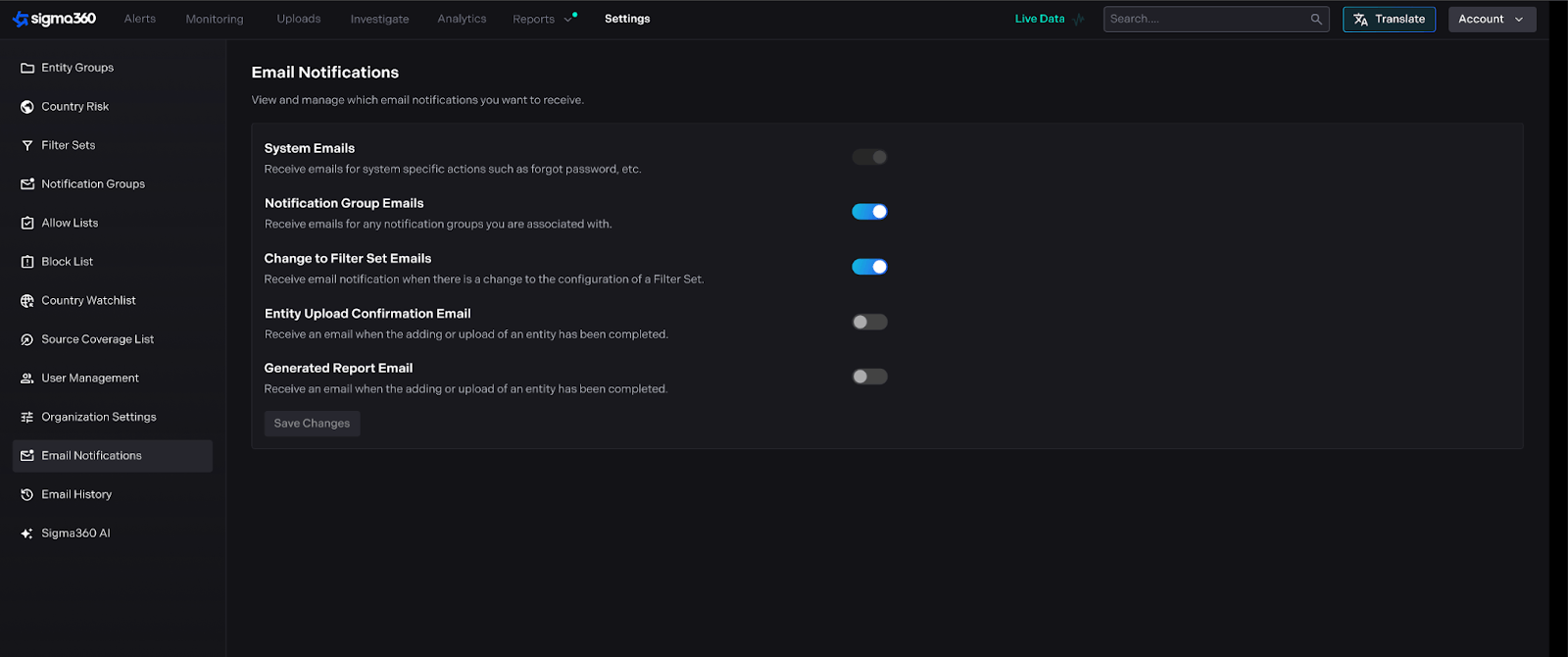
If all matches are removed, the user can:
-
Mark the entity as Cleared, or
- Require Manual Review, keeping the alert open.
-
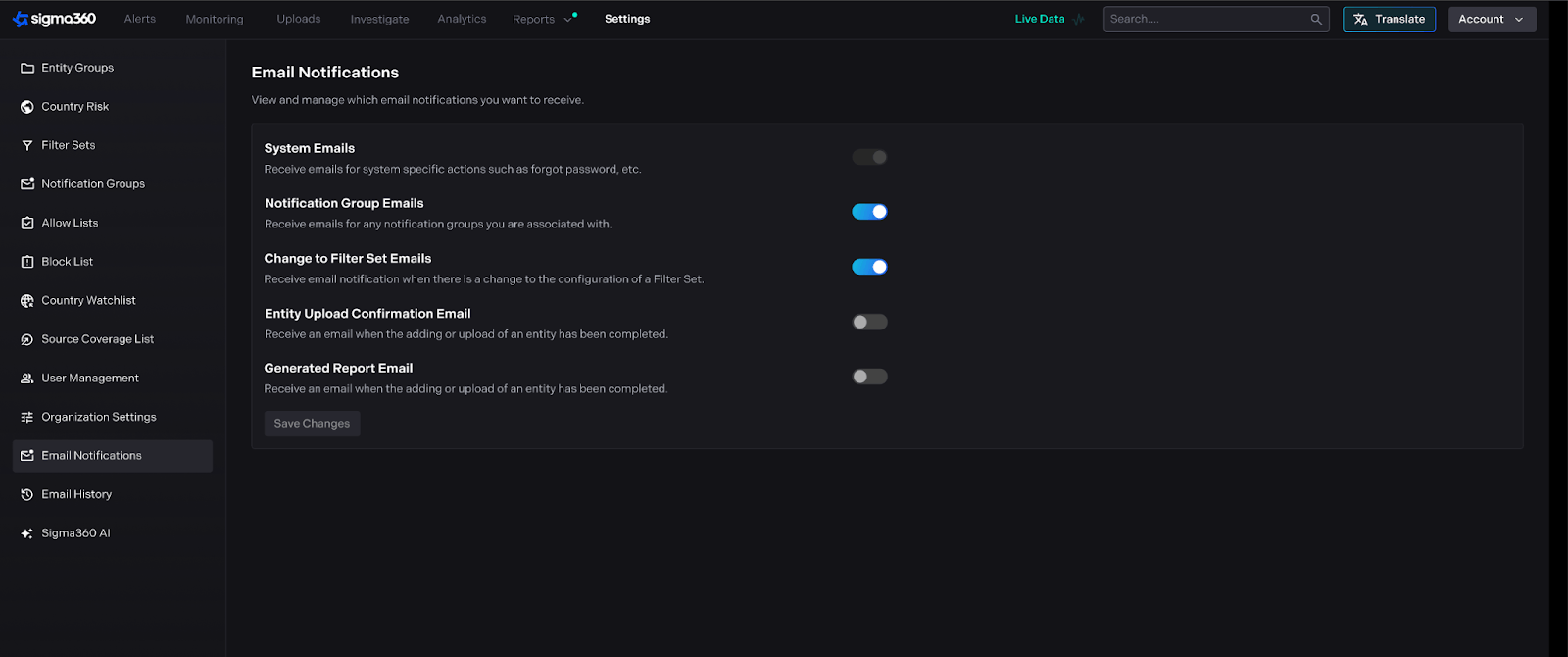
If any match is marked as Potential Match, the user can:
-
Mark the entity for Escalation, or
- Require Manual Review.
Assigning Agents to Filter Sets
L1 Agents are enabled for particular entities by assigning Filter Sets to them.
-
Users can assign specific filter sets to an L1 Agent.
-
A single agent can be linked to multiple filter sets.
-
If a filter set is removed or not yet linked to an agent:
-
A tooltip will appear on the Entity stating that L1 Agent is not linked to the entity’s filter set.
-
The L1 Agent button will be disabled for affected entities.
-
Agents can be configured to run in either on-demand or automatic mode:
-
On-Demand: Users must manually click the L1 Agent button on an entity to initiate recommendation and decisioning.
-
Automatic: The agent runs in the background without requiring user action. Decisions are made automatically, but recommendations still need to be accepted by the user during review.
Structured Workflow
Sub-sections included below refer to organizations configured with the Structured Workflow Type. If you are unsure which workflow type applies to your organization, please find this information under Account → My Profile → Organization Information.
Entity Review (On Demand Agent)
-
When reviewing an entity with an on-demand agent, after starting review:
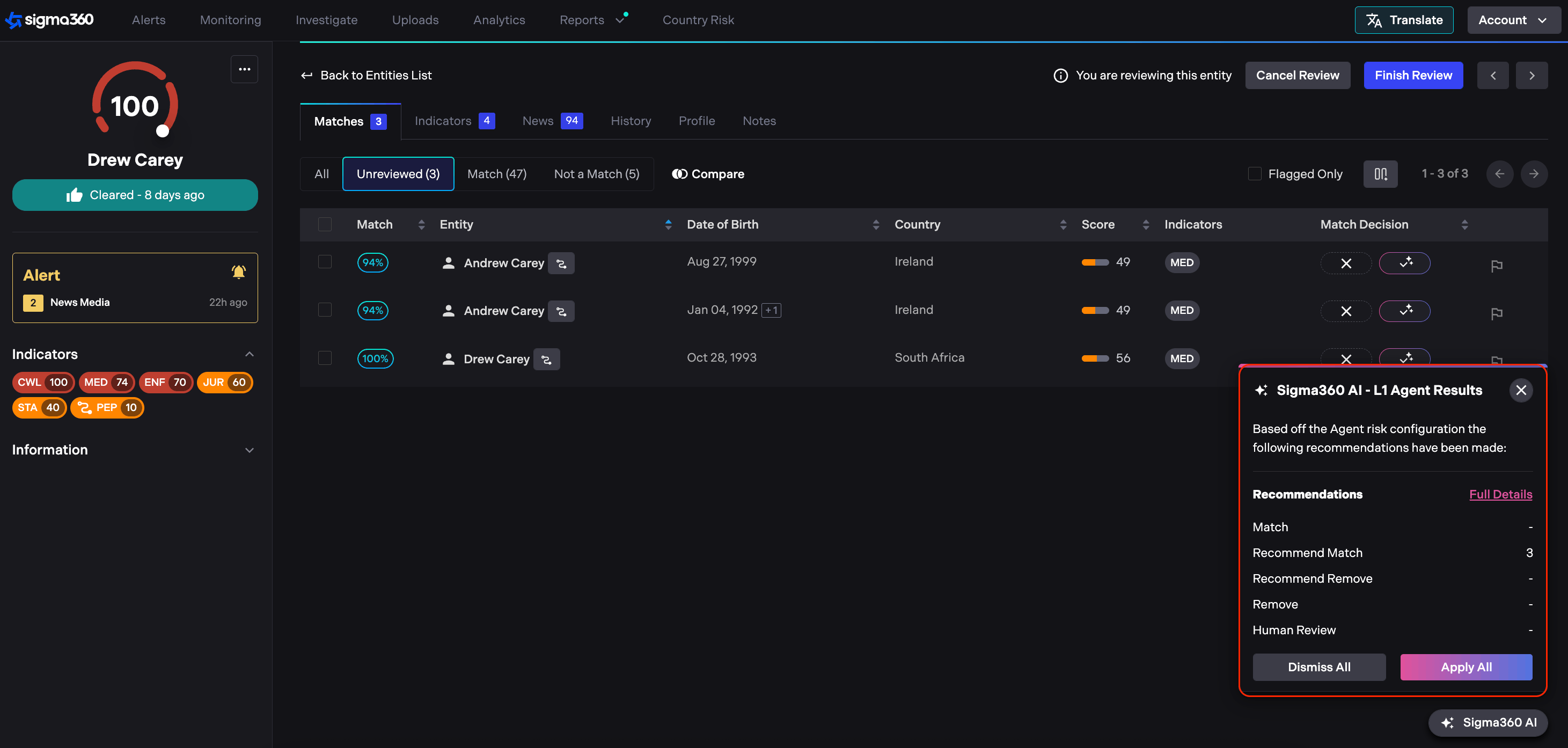
- A popup will appear in the bottom-right corner prompting the user to confirm AI-generated recommendations.
-
The Match Decision column reflects the agent's configuration:
-
Matches marked as Recommend Match or Recommend Remove are highlighted with AI styling.
-
Matches requiring Human Review appear without highlights and must be reviewed manually.
-
- Match and Removed are not automatically moved to the “Match” and “Not a Match” Tab. The decisions are highlighted but the matches remains in the Unreviewed tab until recommendations are accepted or manually overridden.
-
Users have full control over the review process:
- All AI decisions and recommendations can be accepted, dismissed, or overwritten.
- Clicking on a match’s AI recommendation reveals details including Match Risk, Match Strength and Reasoning.
- By selecting “View Full Details”, users can open a summary popup showing all current recommendations and their explanations, with the option to accept or dismiss all at once.
- Users can like or dislike the content to provide feedback and help Sigma360 continuously improve the L1 Agents.
Entity Review (Automatic Agent)
-
When reviewing an entity with an automatic agent:
- Matches decisioned as “Match” or “Removed” are automatically moved to the “Potential Match” and “Not a Match” tabs before the user begins the review process.
- Matches marked as Recommend Match or Recommend Remove are highlighted with AI styling.
- Matches requiring Human Review appear without highlights and must be reviewed manually.
-
Users have full control over the review process:
- All AI decisions and recommendations can be accepted, dismissed, or overwritten.
Contact support@sigma360.com for more information about adding an L1 Agent for your organization.
**Flexible Workflow **
Sub-sections included below refer to organizations configured with the Flexible Workflow Type. If you are unsure which workflow type applies to your organization, please find this information under Account → My Profile → Organization Information.
Entity Review (On Demand Agent)
-
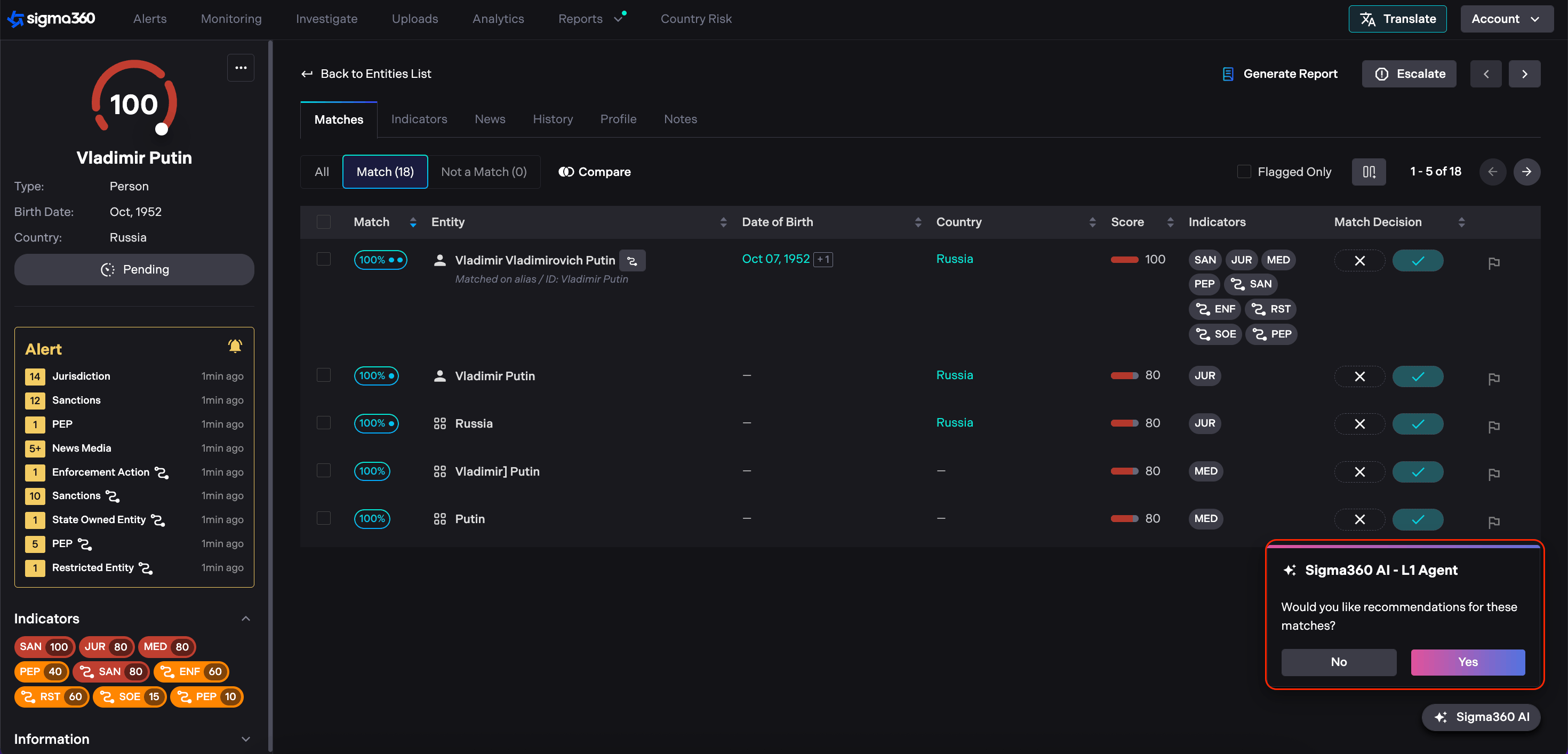
When reviewing an entity with an on-demand agent:
- A popup will appear in the bottom-right corner prompting the user to confirm AI-generated recommendations.
-
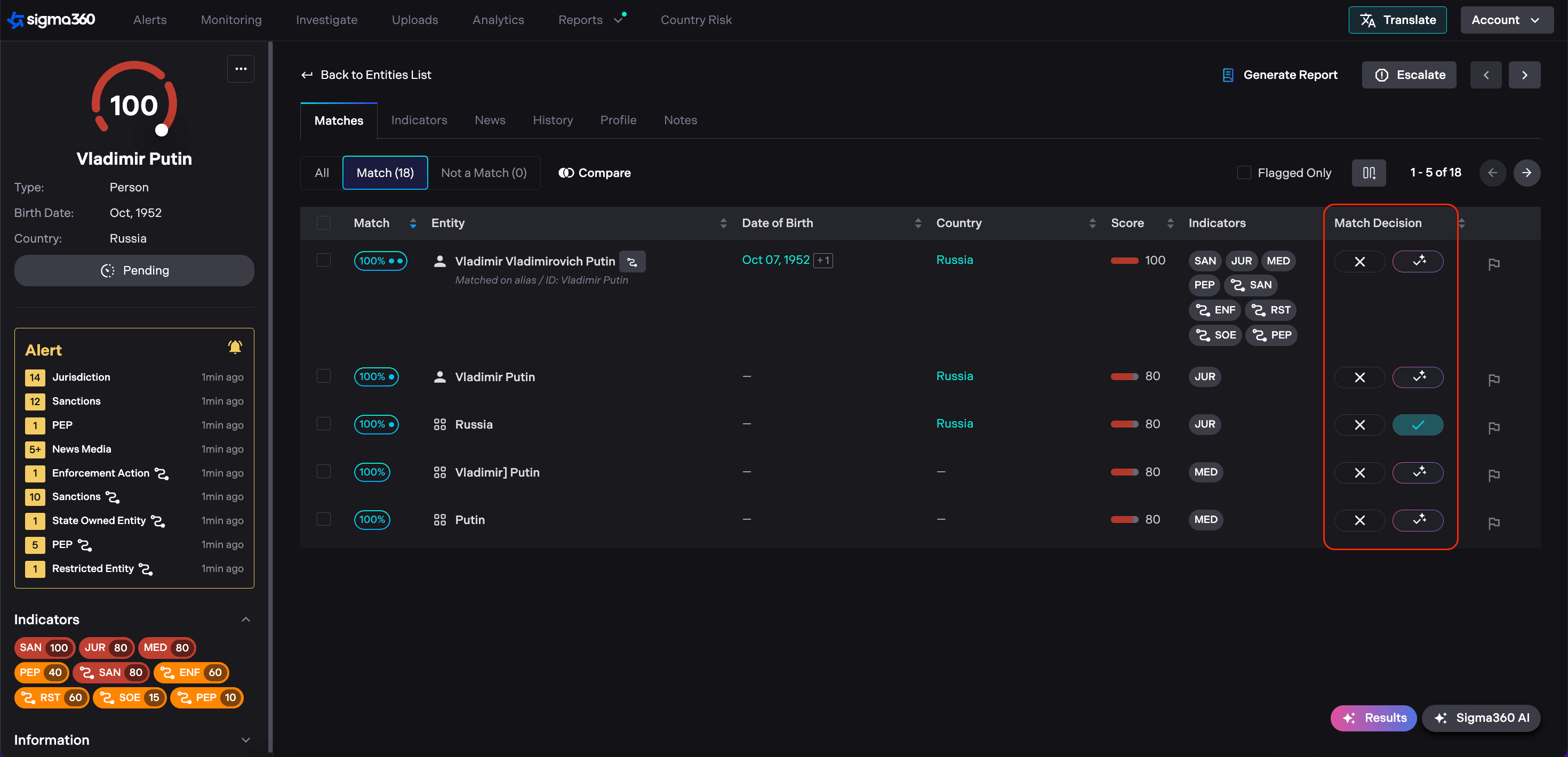
The Match Decision column reflects the agent's configuration:
-
Matches marked as Recommend Match or Recommend Remove are highlighted with AI styling.
-
Matches requiring Human Review appear without highlights and must be reviewed manually.
-
Removed are not automatically moved to the “Not a Match” Tab. Match remains in the Match tab with the AI highlighting the Not a Match decision as a recommendation. When Apply is clicked, the decisioning is made and the match will be moved to Not a Match tab.
-
Match remains in the **Match tab with the AI highlighting the Match **decision as a recommendation. When Apply is clicked, the decisioning is made and the **Match **will stay in the **Match **tab. If the user hits Dismiss, the Match stays as a Match.
-
-
Users have full control over the review process:
- All AI decisions and recommendations can be accepted, dismissed, or overwritten.
-
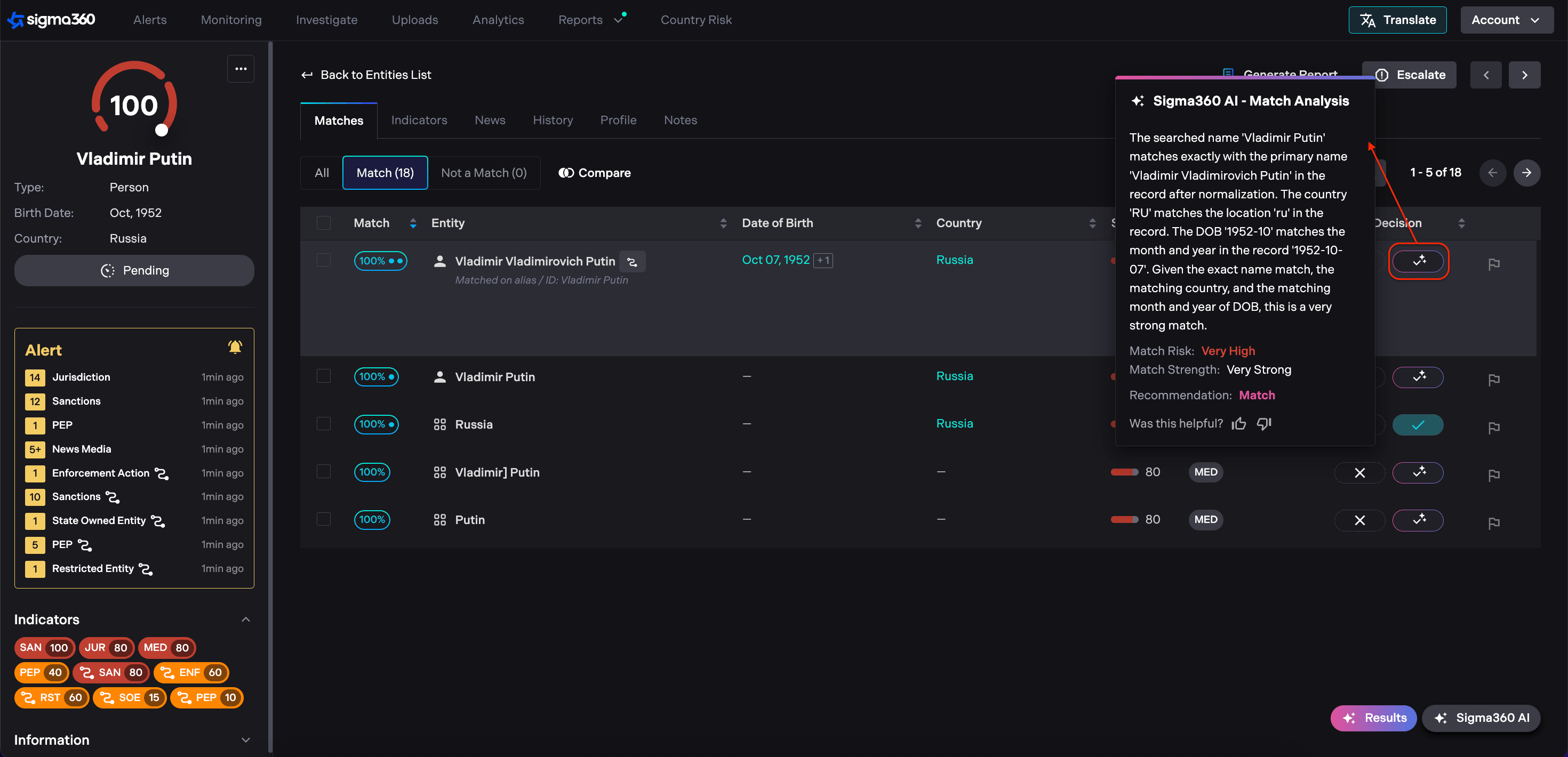
Clicking on a match’s AI recommendation reveals details including Match Risk, Match Strength and Reasoning.
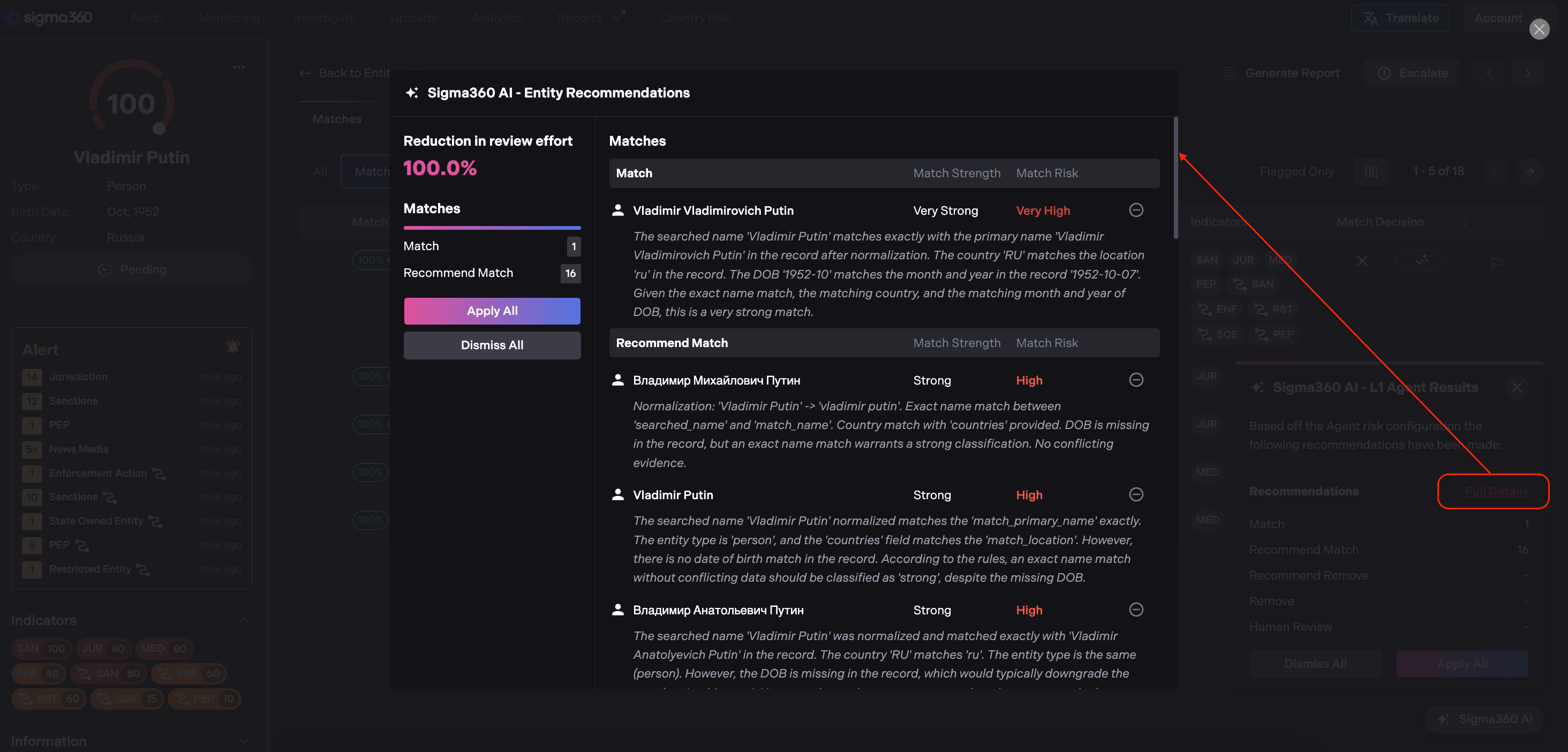
- By selecting “View Full Details”, users can open a summary popup showing all current recommendations and their explanations, with the option to accept or dismiss all at once.
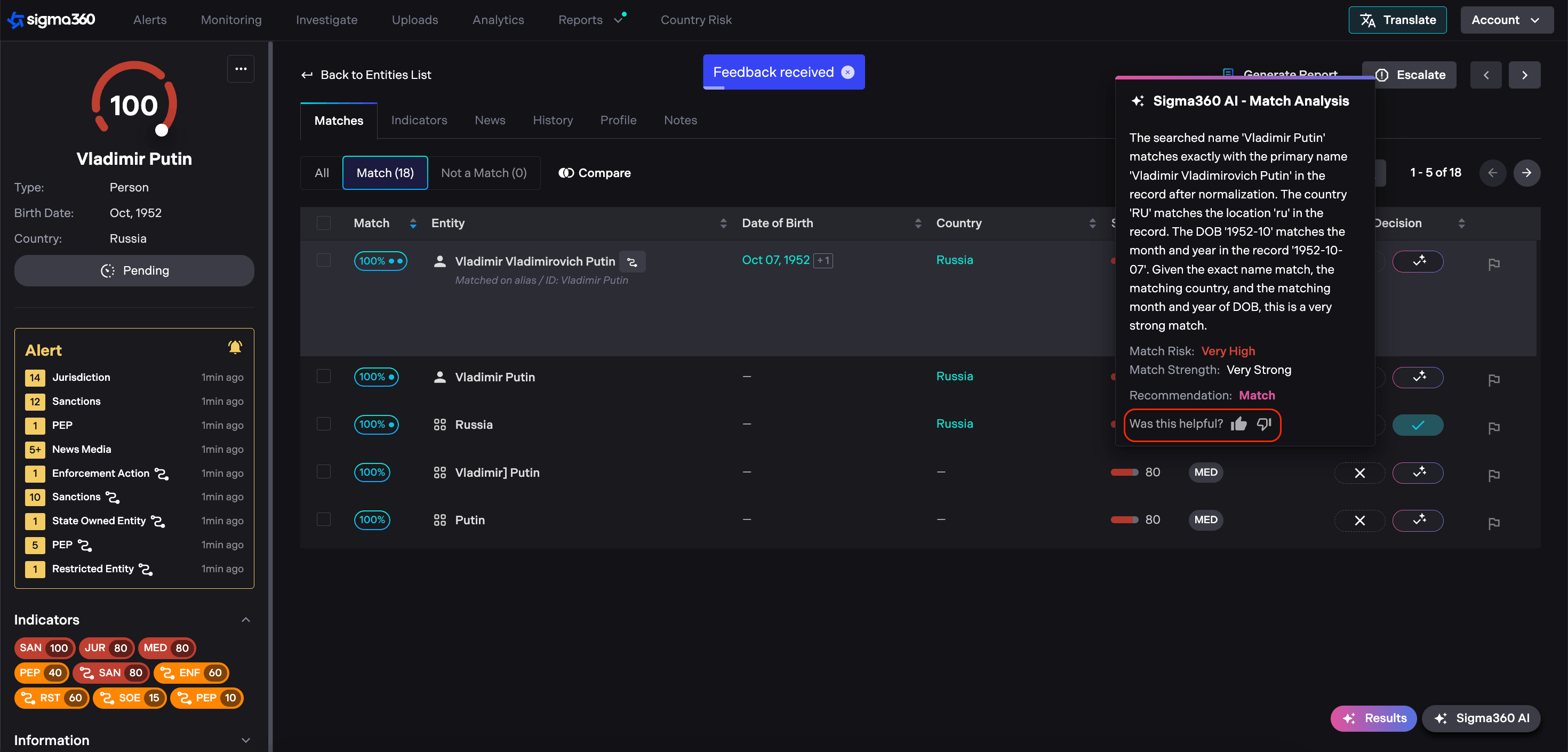
- Users can like or dislike the content to provide feedback and help Sigma360 continuously improve the L1 Agents.
Entity Review (Automatic Agent)
-
When reviewing an entity with an automatic agent:
- Matches decisioned as “Match” or “Removed” are automatically moved to the “Match” and “Not a Match” tabs **before the user begins review****ing **the Entity.
-
Matches marked as Recommend Match or Recommend Remove are highlighted with AI styling.
-
Matches requiring Human Review appear without highlights and must be reviewed manually.
-
Users have full control over the review process:
- All AI decisions and recommendations can be accepted, dismissed, or overwritten.
Contact support@sigma360.com for more information about adding an L1 Agent for your organization.
Sigma AI Analytics
Sigma AI Analytics provides a comprehensive, at-a-glance overview of L1 Agent and Entity Summaries Usage.
Analytics Page → Sigma360 AI
Depending on which features are enabled for the organization, the following sections may be displayed:
-
L1 Agent Usage
-
Entity Summary Usage
Analytics can be filtered by period: past week, past month, past 3 months, or past 6 months.
- These filters apply to all graphs and metrics.
L1 Agent Usage
**Time Saved: **
- Time saved is calculated by comparing the average time users take to review an entity with the number of entities reviewed by the L1 Agent.
Feedback Metrics:
-
Likes**: **Sum of positive feedback across recommendations and match decisions
-
Dislikes: Sum of negative feedback across recommendations and match decisions
Graph:
-
Hovering over the bar shows a breakdown of agents and usage for that specific day.
-
Entities Reviewed: Total entities reviewed by all agents for the selected day.
Agents Brakedown:
-
The value next to each agent shows how many entities (not matches) the agent reviewed.
-
Hovering over the donut chart will display entities reviewed by each agent for the selected period.
Match Decision Breakdowns:
-
Match Decision Breakdown (donut chart): Based on Total Matches Reviewed, categorized as:
-
Recommended Remove
-
Remove
-
Recommended Match
-
Match
-
Undetermined
-
Metrics:
-
Entities Reviewed: total entities reviewed by all agents for the selected period.
-
Total Matches Reviewed: all matches reviewed by all agents within the selected period.
-
% Decisioned: percentage of matches with a clear decision, which excludes Human Review.
-
Overridden Decisions: number of times an analyst disagreed with an AI recommendation (e.g., changing Recommended Remove → Match).
Entity Summary Usage
Feedback Metrics:
-
Likes: Total positive feedback collected from both the SID page and the Investigate page.
-
Dislikes: Total negative feedback collected from both the SID page and the Investigate page.
Entity Summarized:
-
Shows the total number of entities summarized across SID and Investigate for the selected time period.
-
If multiple SIDs are summarized, this counts as a single summary.
Graph:
- Hovering over a bar shows the number of Entity Summaries created on that day.