Analytics & Reporting
The Reports tab provides a centralized location for report management.
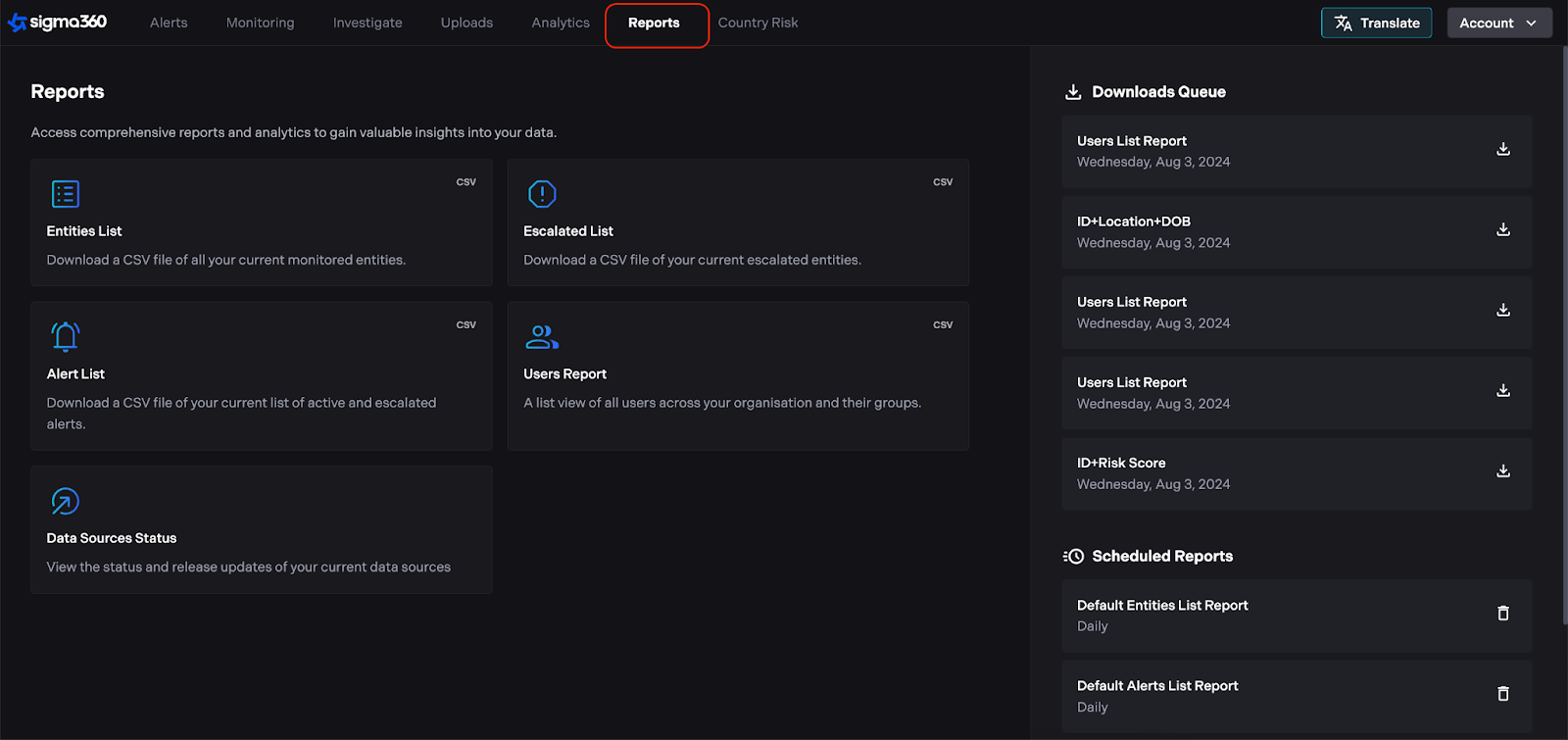
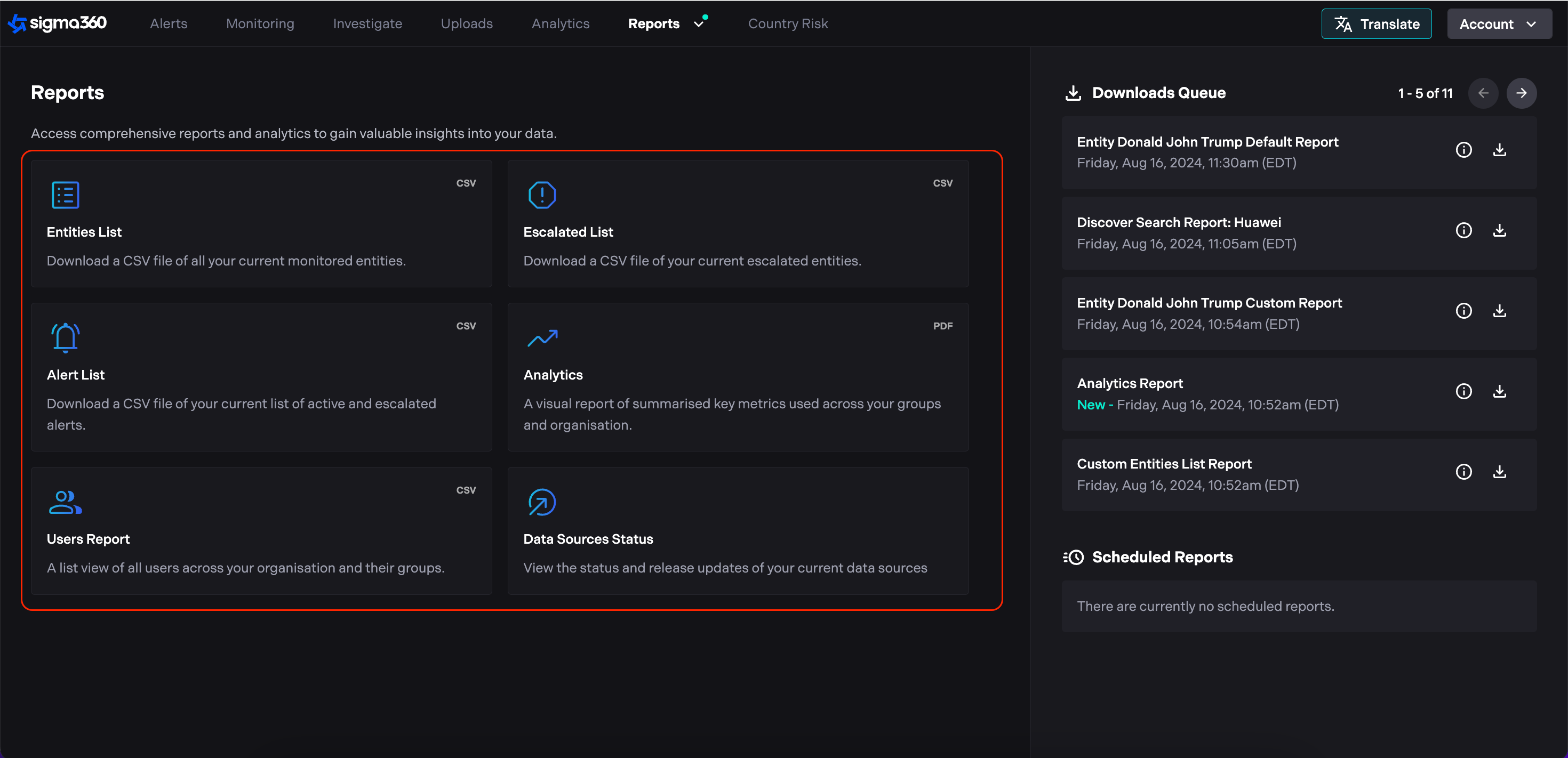
Users can access multiple report types, including Entities List, Escalated Entities, Alert List, User Report, Analytics Report and Data Sources Status.
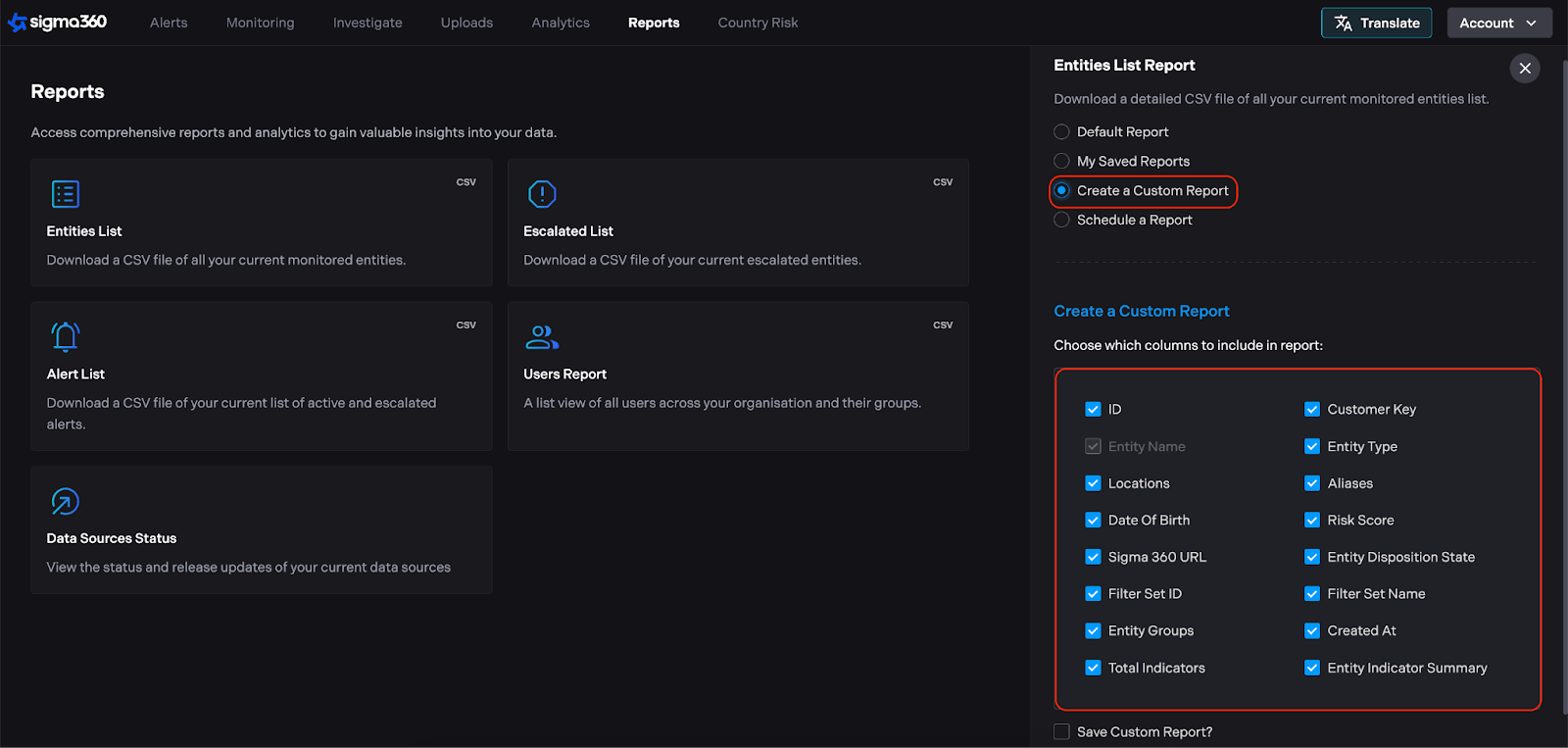
Users can customize reports by selecting specific columns and saving them as templates for future use.
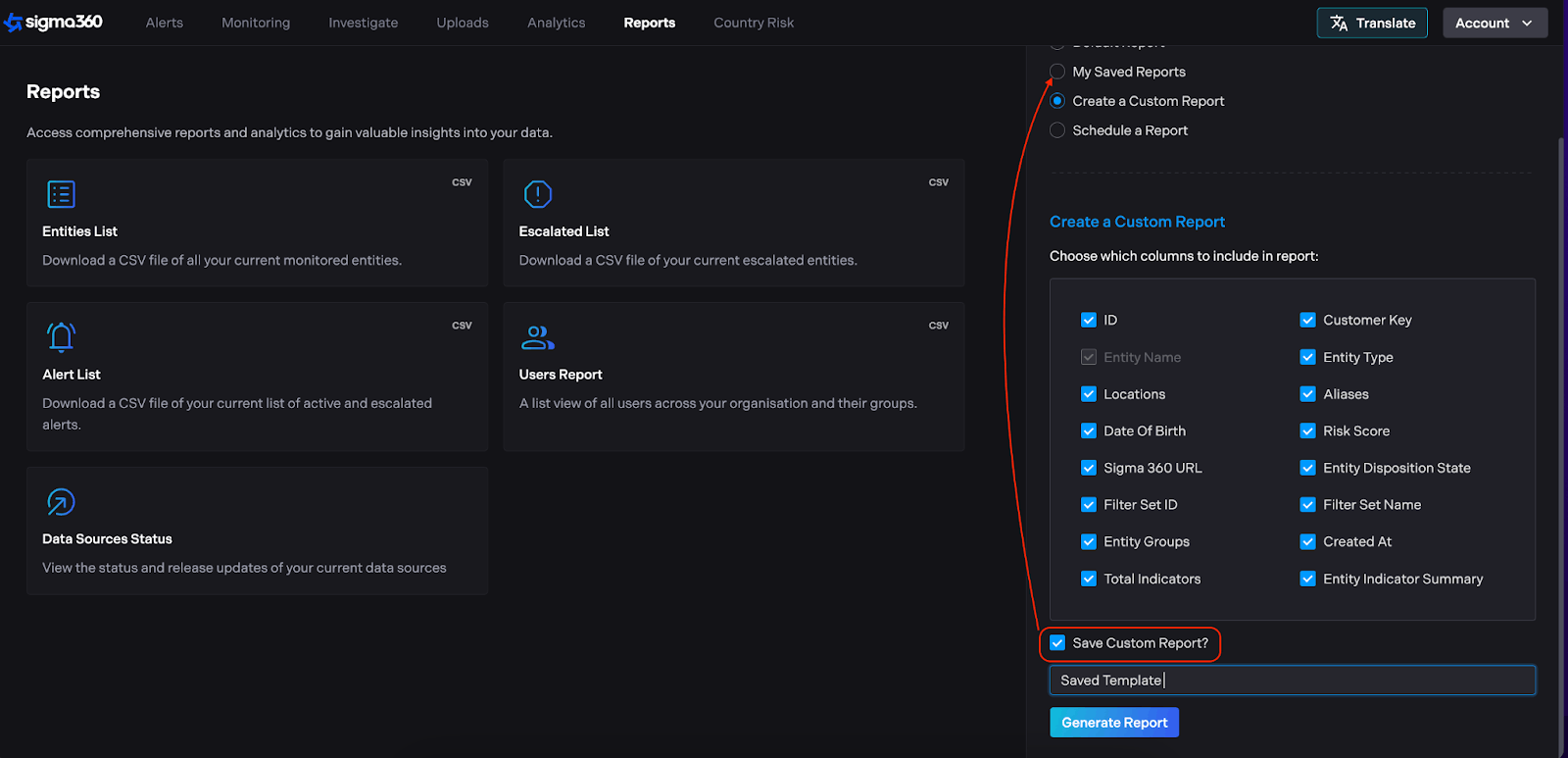
Users can schedule reports for automatic daily, weekly, or monthly generation.
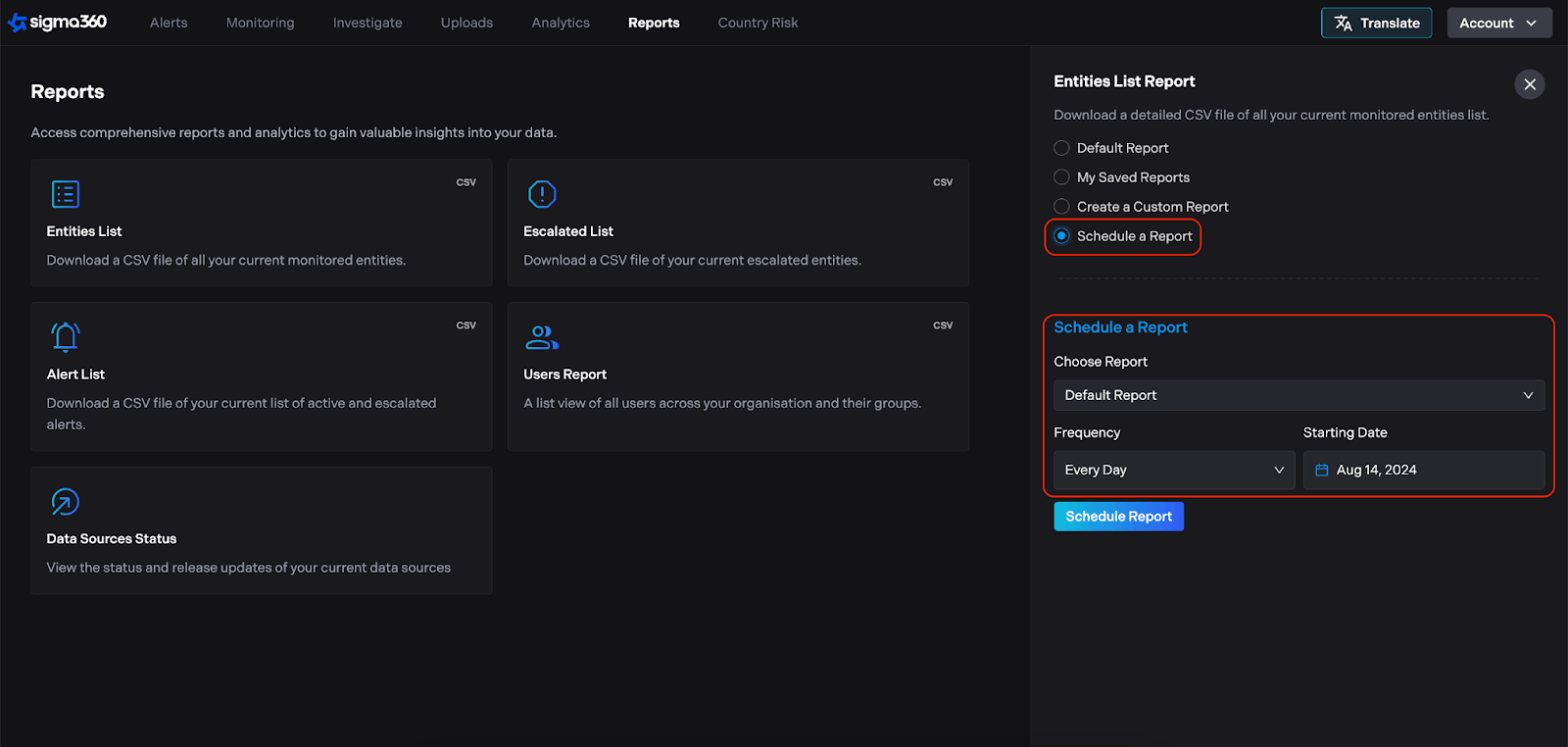
Users can download reports directly within the platform, with a queue displaying the status of requested reports. Users will continue to receive email notifications with reports as well.
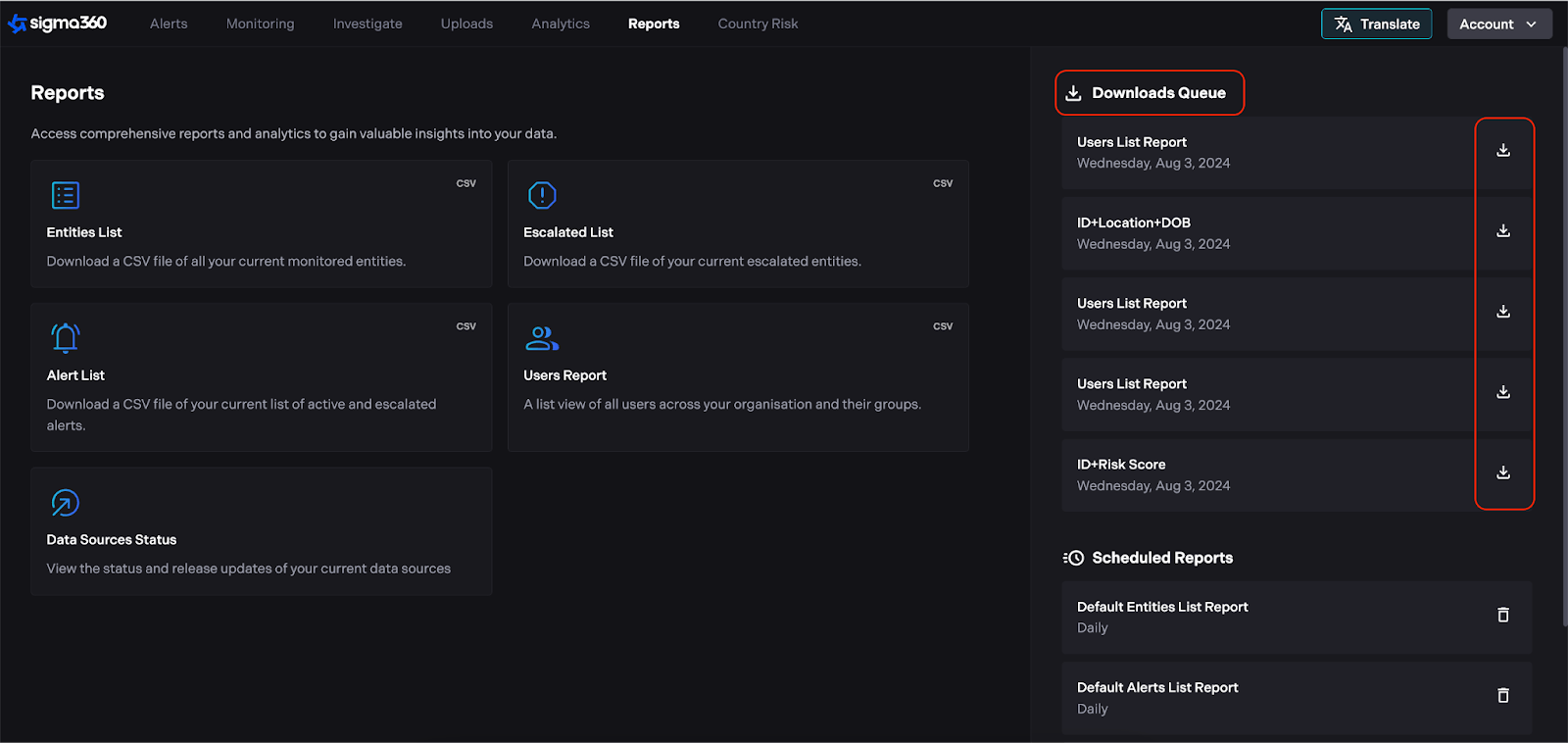
Reports can still be generated from their respective tabs. Please note: reports like the Search Report on Investigate and the Entity Report are available only on their corresponding pages.
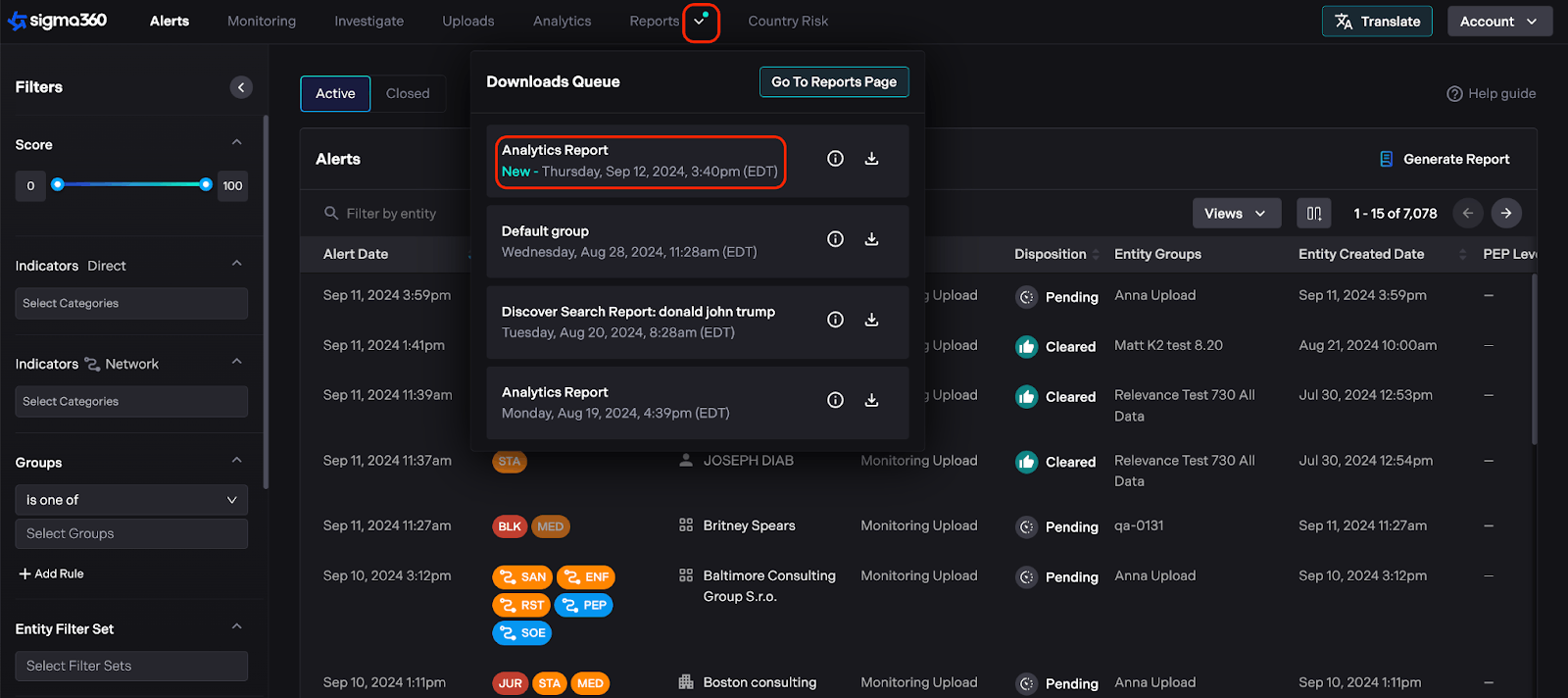
A notification icon on the Reports navigation menu alerts users when a report is ready for download. Clicking the icon opens a popup window displaying available reports, enabling users to download them directly without leaving their current task.
Analytics
Widgets provide a comprehensive at-a-glance overview of the Entities' and Indicators' overall state. Widgets within the Analytics can be filtered based on periods - such as the past week, past month, past 3 or 6 months - and by groups, allowing users to focus on specific sets of data.
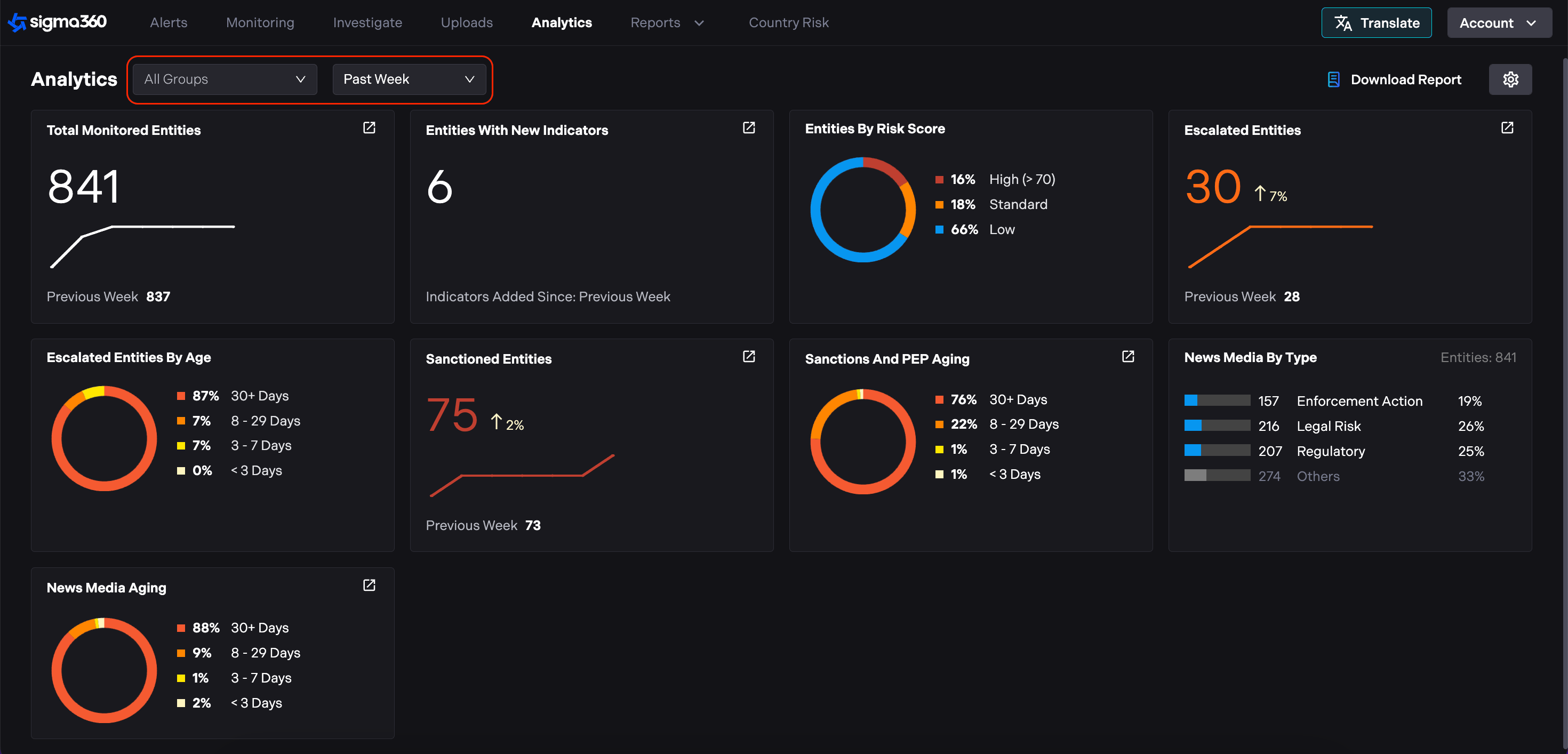
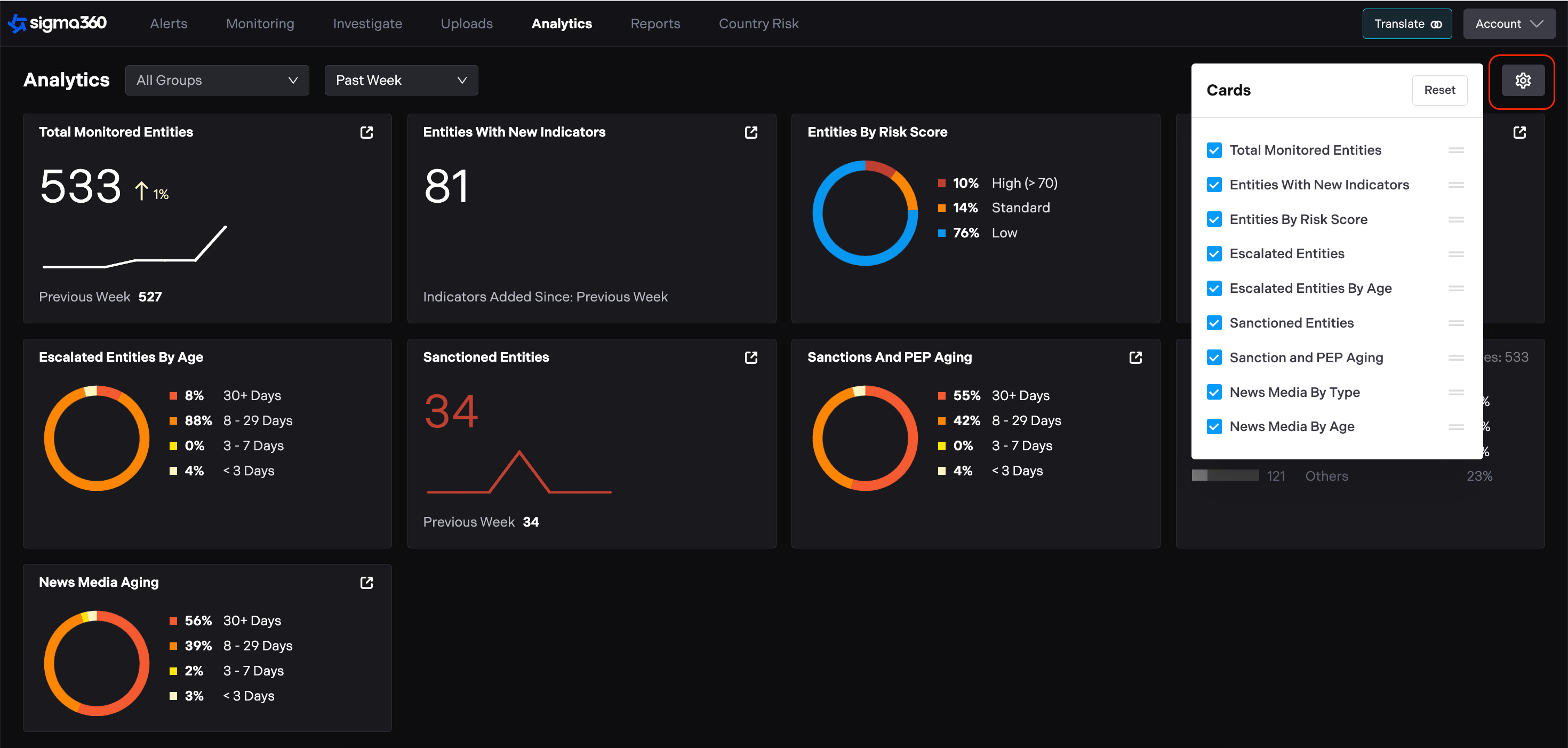
Additionally, users can configure widgets according to their preferences including re-ordering or hiding for a personalized experience.
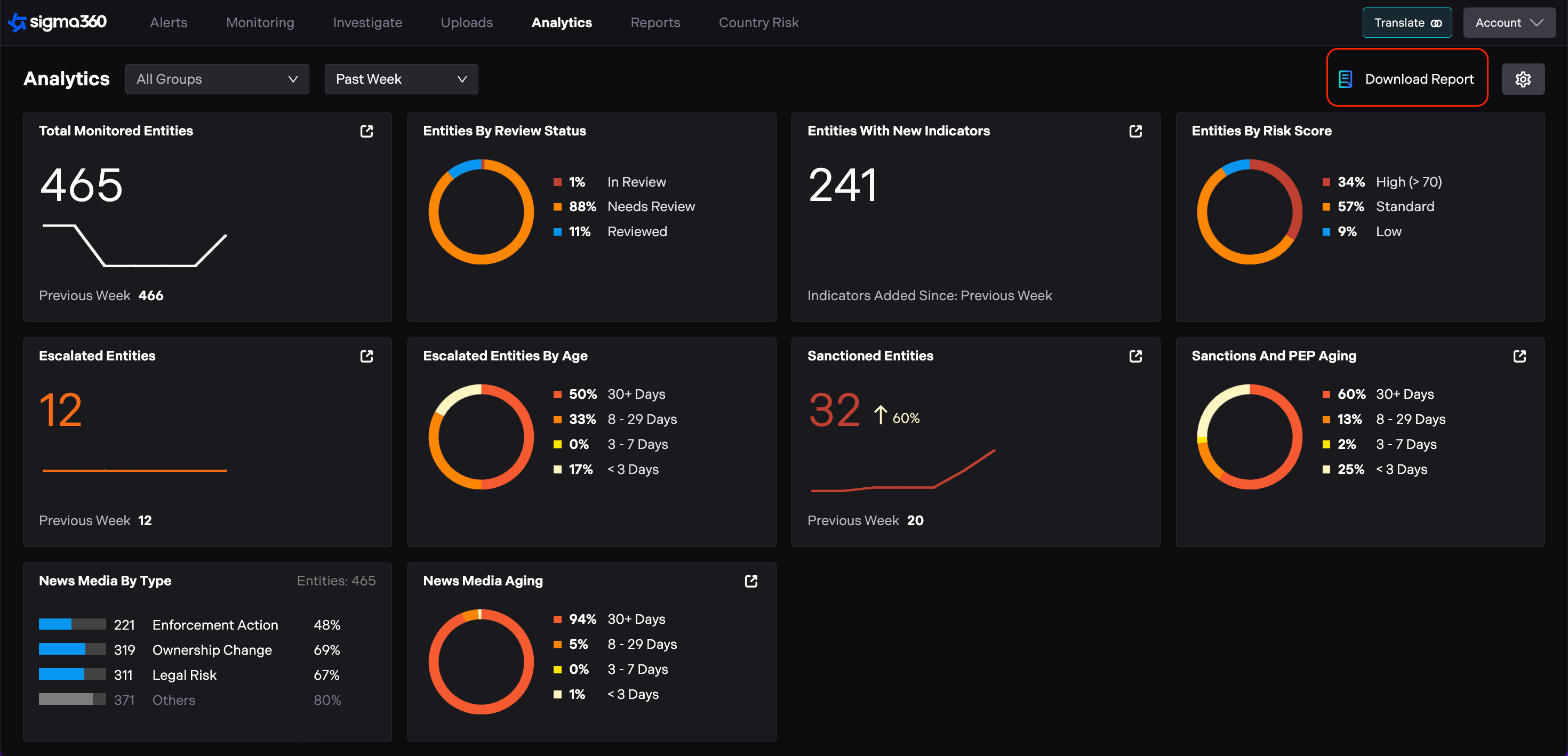
Users can export their entire dashboard across all groups or select specific group for export by clicking the Download Report button in the top right corner of the Analytics tab.
Entity Report
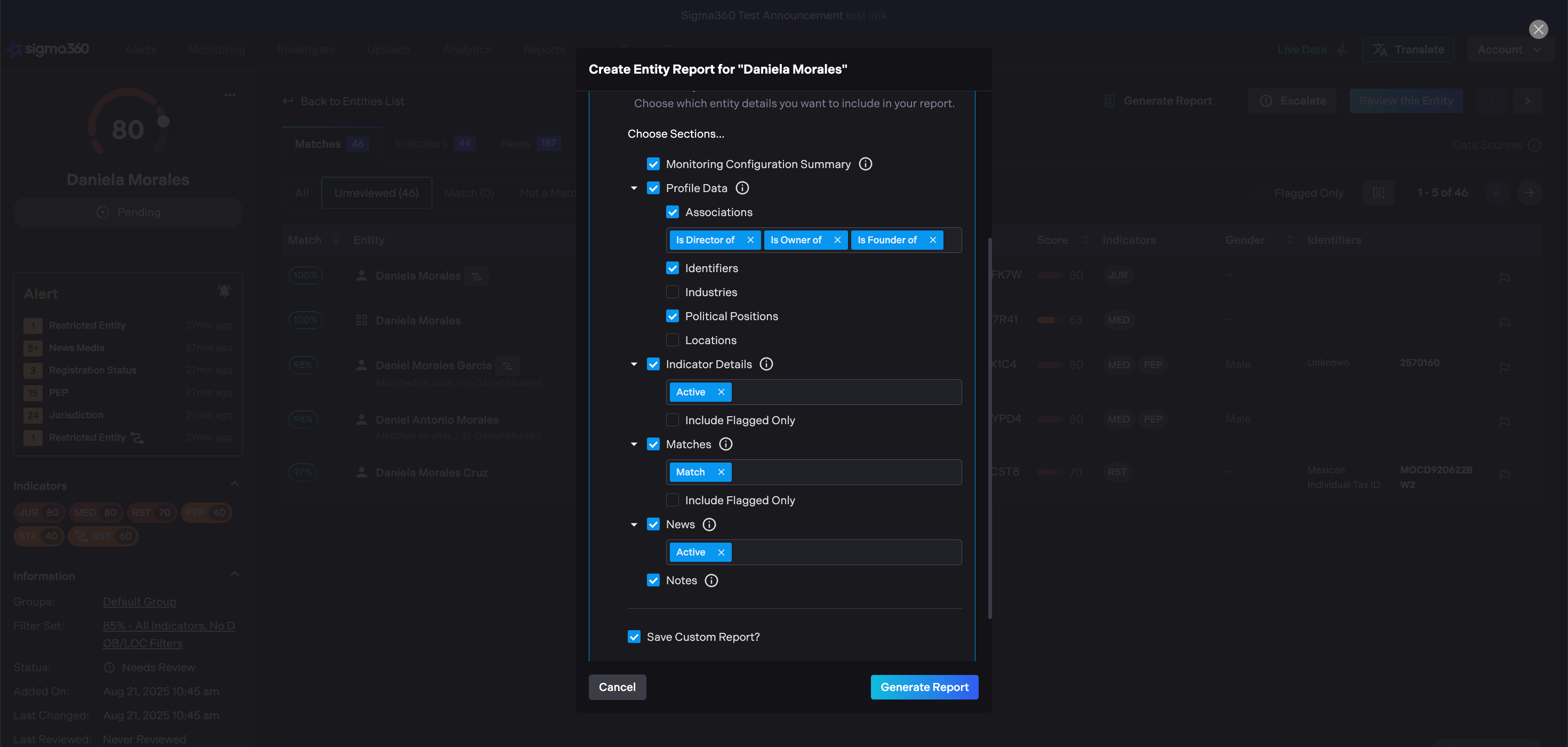
Users can generate reports on a specific Entity by clicking the “generate report” button.
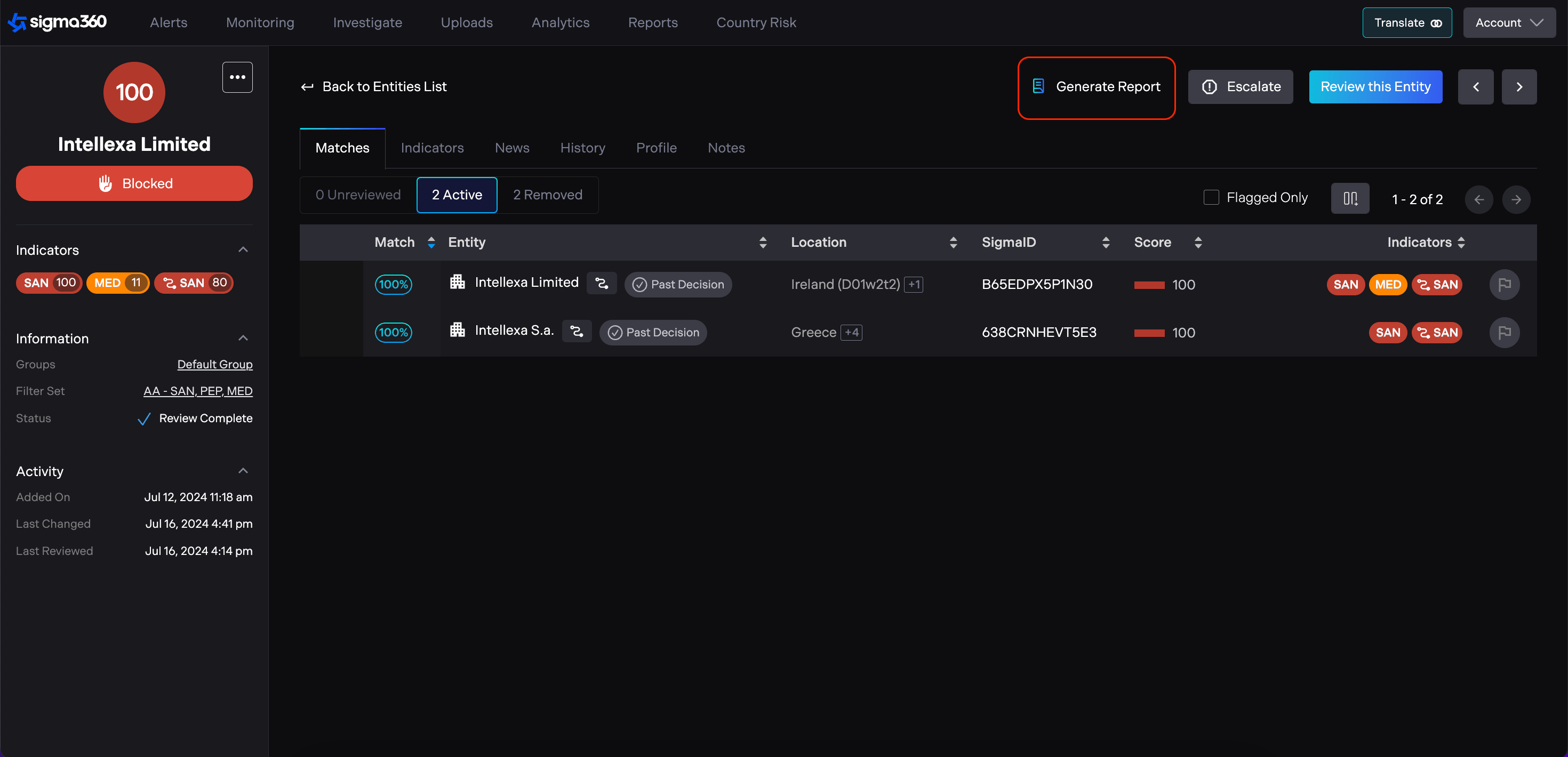
When generating a specific Entity report, users have various options.
i) Monitoring Configuration Summary
ii) Profile Data
iii) Indicator Details and Forced Labor Entities
iv) Matches
v) News
vi) Notes
Users can fully customize Monitored Entity Reports to fit their needs. Reports can be tailored to include only specific relationships (e.g., shareholder, director, or family of), as well as only active matches, indicators, and news, while excluding removed or unreviewed items. In addition, users have control over which profile sections to display, such as locations, identifiers, and political positions - ensuring the report contains only the most relevant information.
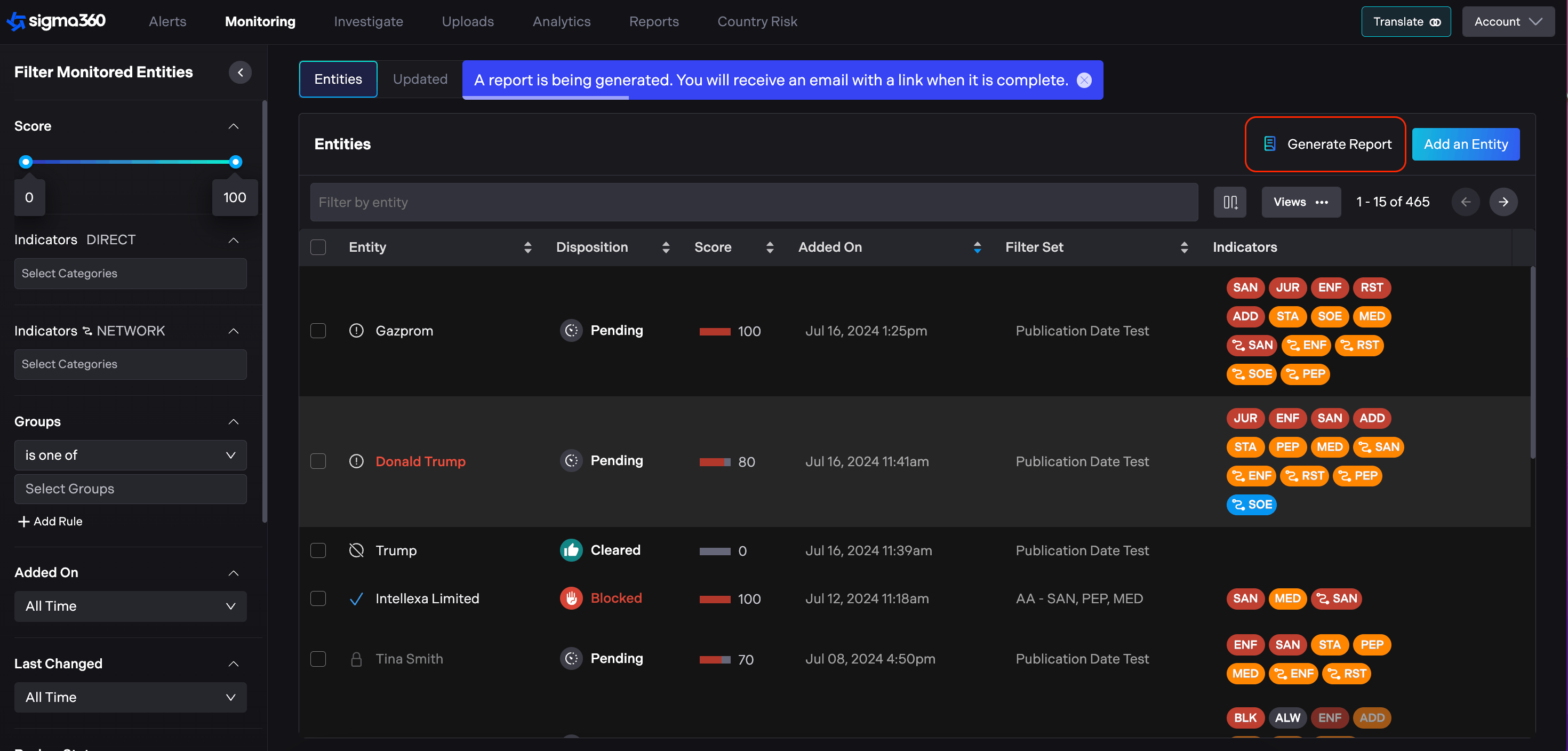
Monitoring Report
Users are able to generate reports from the Monitoring page using the “Generate Report” button in the top right hand corner. Once generated, reports will be sent to the registered email for review.
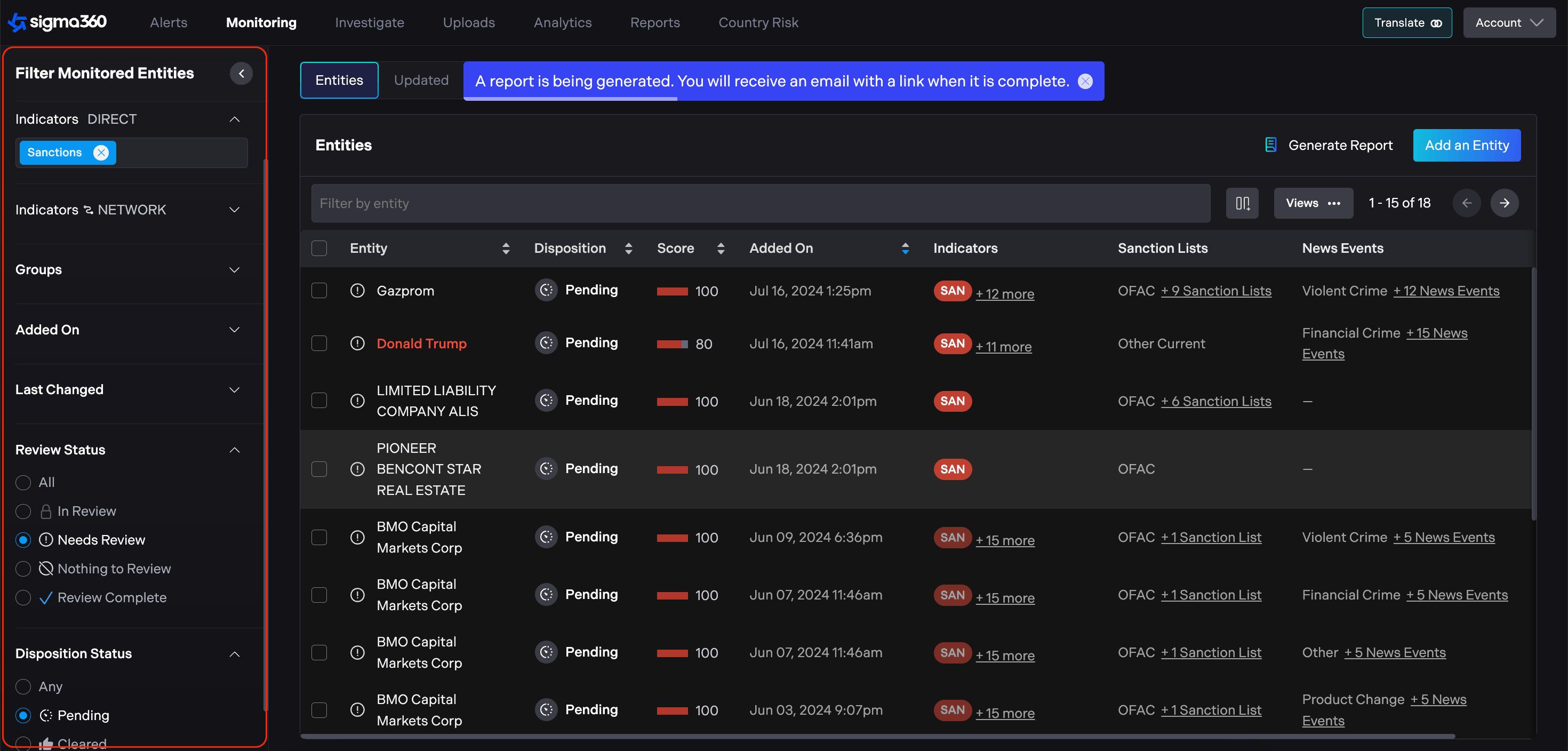
Specific View Reports
Users can create specific view and create a report for that view versus all Entities. This ensures that users are able to extract information for only those Entities that they are interested in.
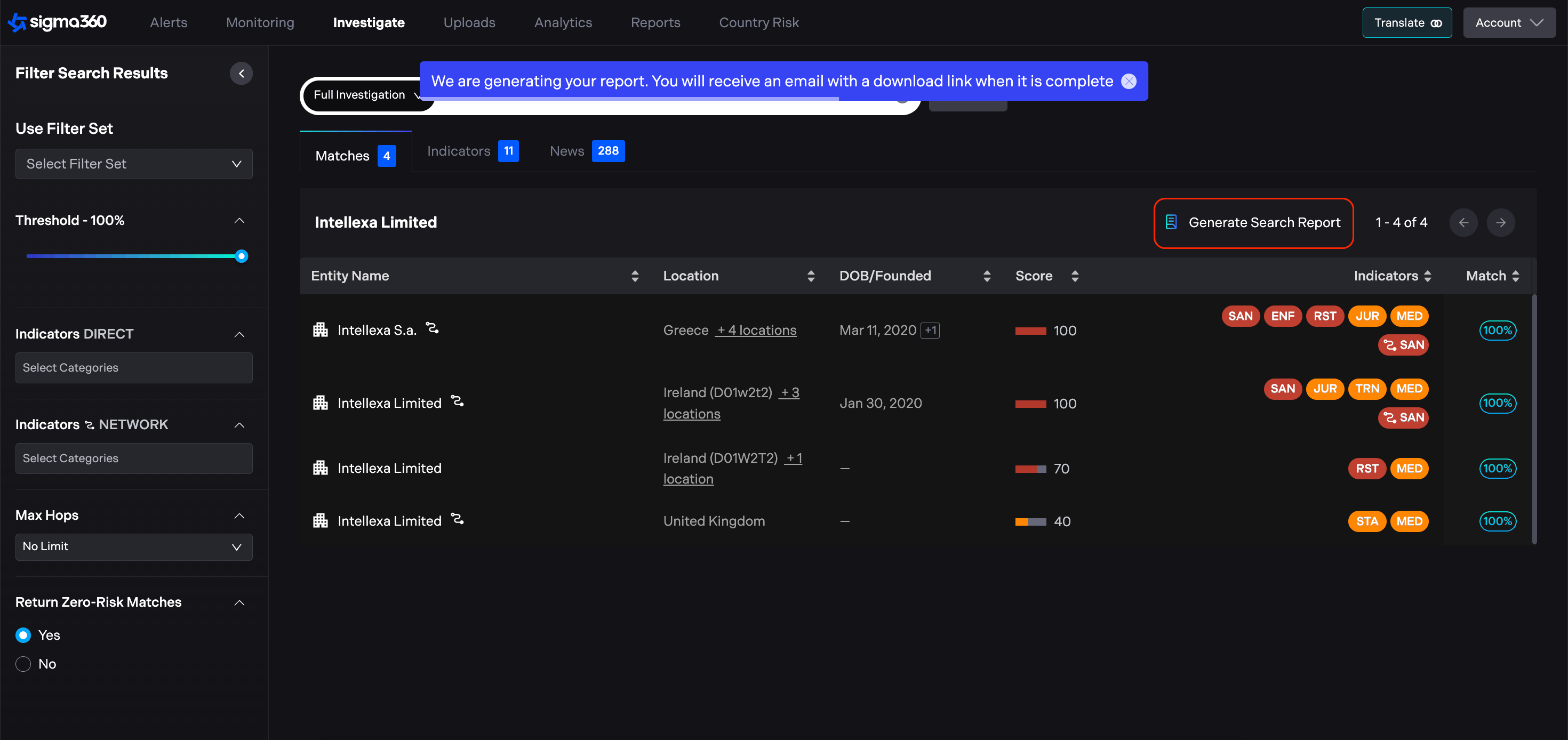
Investigation Search Report
Users can create a PDF report containing details of search. In order to generate a report, users should click the "Generate Search Report" button. The relevant report will be delivered to the email.
Alerts Report
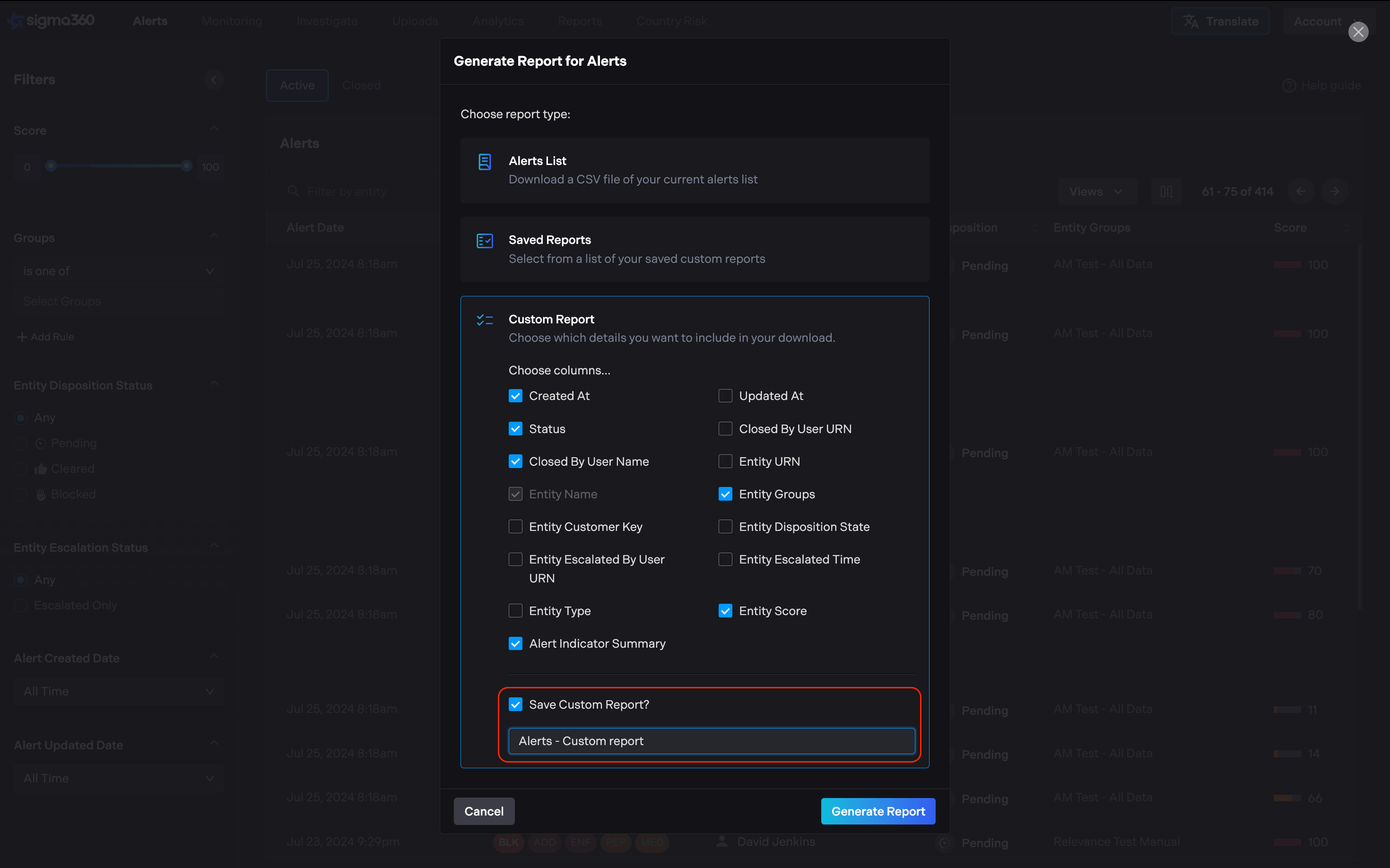
Users are able to generate reports from the Alerts page using the “Generate Report” button in the top right hand corner. Reports will be sent to the download queue on the Reports tab and to the registered email.
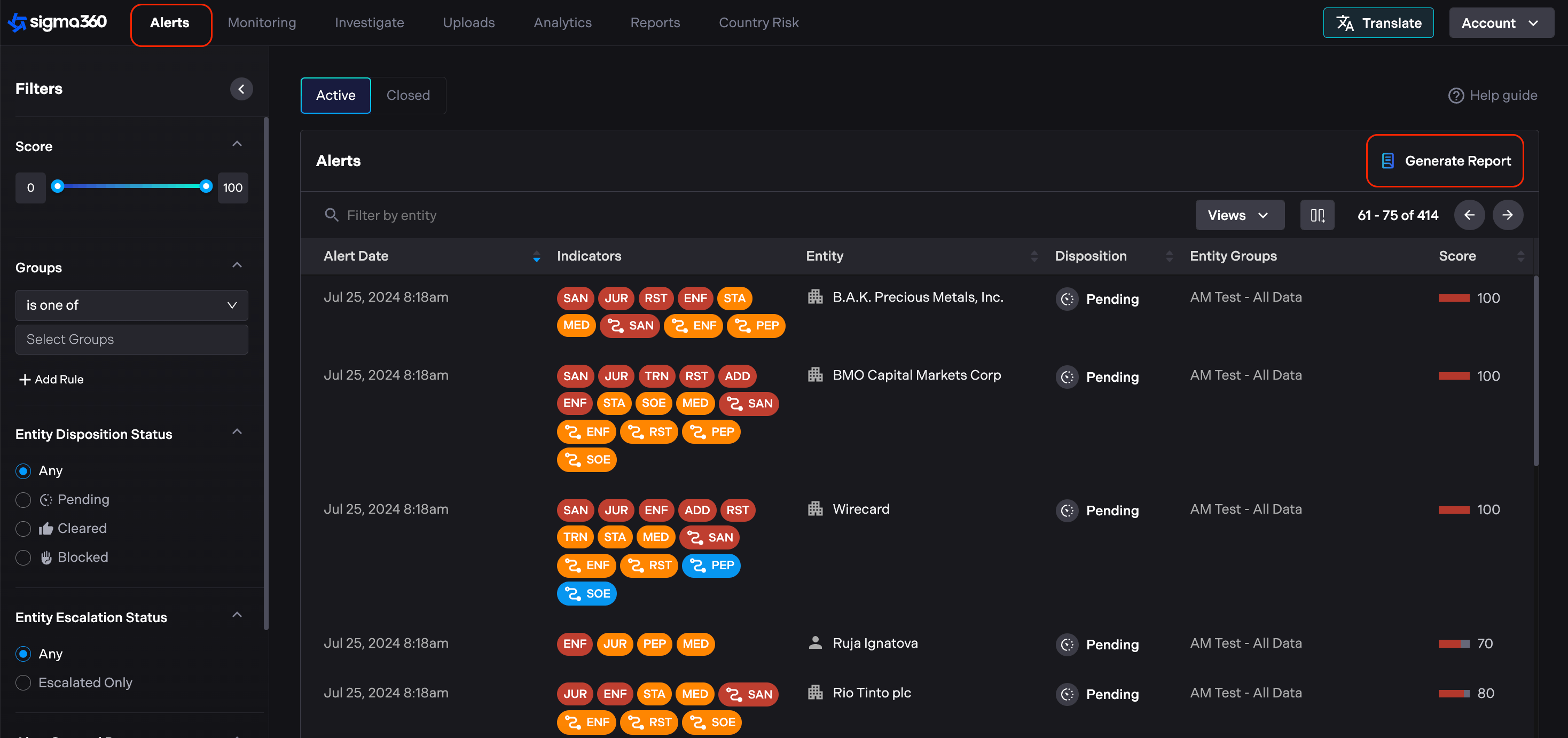
Users can customize reports by selecting specific columns and saving them as templates for future use.