Flexible Workflow: Entities & Alerts
Sub-sections included below refer to organizations configured with the Flexible Workflow Type. If you are unsure which workflow type applies to your organization, please find this information under Account → My Profile → Organization Information.
Alerts
With Alerts, users are able quickly identify and action the most critical issues, ensuring compliance tasks are managed efficiently and effectively. Alerts are accessible directly from the top-level navigation menu.
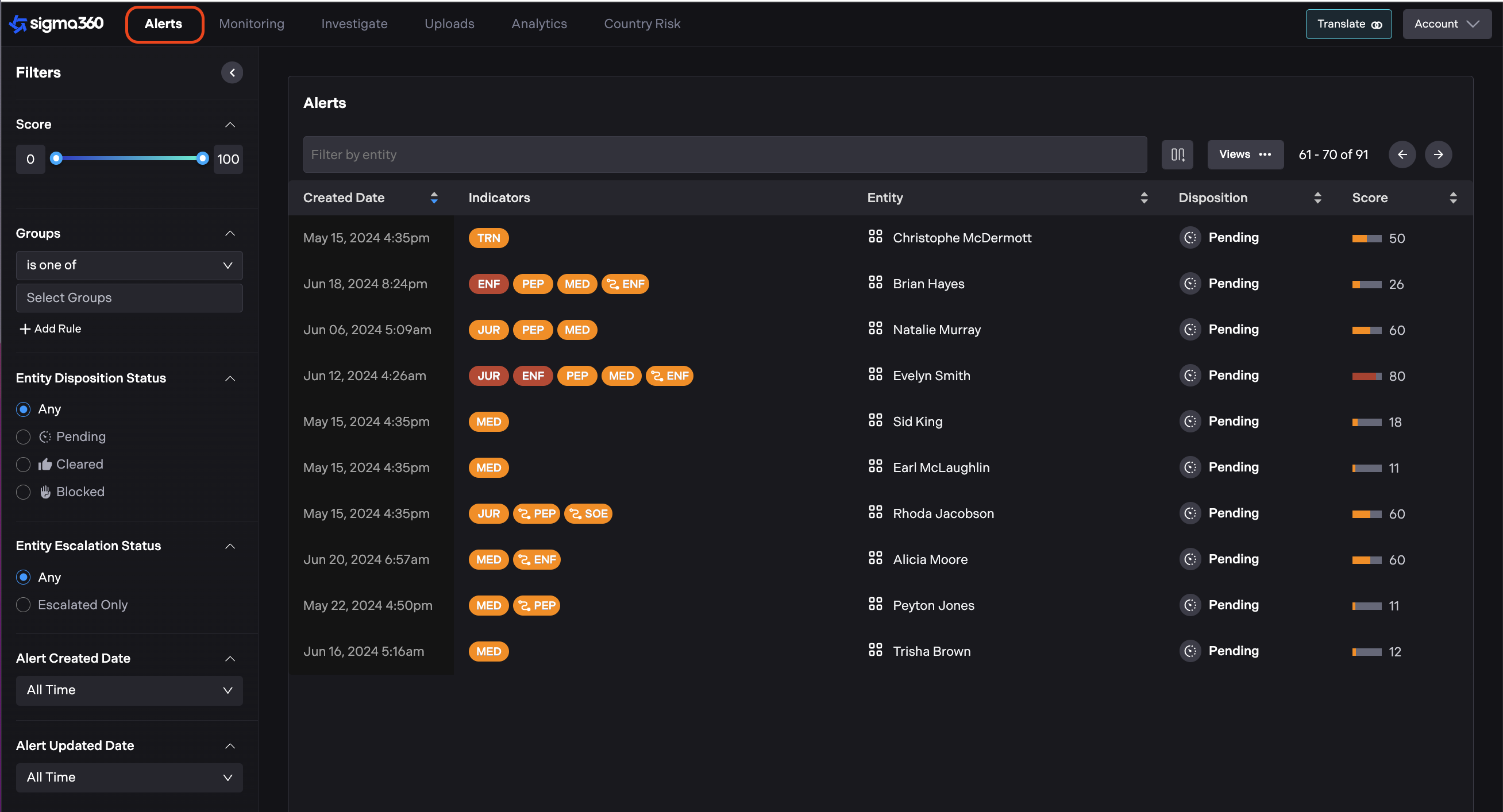
Alerts can be created from Monitored Entities or Screened Entities. They are generated based on the indicators included in the filter set for a given entity.
Each alert aggregates one or more indicators that have been added since the last closed alert or initial upload. Only one alert can be open on each Entity at a time.
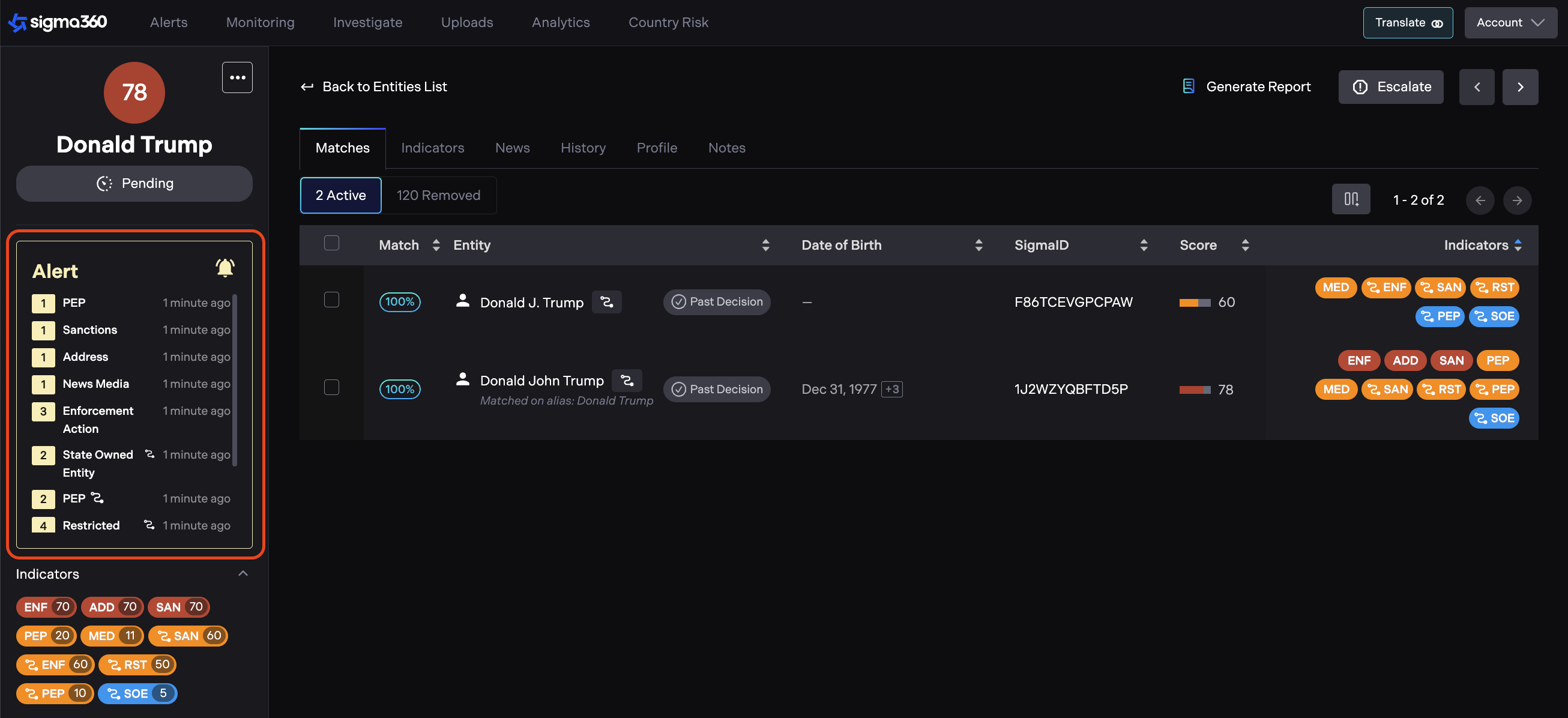
Users can view alert details by clicking on an alert in the left side panel.
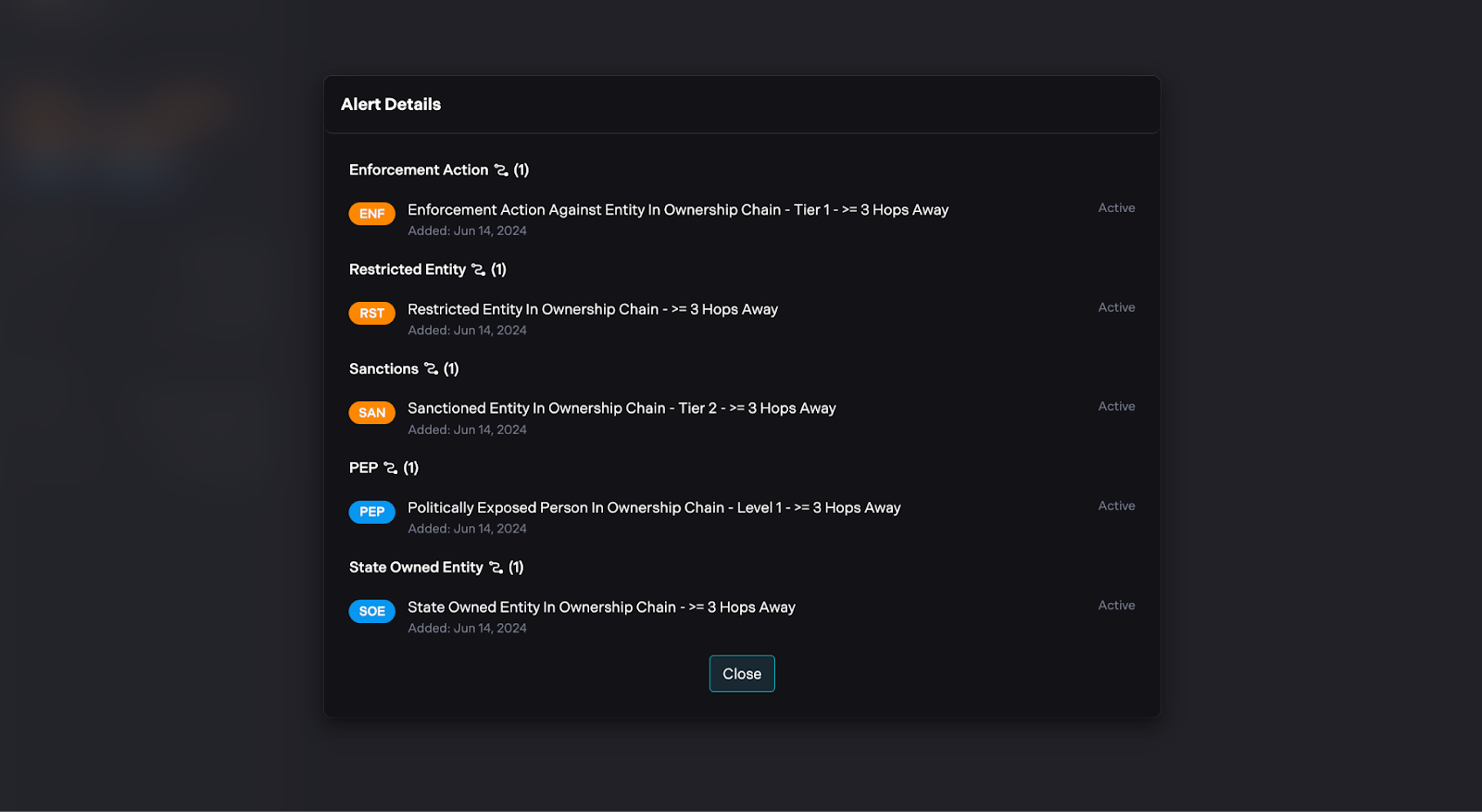
Users can close alerts at any time, independent of disposition, escalation, or decision-making.
The History tab on each Entity provides a record, allowing users to review the timeline of when Alerts were opened and resolved.
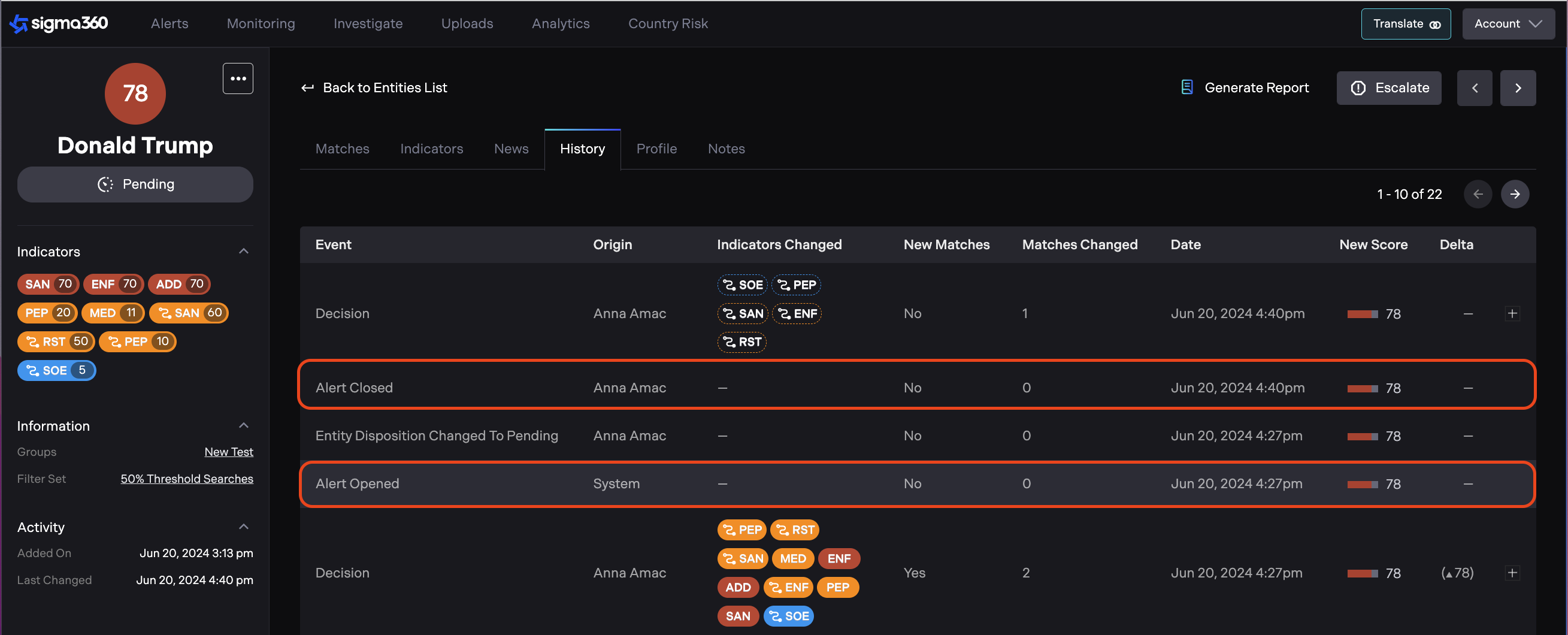
Closed alerts will be displayed in a separate "Closed" tab and cannot be modified or reopened.
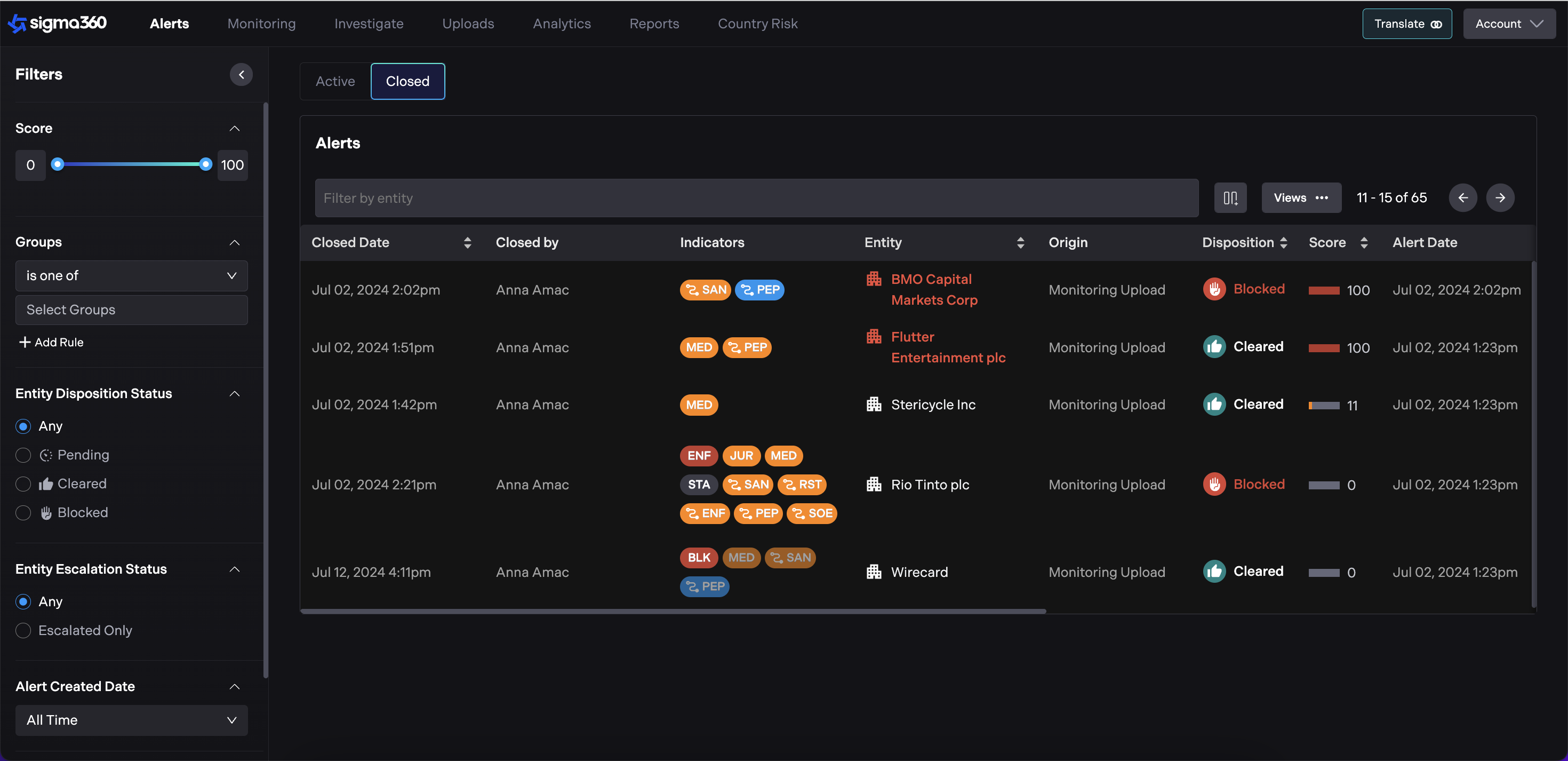
Open Alerts will be prominently displayed in the PDF report.
Decisioning Matches, Indicators and News
In the world of compliance management, Entities undergo changes and these changes require careful review to ensure compliance with policies and regulations. Users can evaluate the validity, relevance, and significance of data within an entity through a three-step decisioning process.
Matches (Sigma IDs) Decisioning
The first step involves examining the profile data to verify that a given Sigma ID is a correct match.
Users can view a list of matches in the "Matches" tab. Each match is displayed with details such as match percentage, entity name, date of birth, location, SigmaID, identifier, gender, score, and indicators.
"Match Decision" column enables faster decision-making by allowing quick actions on Matches directly from the table. This column is also available in the column selector for customization.
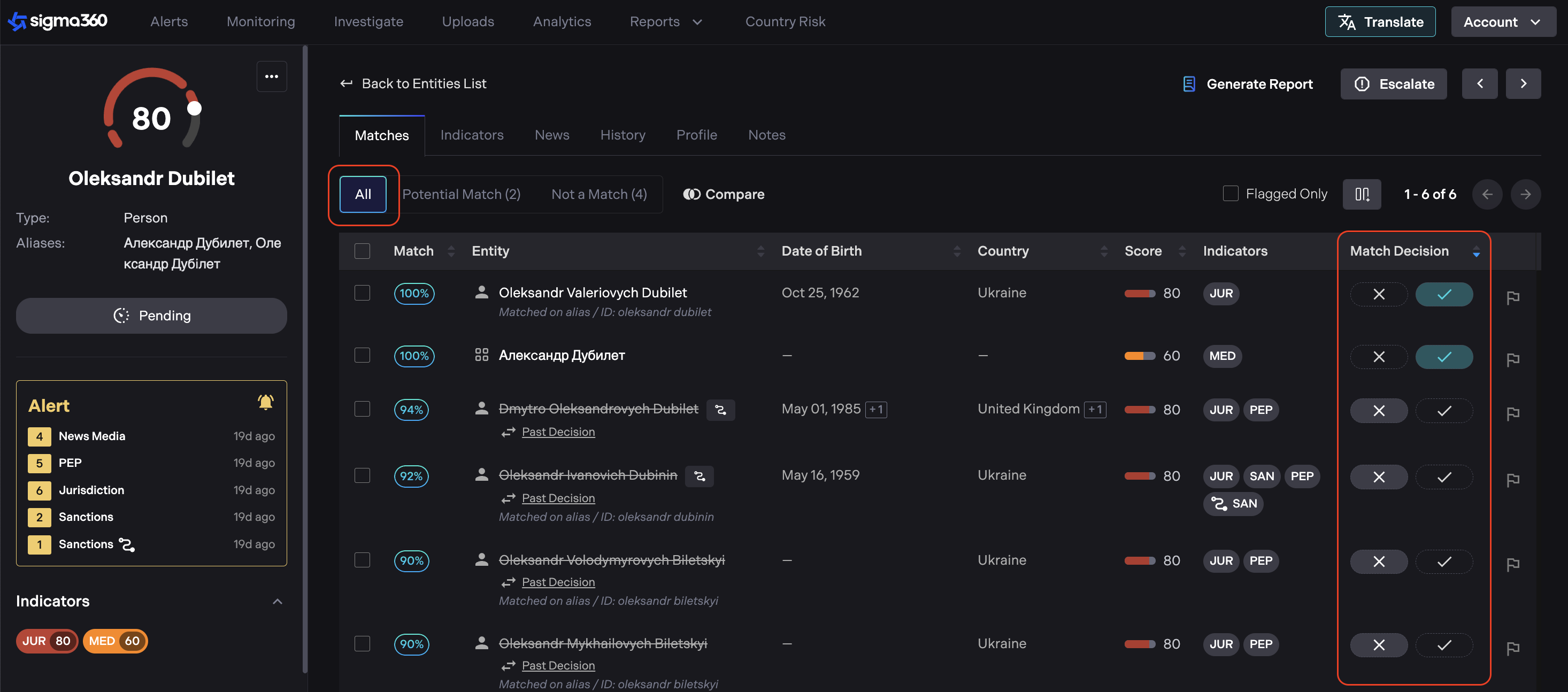
Users can still apply bulk actions using the checkboxes.
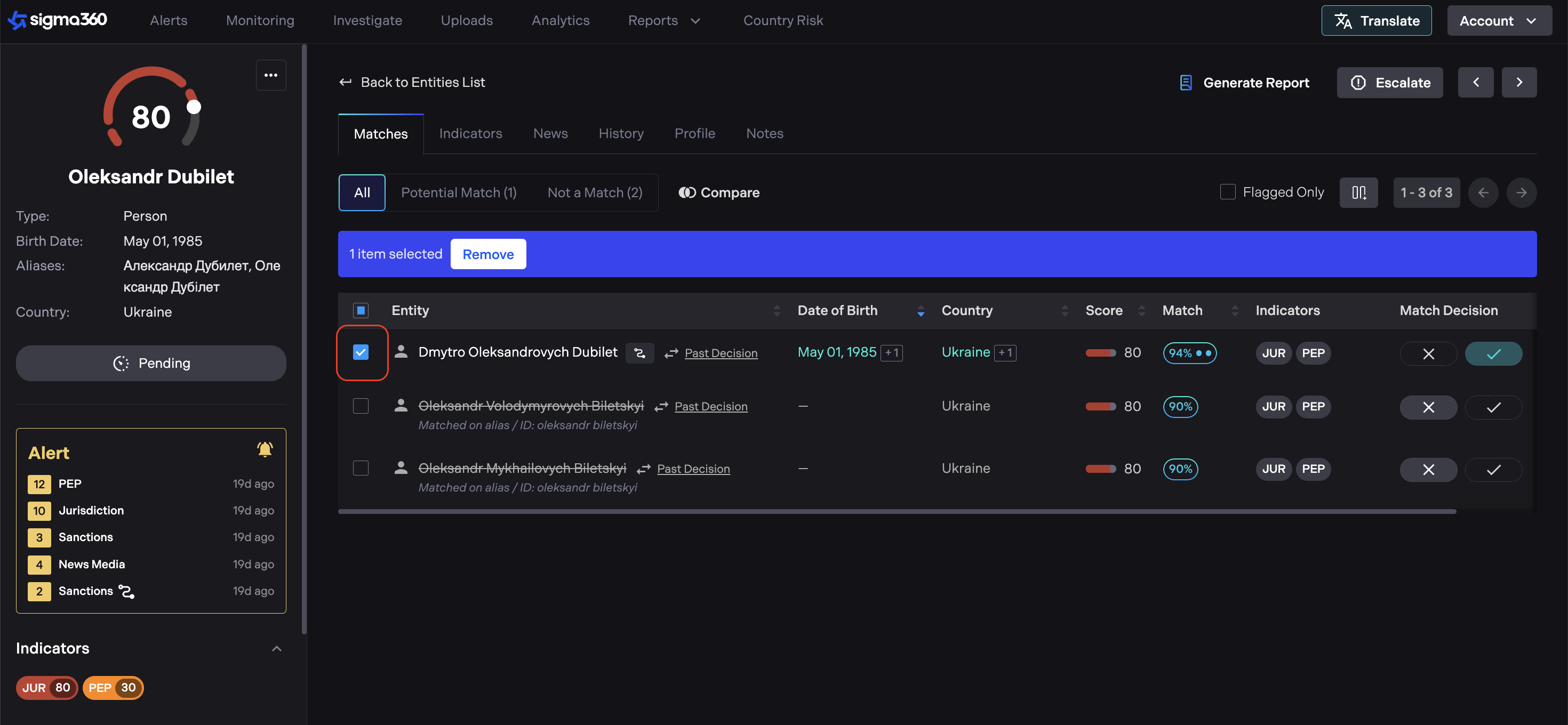
Users should provide the reason(s) for removing the match. The reasons include:
-
No Partial/Full Name Match
-
No Occupation, Profession, or Role Match
-
No Citizenship or Nationality Match
-
No Date of Birth/Founded Match
-
No Location or Address Match
-
No Gender Match
-
Other (with an option to enter notes)
Once matches are removed, they appear in the "Not a Match" tab. Removed matches are marked with a "Past Decision" badge, indicating that a decision has already been made regarding these matches. Score will be adjusted when matches are removed.
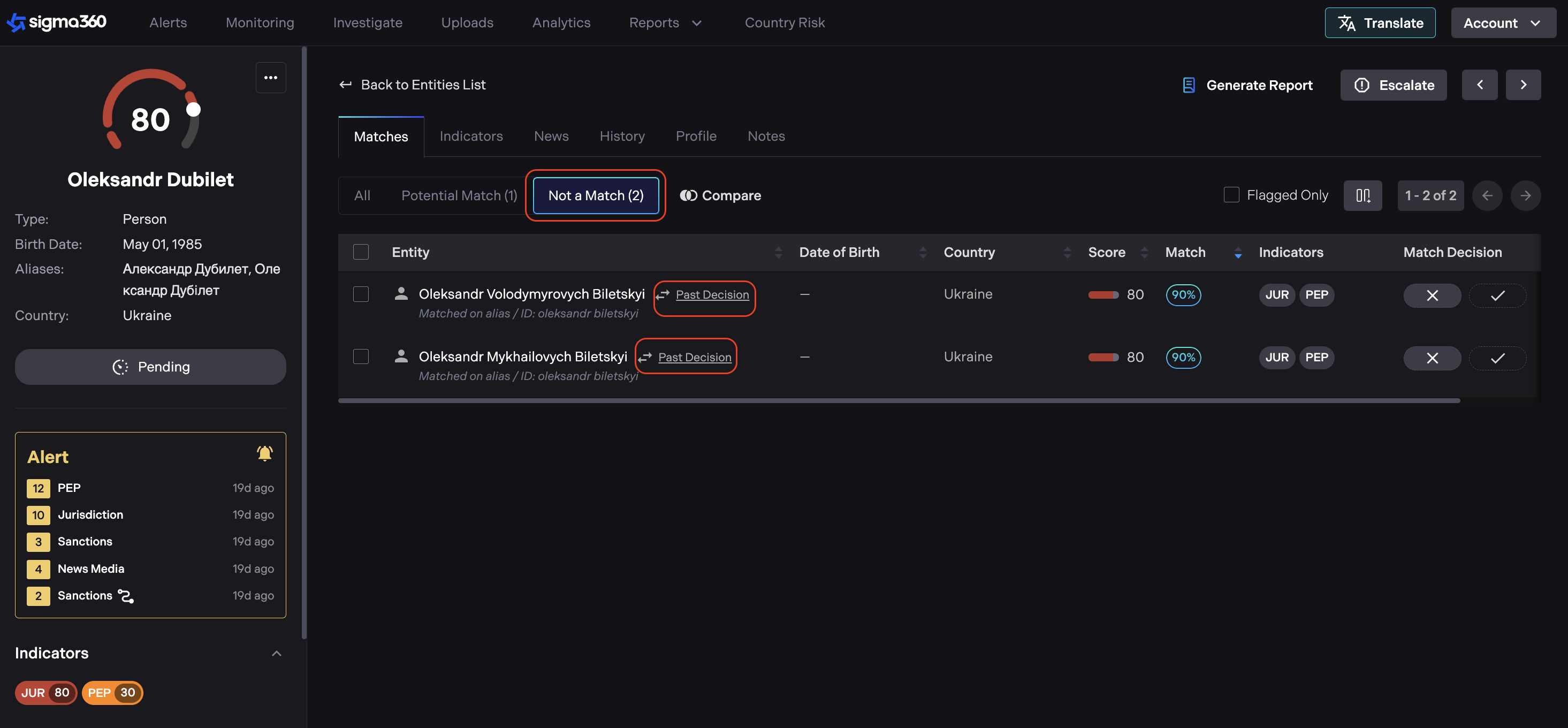
“All”** **tab consolidates all match statuses into one view, including:
-
Potential Match (previously Active)
-
Not a Match (previously Removed)
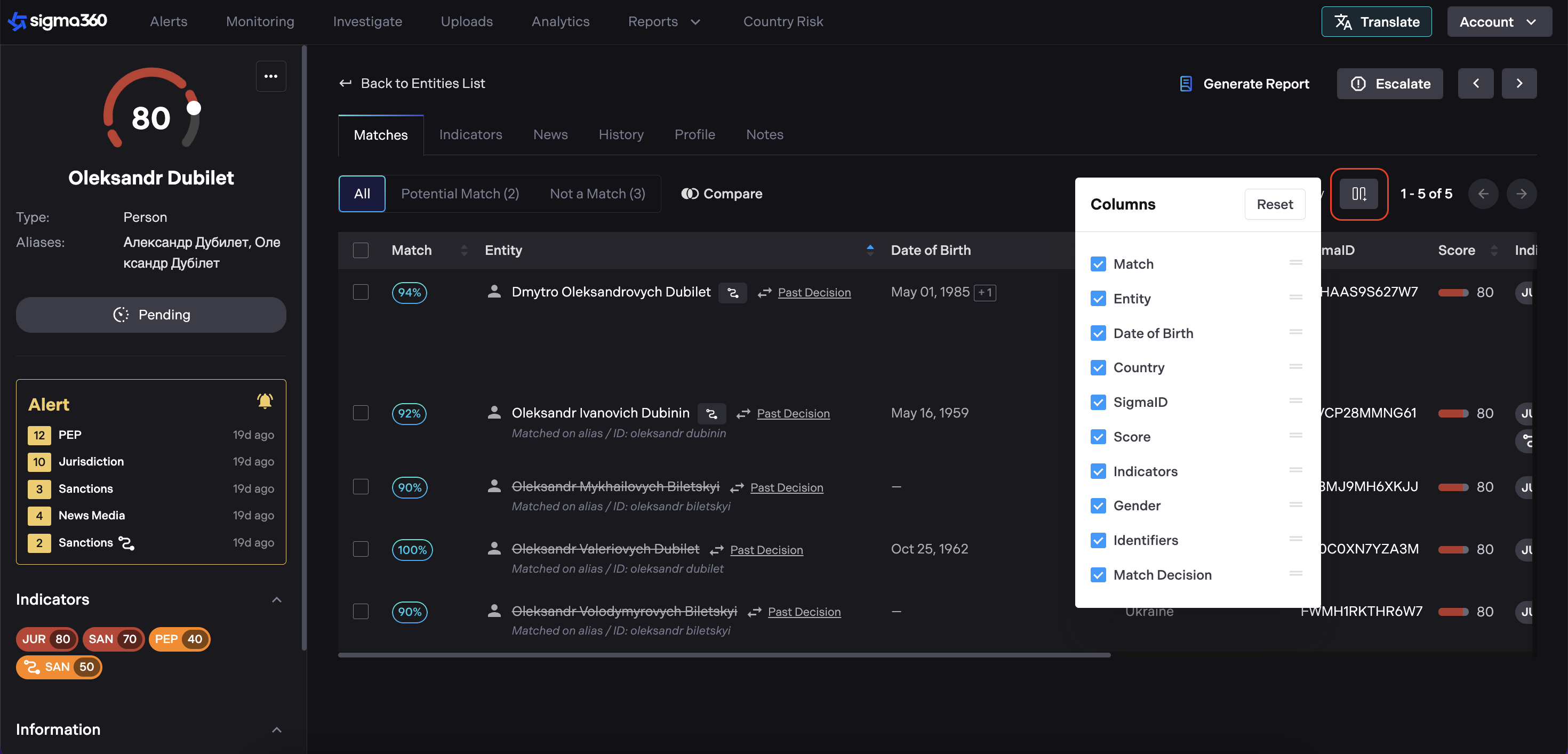
Users can customize their view on the Matches tab by selecting which columns to display and arranging them in their preferred order. The reset button will restore all unchecked columns and display them in default order.
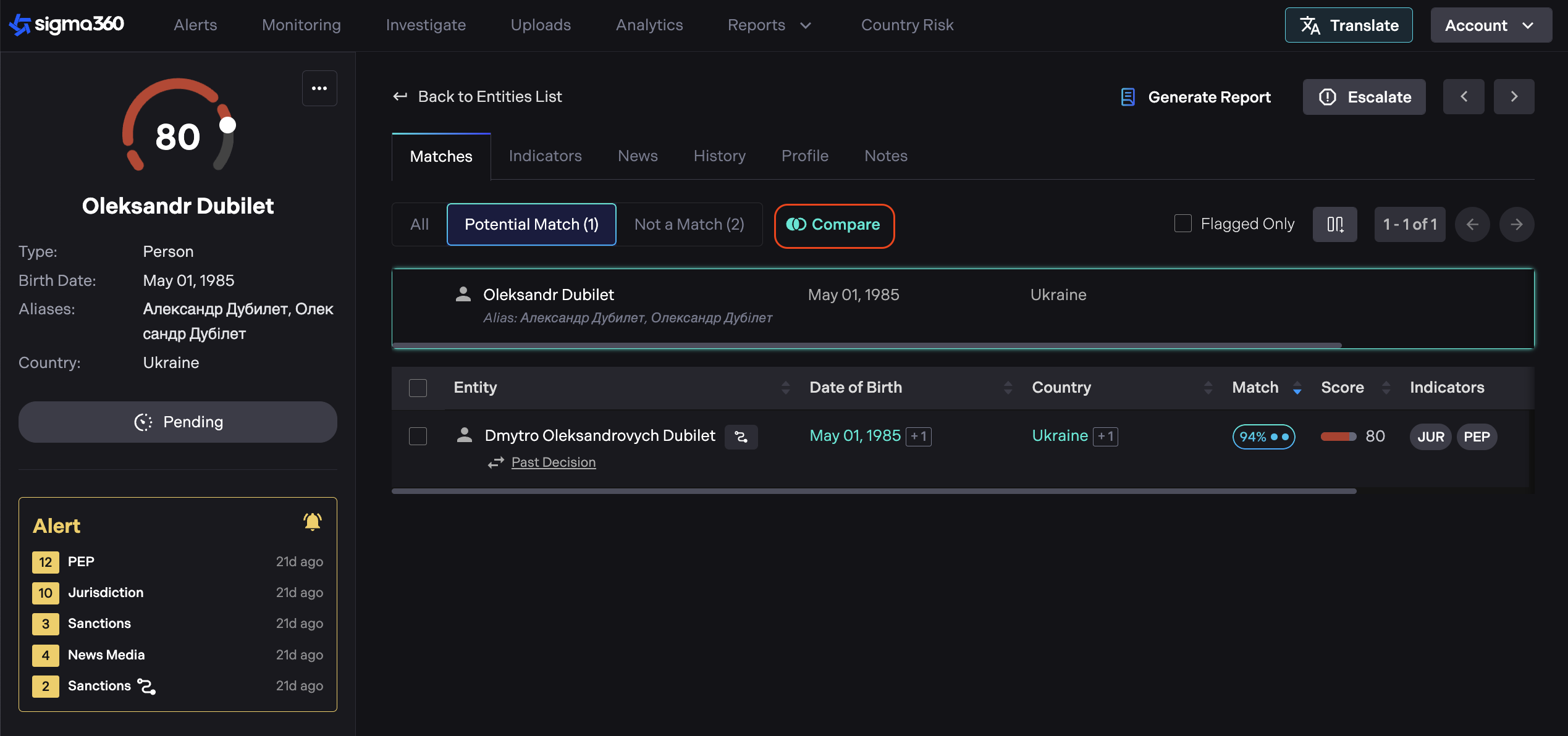
The Compare toggle allows users to easily compare their search criteria with potential matches. When enabled, a row displaying the user’s search input appears at the top of the table, aligning column by column with the matched results.
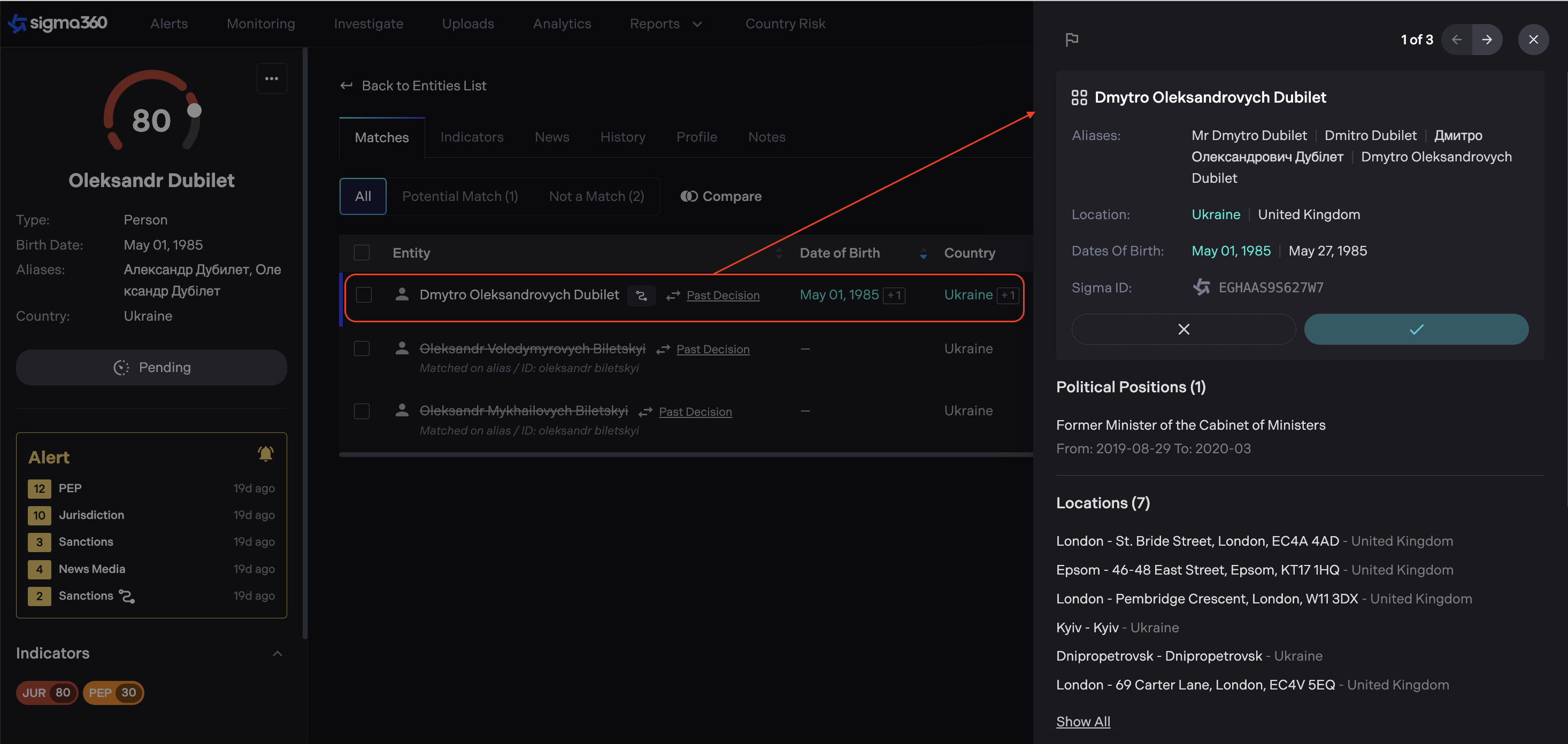
Clicking on a table row now opens a sliding panel from the right.
-
This panel provides detailed match information while keeping the user on the same page.
-
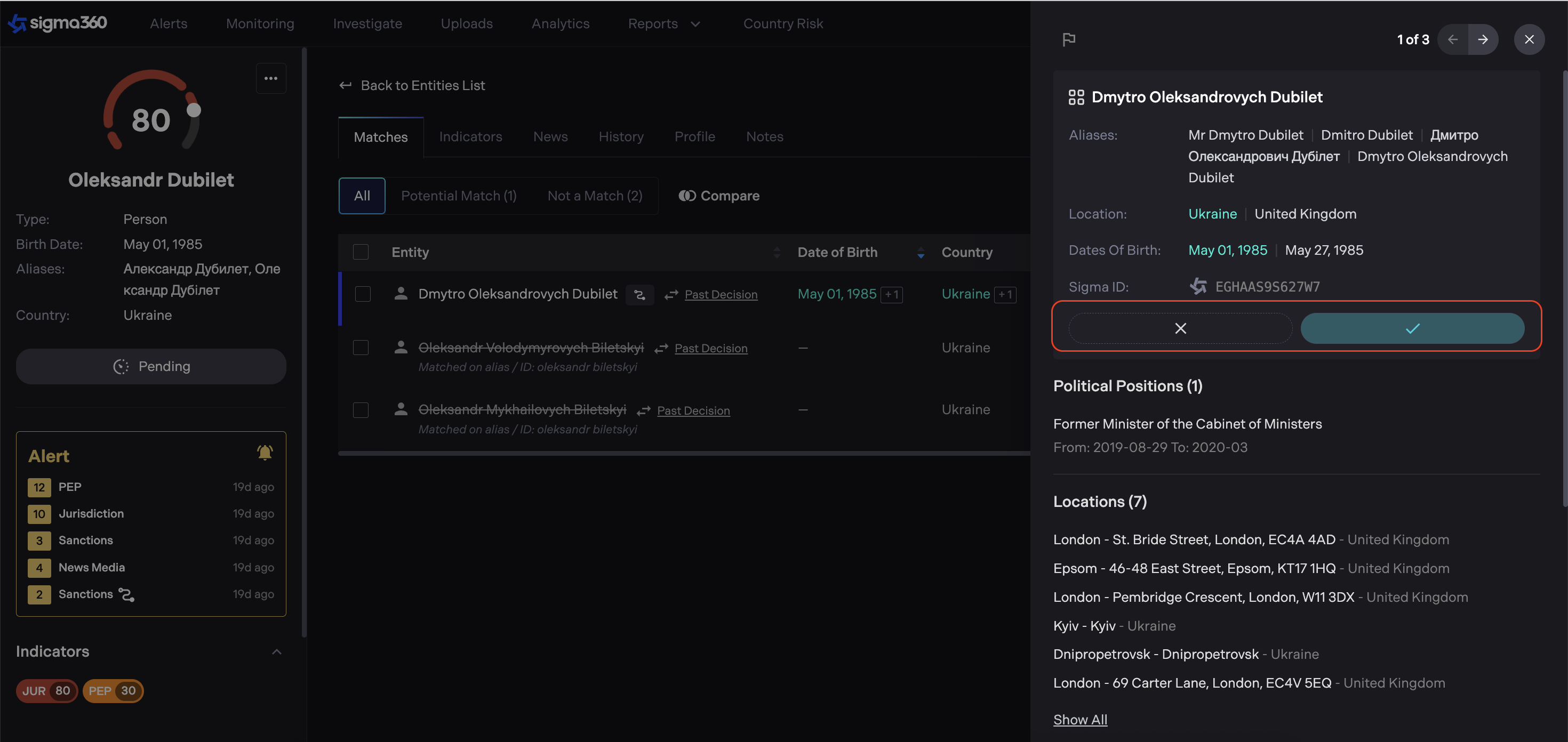
The match details panel now includes decisioning capabilities, allowing users to take action directly within the panel.
- Fields that match the user’s search (e.g., Alias, Date of Birth, Location) will now be highlighted for better visibility.
**I****ndicators **Decisioning In the second step, users assess whether an individual risk attached to a match is valid, relevant, and/or significant enough to warrant escalation or other action according to institutional policies. Users can view additional details about the risk by clicking "Full Details".
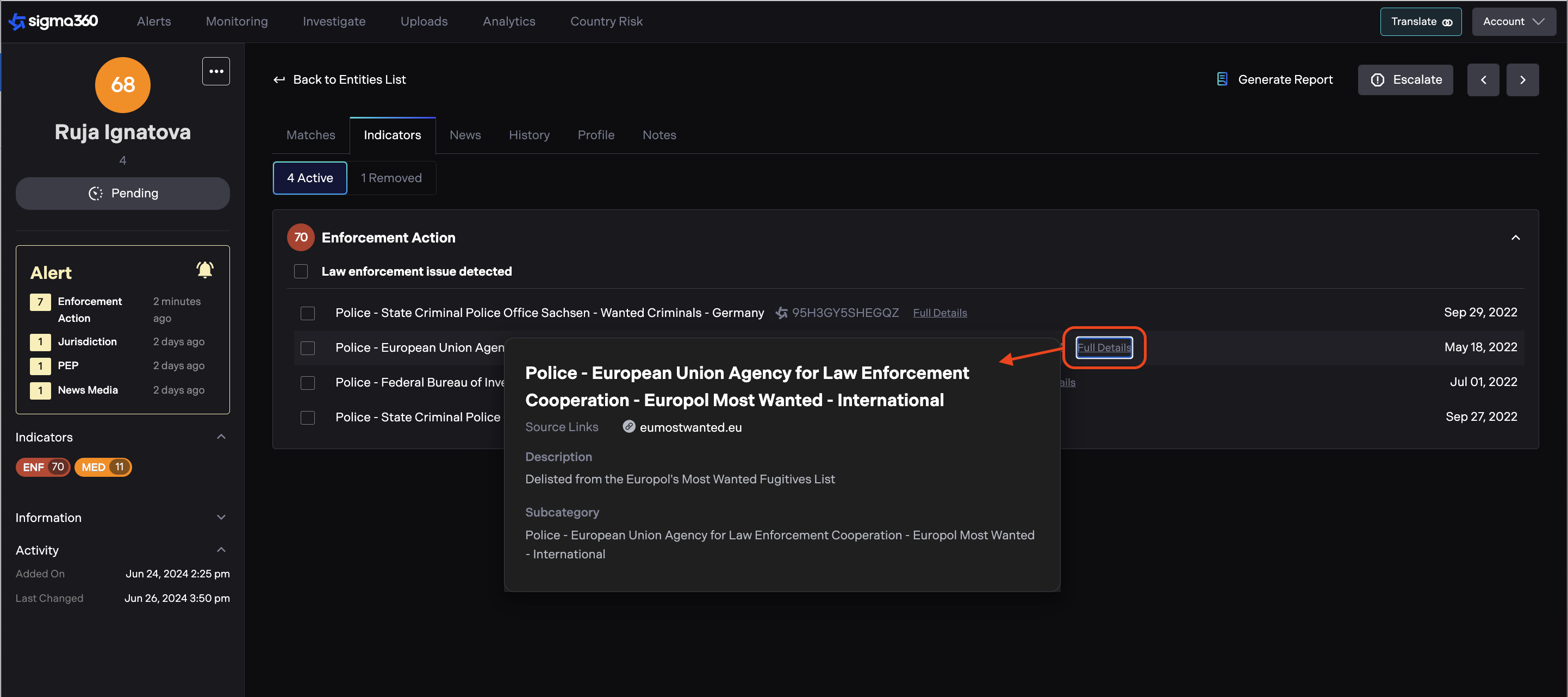
If a risk is relevant and significant, it remains "Active". If the risk is deemed irrelevant or too insignificant, it can be "Removed".
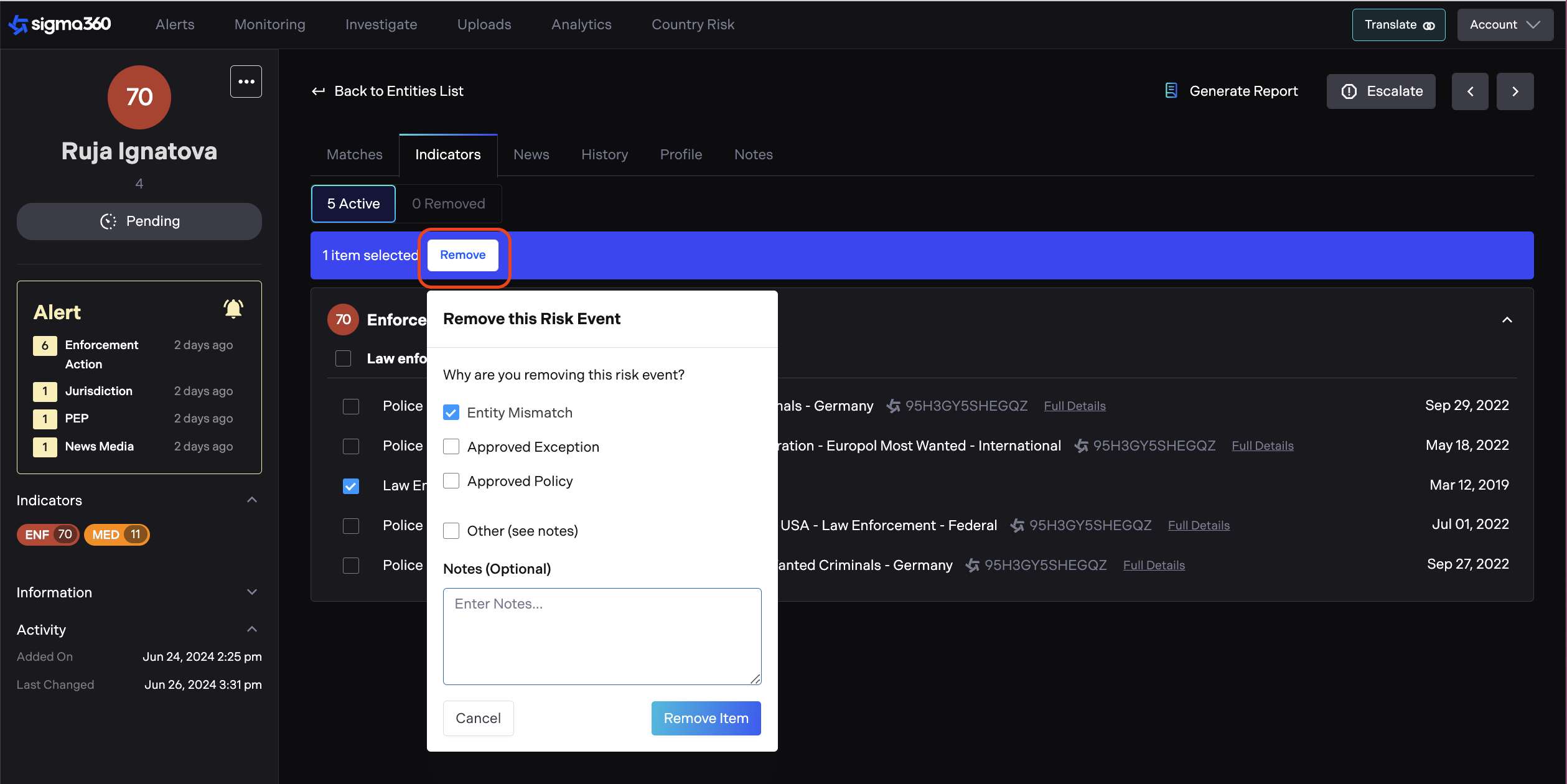
Users should provide the reason(s) for removing the risk event. The reasons include:
-
Entity Mismatch
-
Approved Exception
-
Approved policy
-
Other (with an option to enter notes)
Once risks are removed, they appear in the "Removed" tab and marked with a "Past Decision" badge. Score will be adjusted when the risks are removed.
News Media Decisioning
The third step involves evaluating individual articles to determine if a news event is relevant and material.
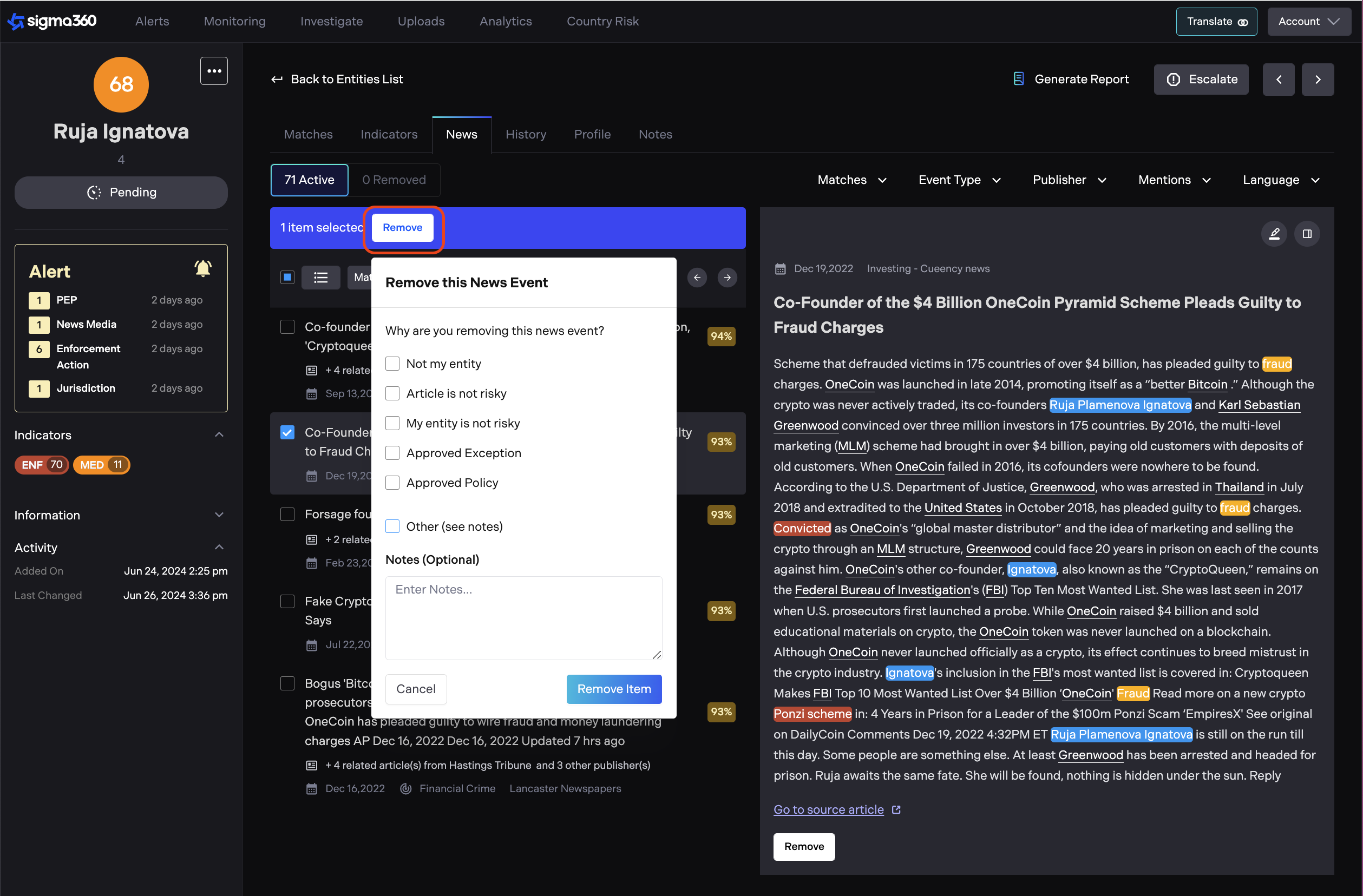
If a news event is relevant and material, it should remain active. If the news event is deemed irrelevant or too insignificant, it can be removed.
Users should provide the reason(s) for removing the news event. The reasons include:
-
Not My Entity - If the entity in the article is a different real world entity with the same name.
-
Article is not Risky - If the article doesn't contain material risks to your organization.
-
My Entity is not Risky - If your entity is not implicated by the risk of the article.
-
Approved Exception
-
Approved policy
-
Other (with an option to enter notes)
Score will be adjusted when news events are removed.
Layout Density
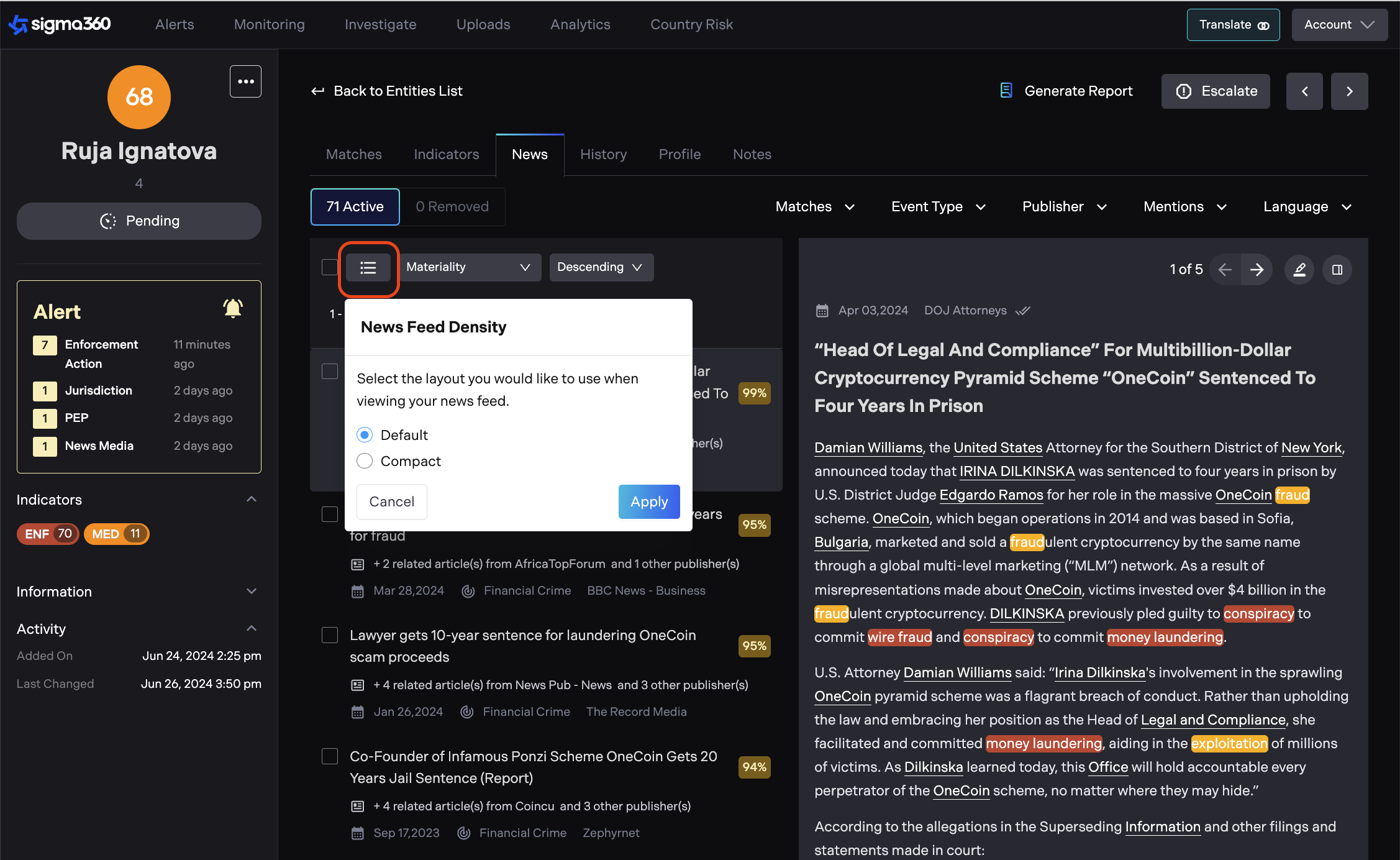
Users can adjust the layout density of the news list on the Entity page based on their preference. The default option will display the article title, publication date, event type, source, and materiality. The compact layout will display only the title and materiality for more streamlined viewing.
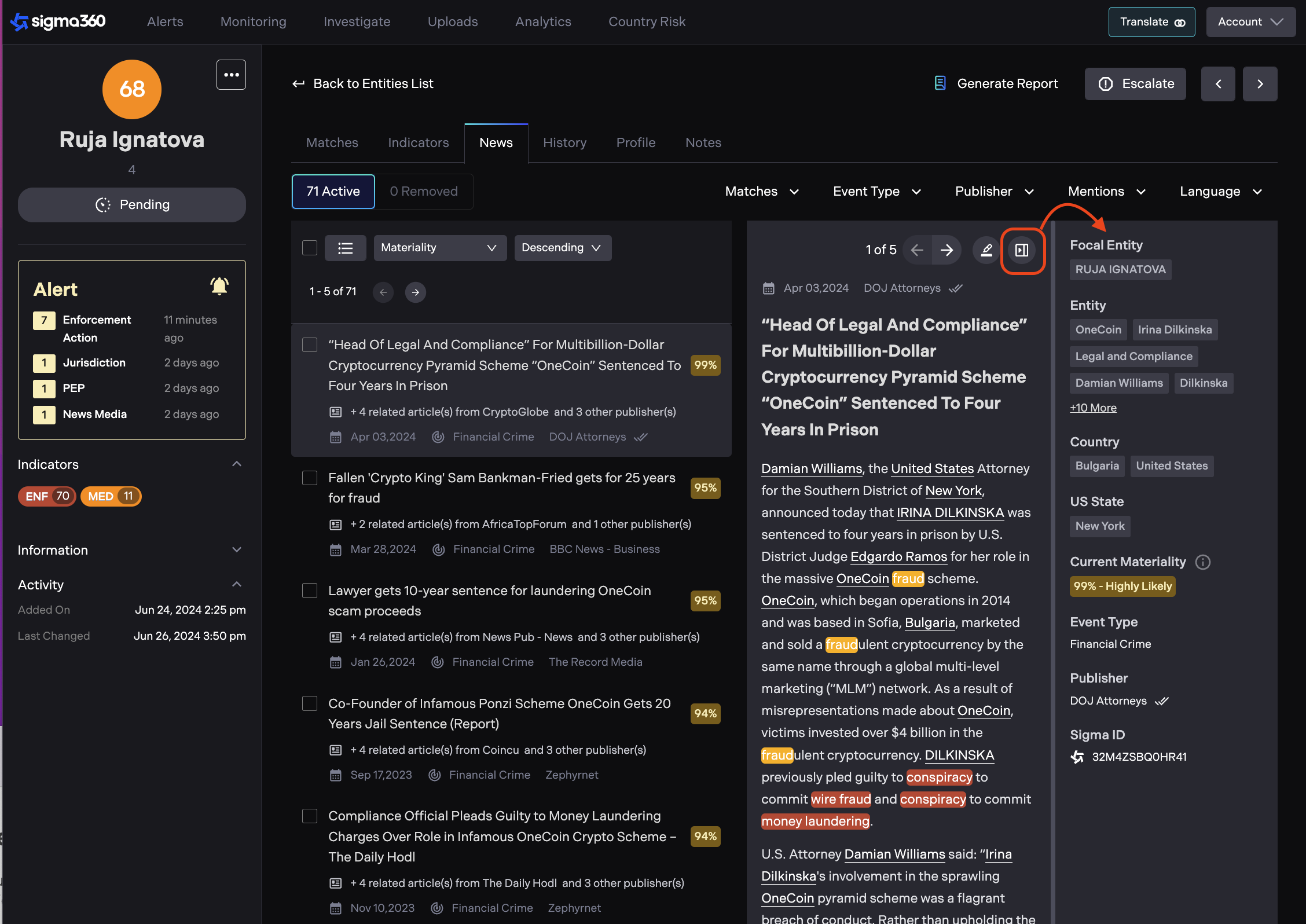
Informational Panel
Users can access article metadata in the right hand panel by clicking on the panel icon.
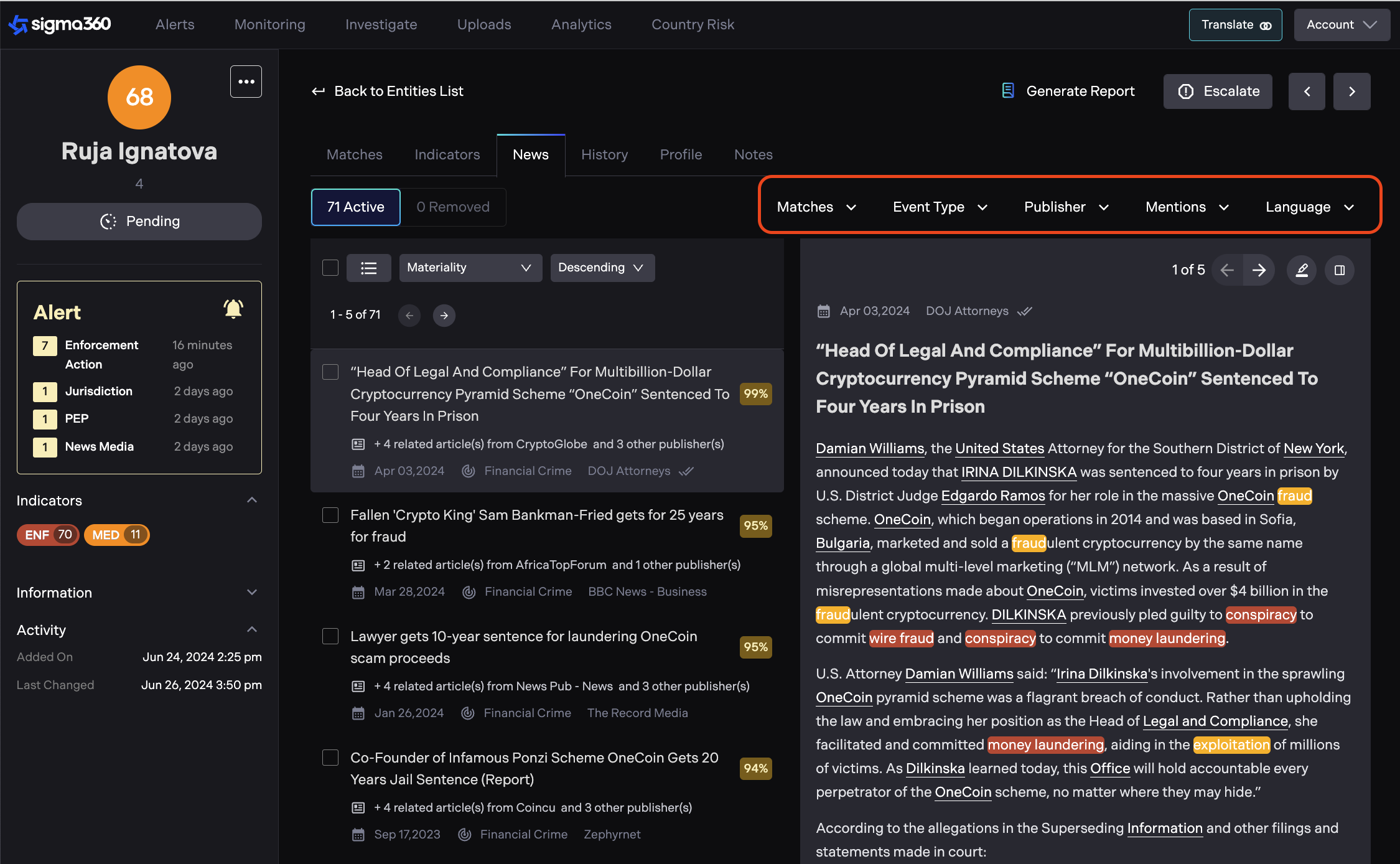
News Filters
All filter options displayed under five dropdown menus: Matches, Event Type, Publisher, Mentions, Language.
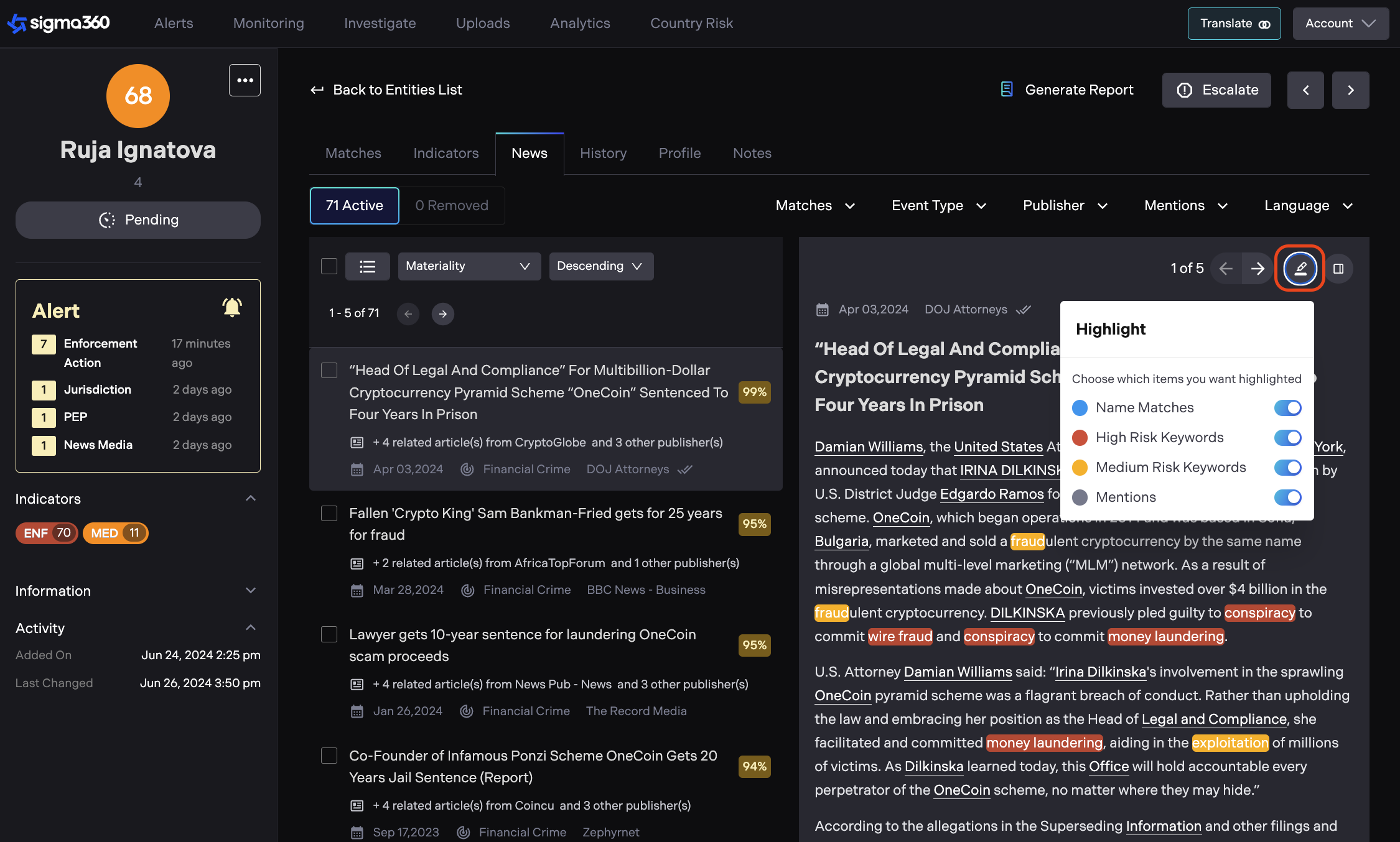
Highlight Configuration
The news viewer highlight function is configurable, allowing users to selectively choose which types of information they want to highlight in the news article. By toggling these options on or off, users can customize their view to highlight the information most relevant to them.
Escalation & Disposition Status
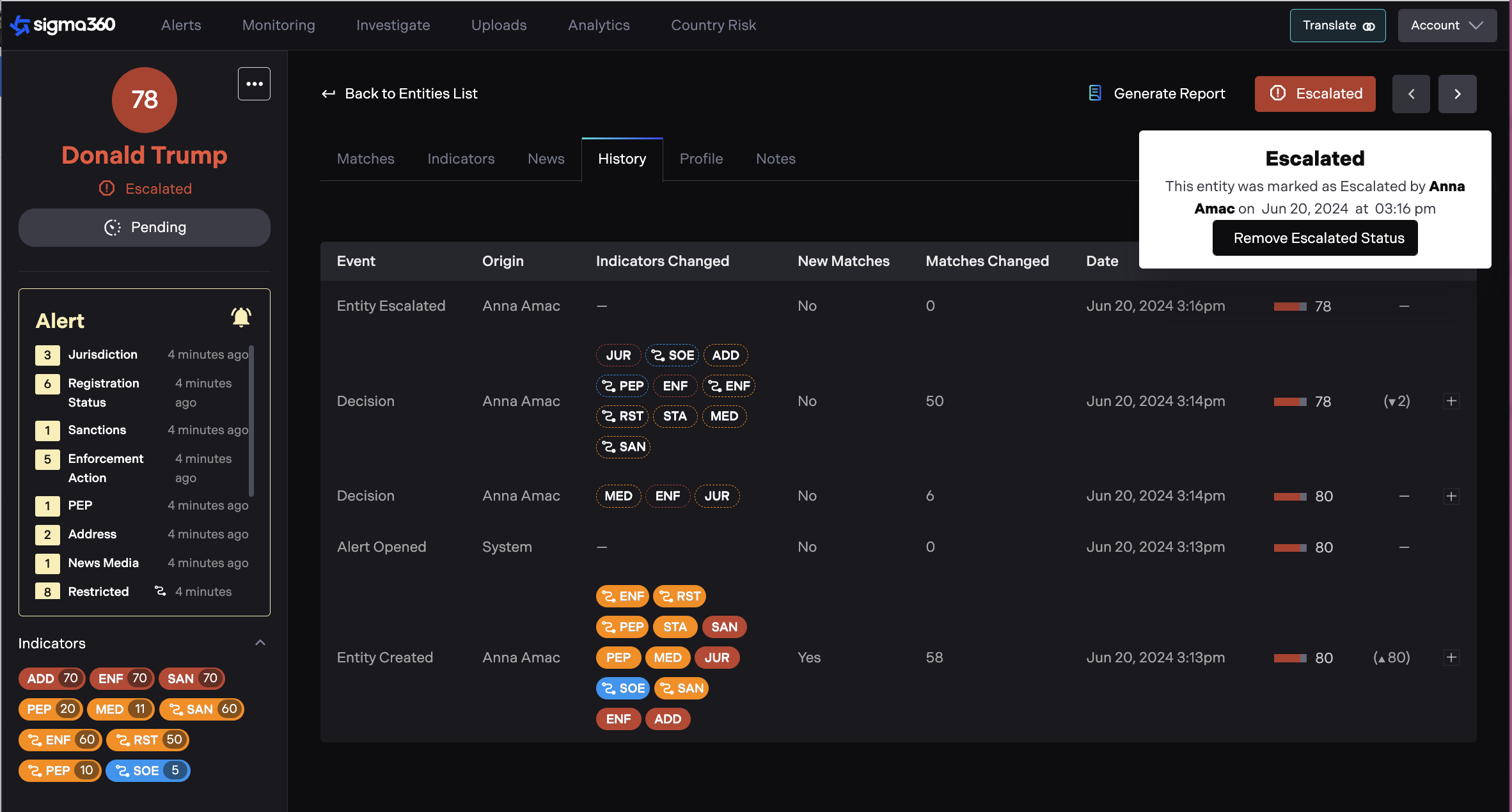
**Escalation **
While on the Monitoring page, users can select an Entity for escalation. The “escalation" button is the most right one in the action row.
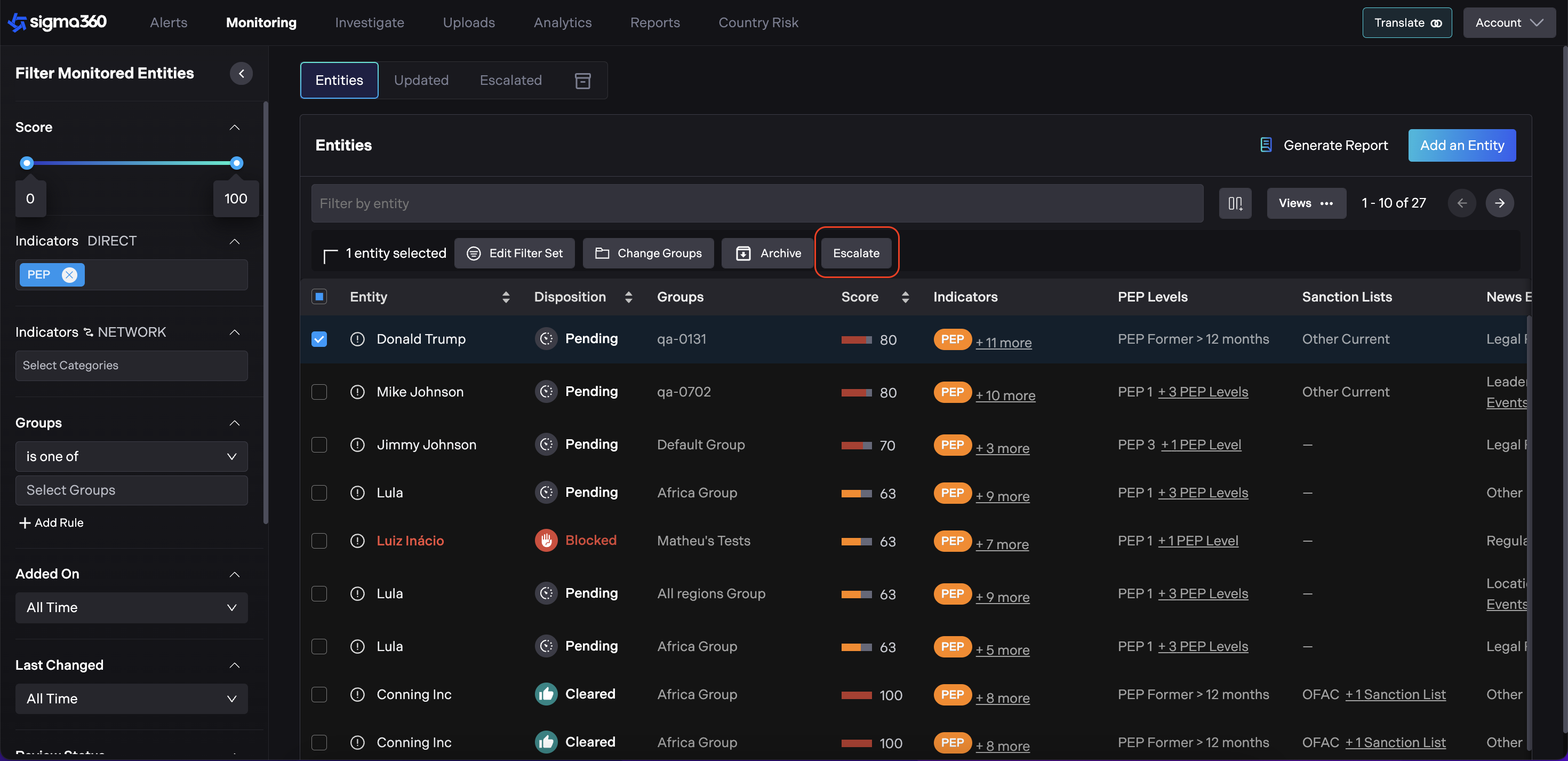
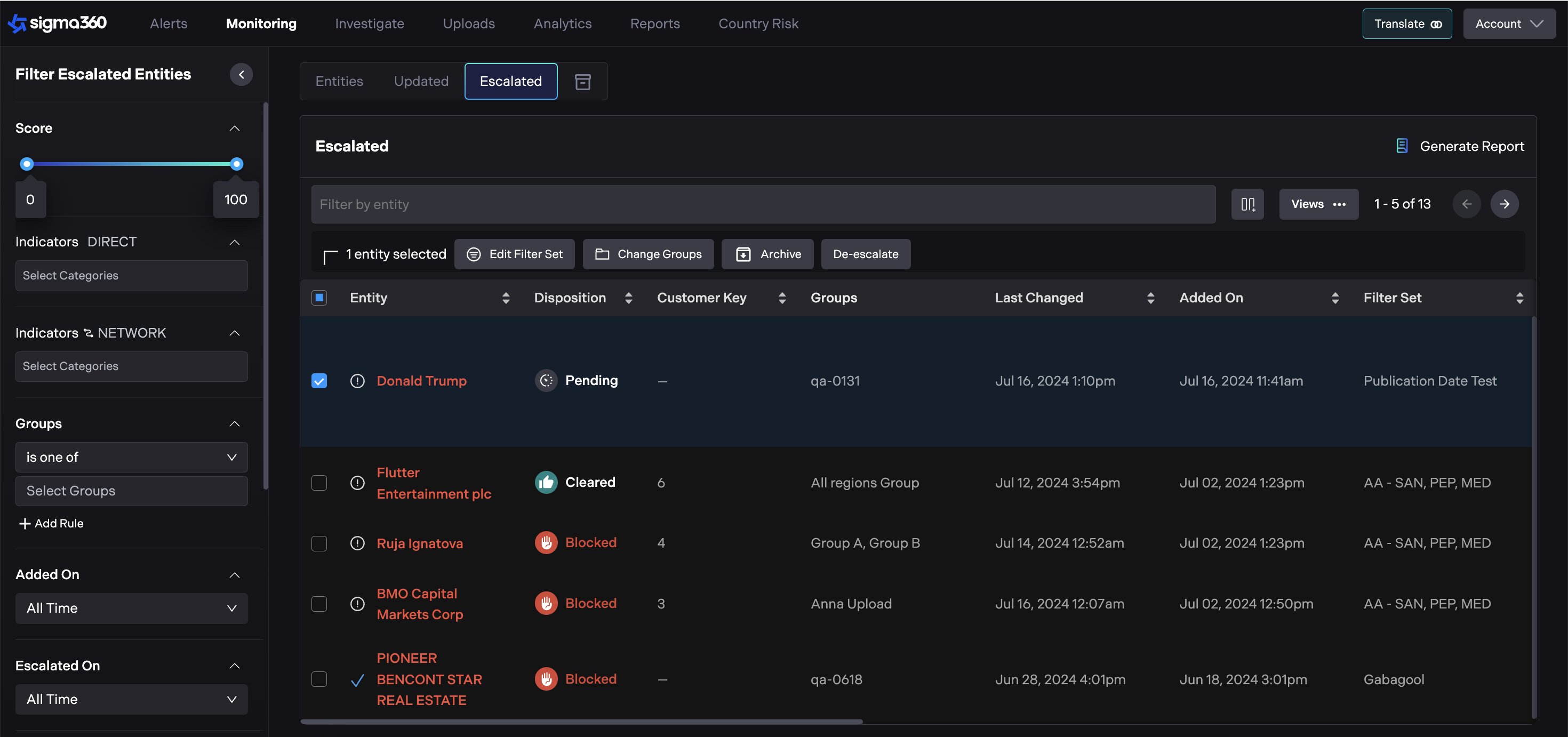
Once an Entity is escalated, it will turn red. Users can see all Escalated Entities on a separate "Escalated Entities" Tab.
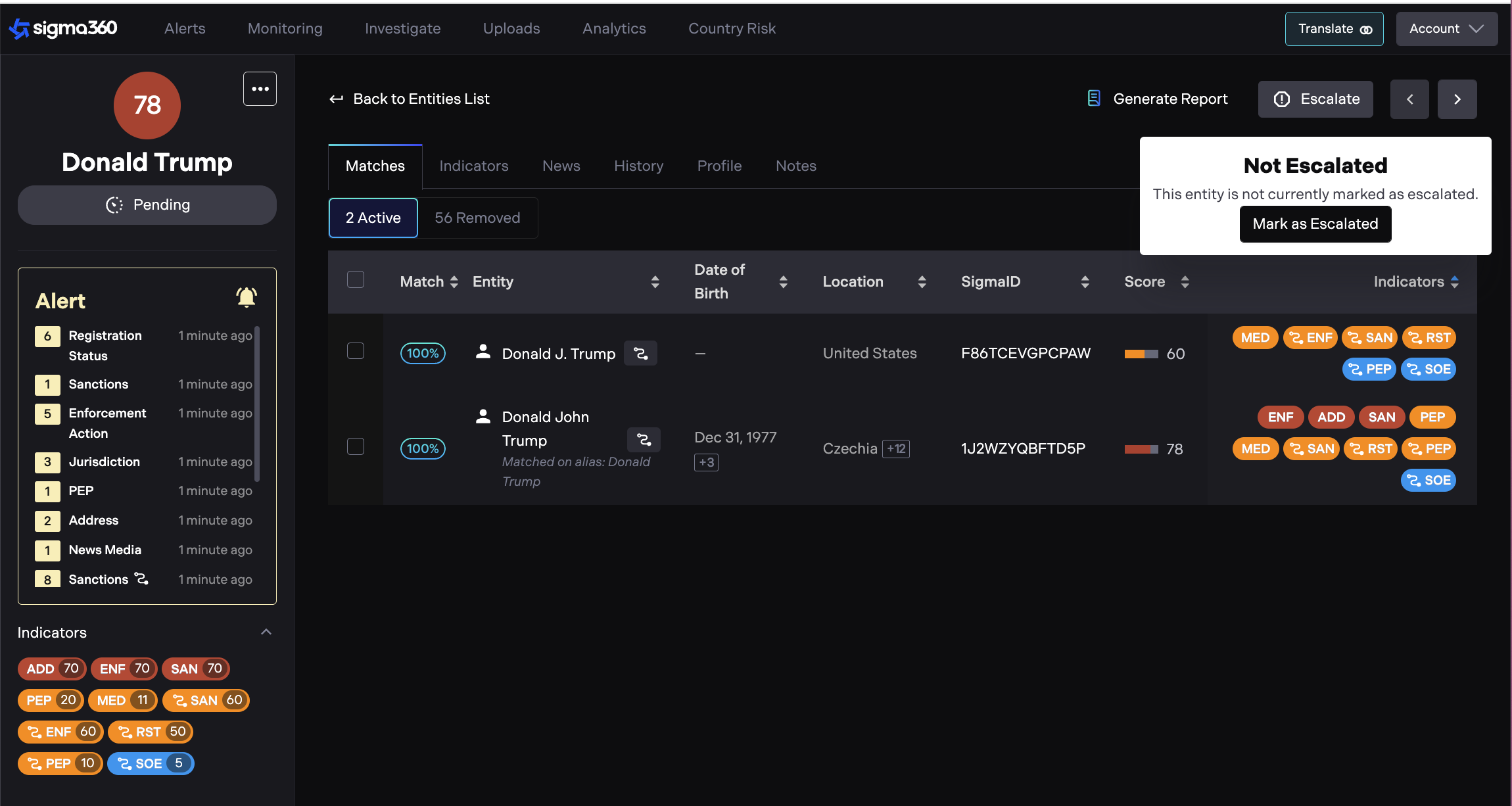
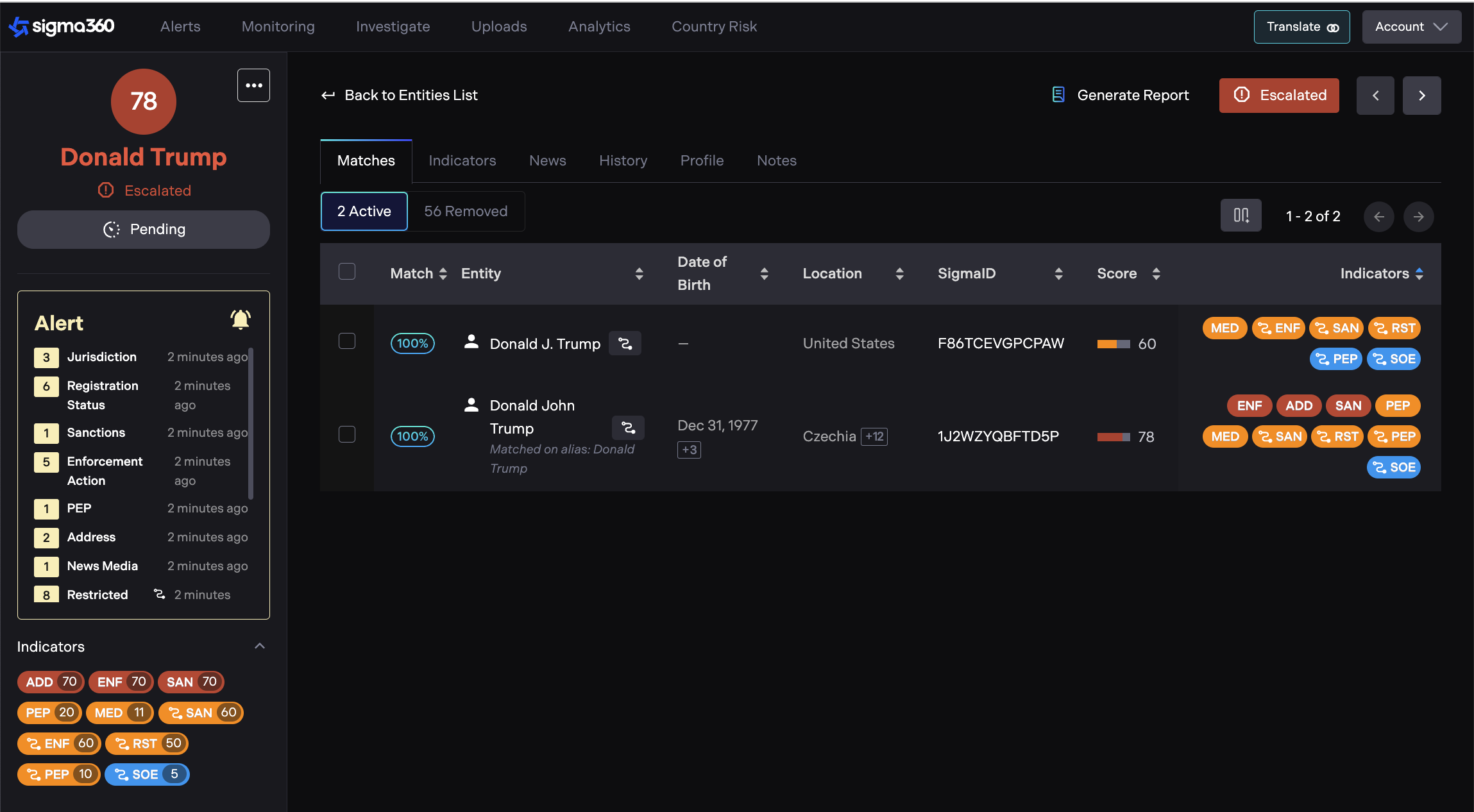
While on an Entity page, users can perform escalation. The “Escalate" button is on the right upper side.
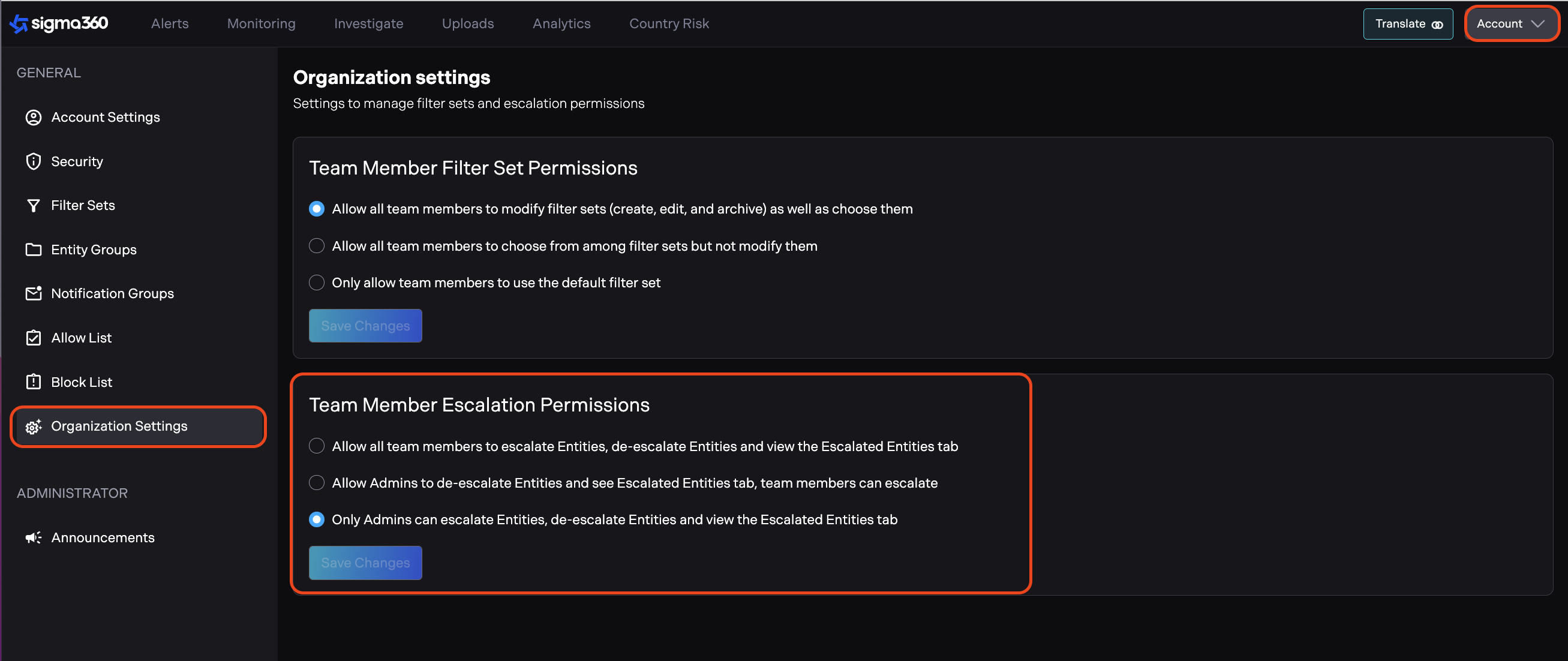
The Admin role can configure permissions for users to escalate, de-escalate, and view the Escalated Entities tab. Account -> Organization Settings -> Escalation Permissions
Users with permission to de-escalate an entity will see the de-escalation button available to them. For some users, the escalation button will be disabled due to limited permissions.
Disposition Status
Disposition Status allows users to establish a business decision or recommendation for any Entity, supporting seamless integration with CRM or case management systems.
Upon uploading an Entity to Sigma360, the Entity will be assigned Cleared status if no risk is detected, or Pending status if risk is identified. No further automated updates will be applied to Disposition Status following the initial Entity upload.
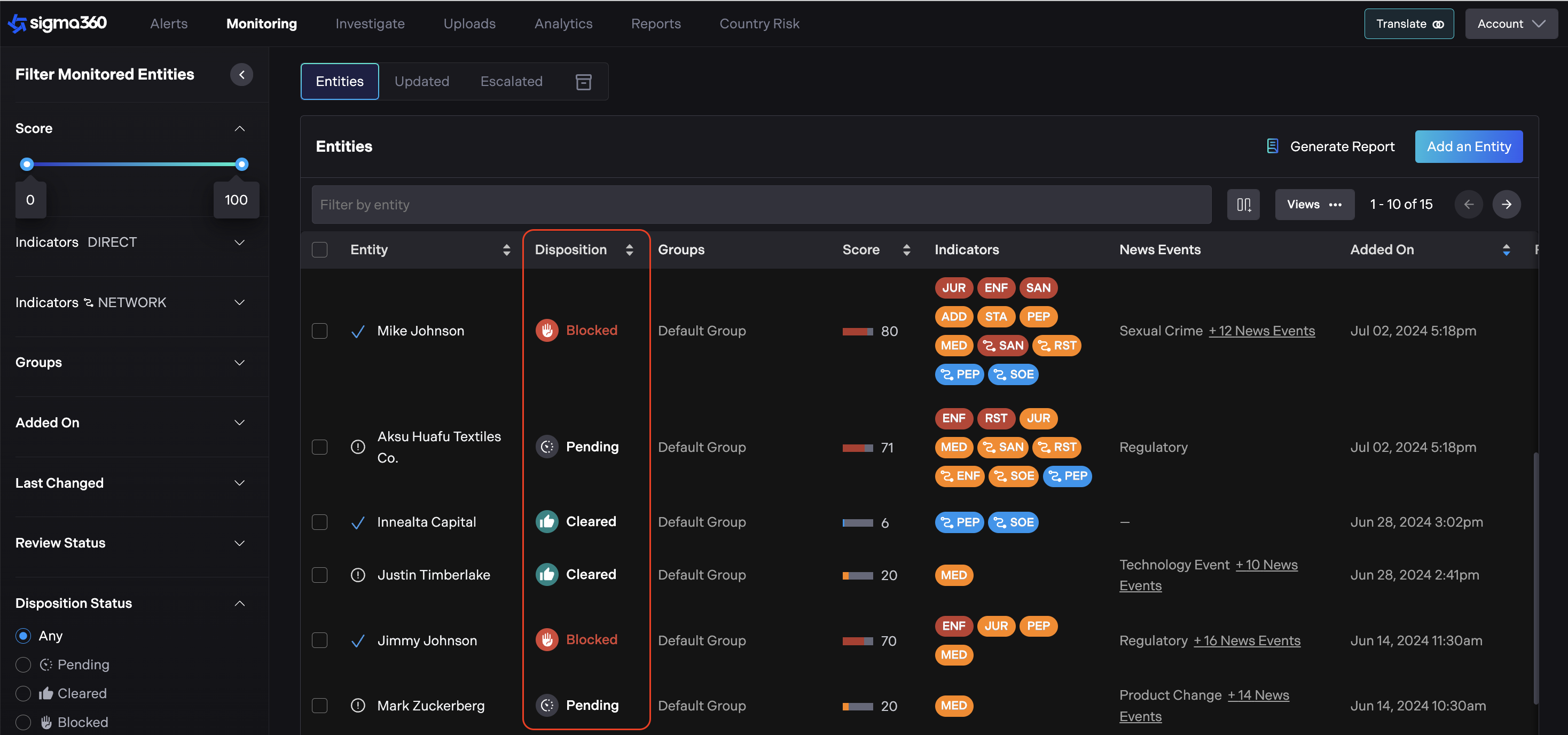
Disposition Status can be sorted and filtered on the Monitoring Page.
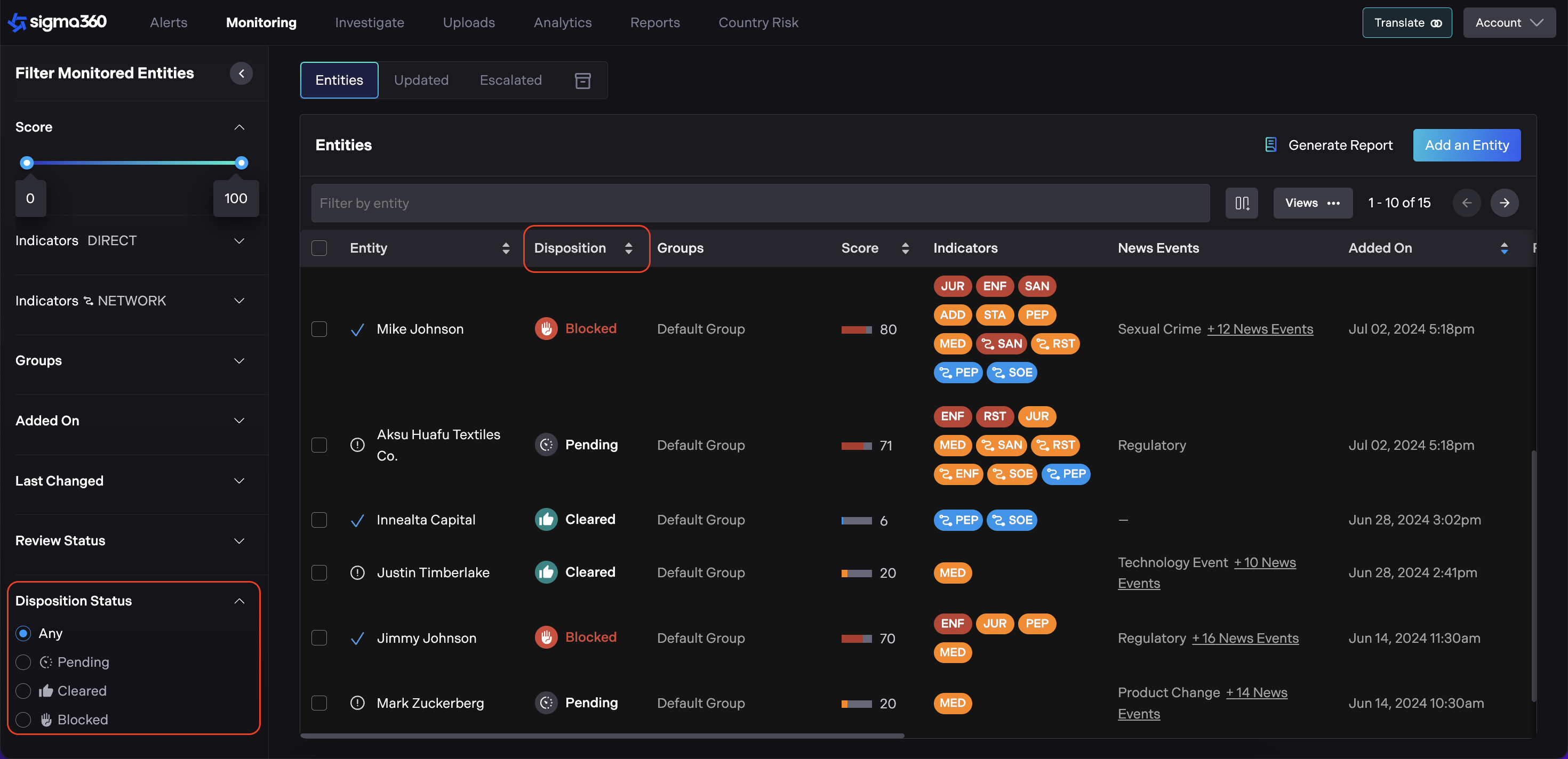
Disposition Status can be set at any time, independent of Escalation, or decisioning Matches, Indicators, News on the left side panel.
To set the Disposition Status, users should click on the Disposition Field in the left side panel.
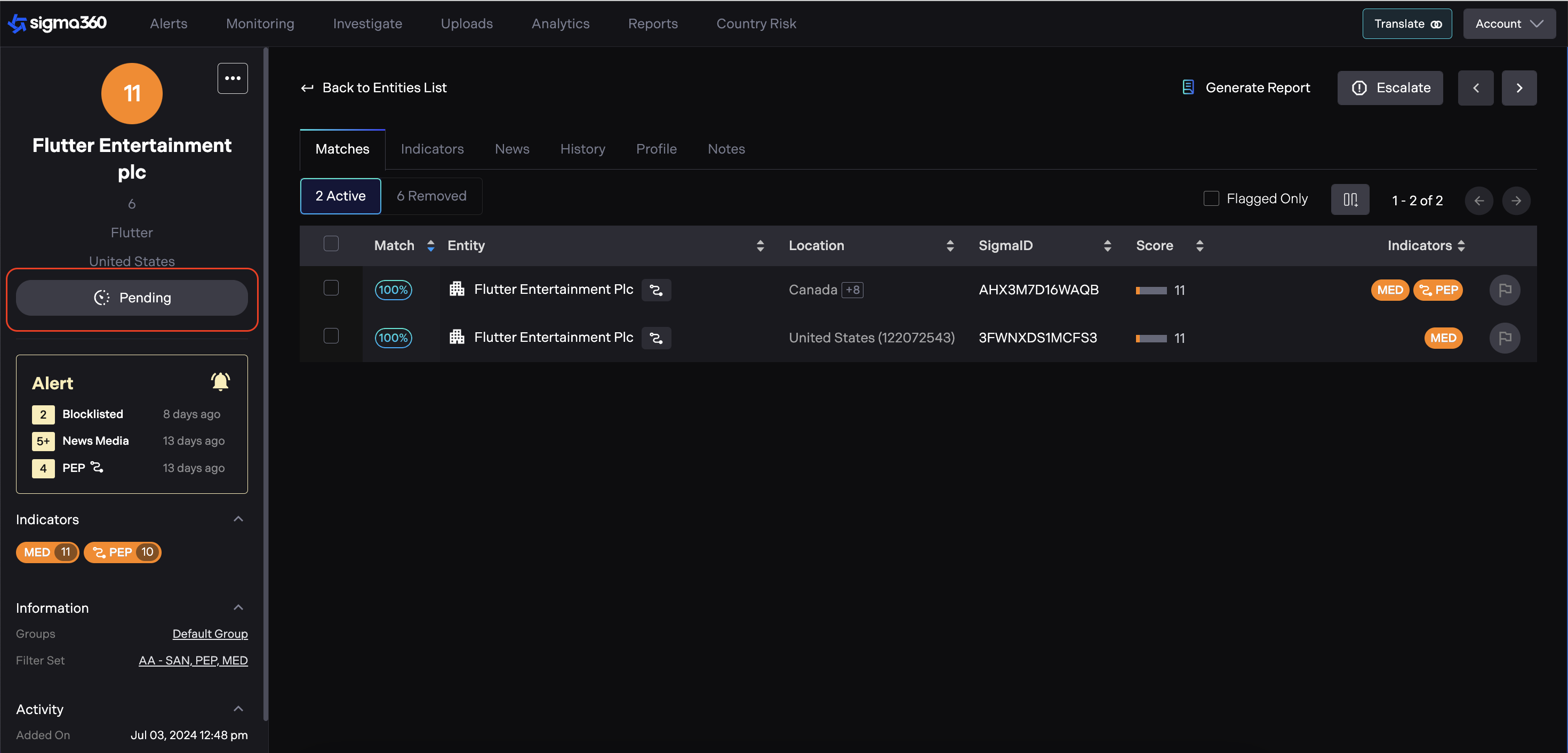
A dropdown menu with statuses will appear.
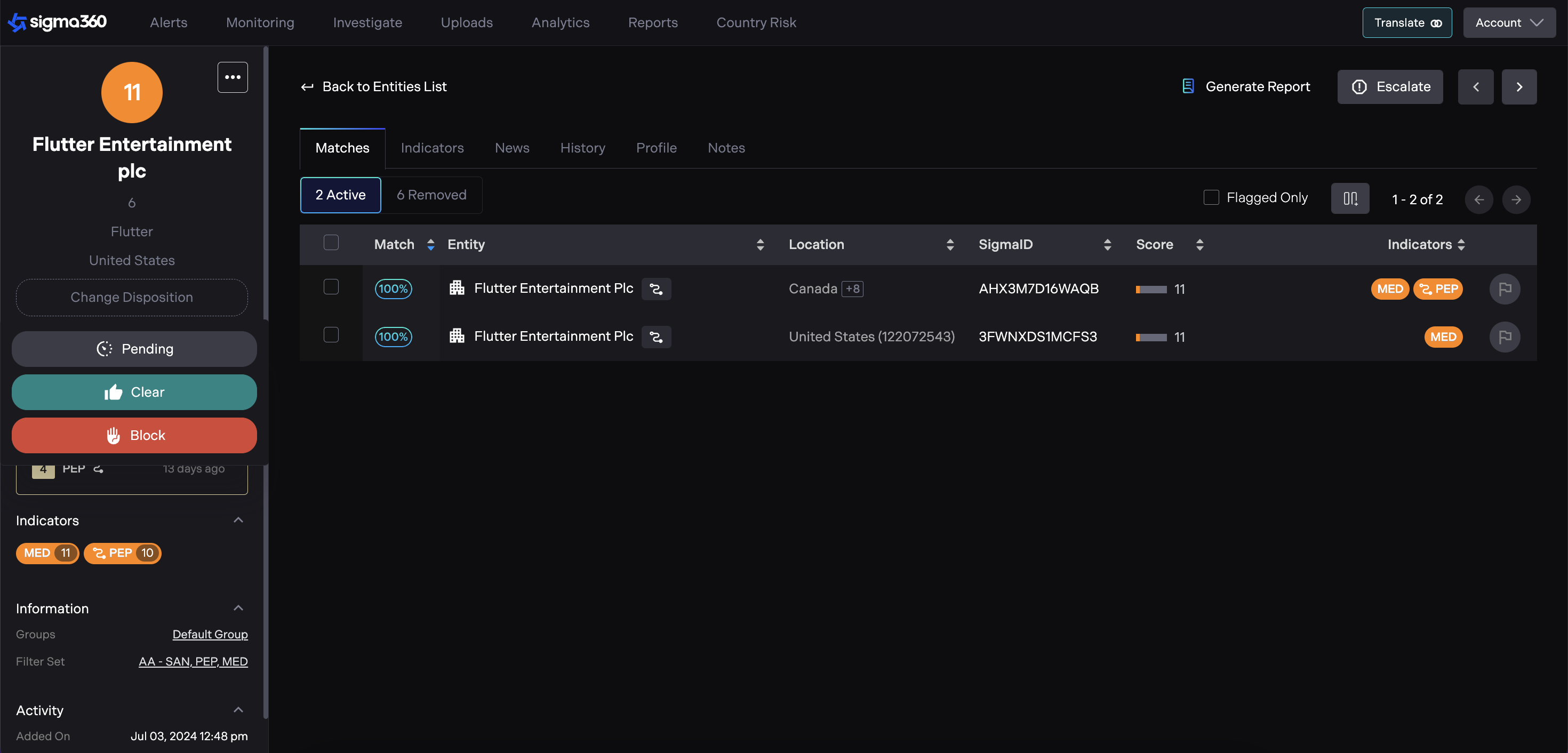
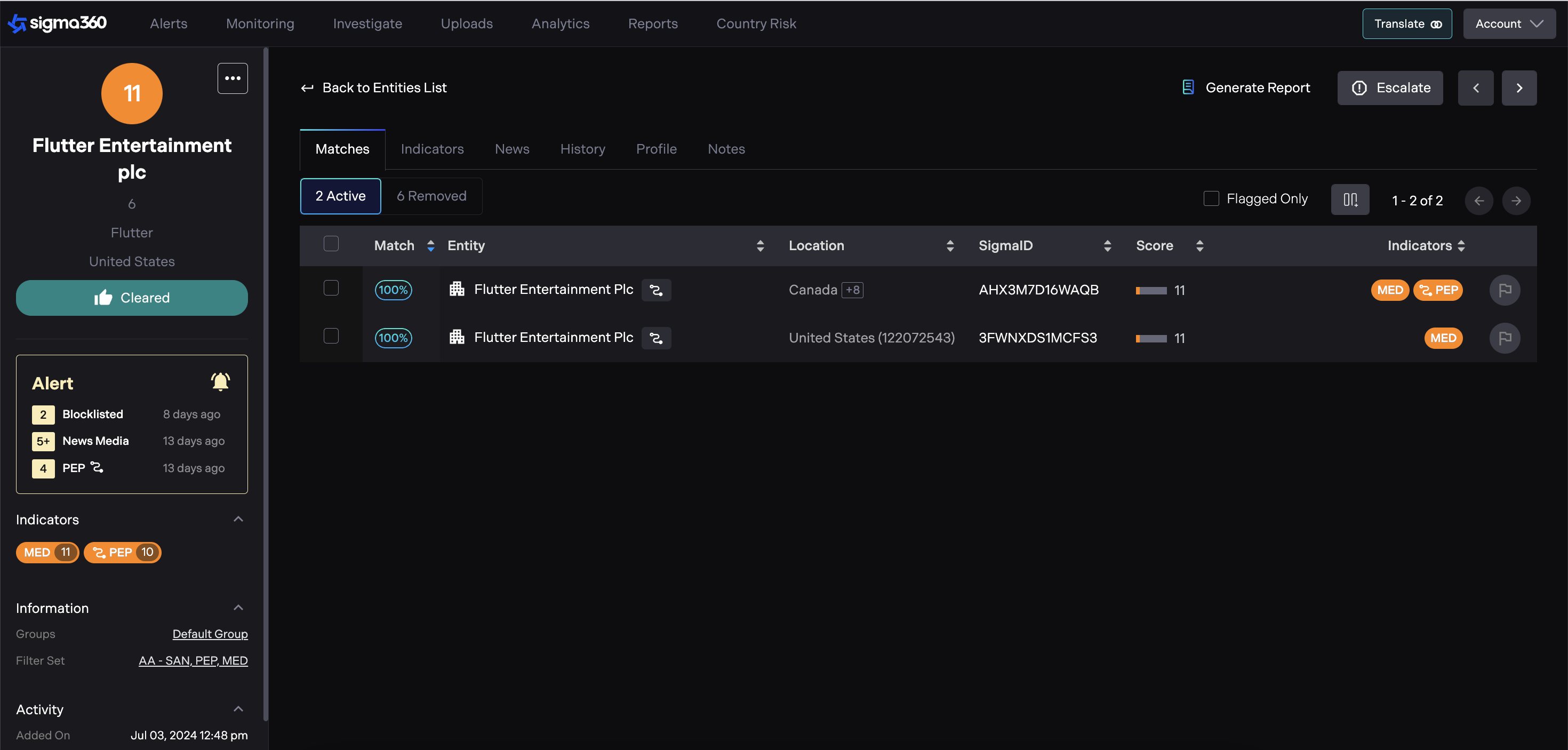
Users can choose between "Clear" or "Blocked," and the chosen status will appear immediately.
Notes & History
Notes
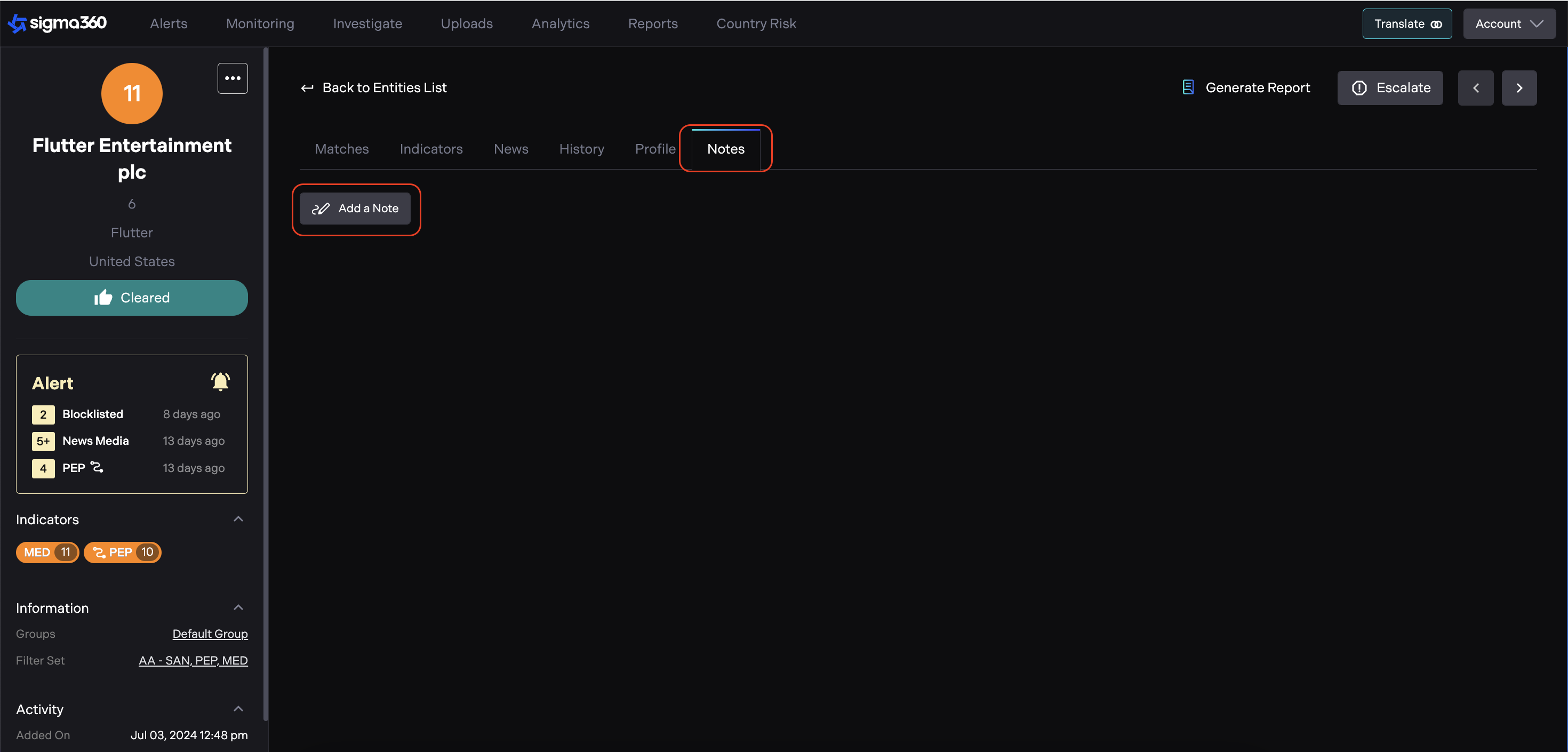
Users can create notes on the Entity. By clicking "Add a Note," a text area will appear for input.
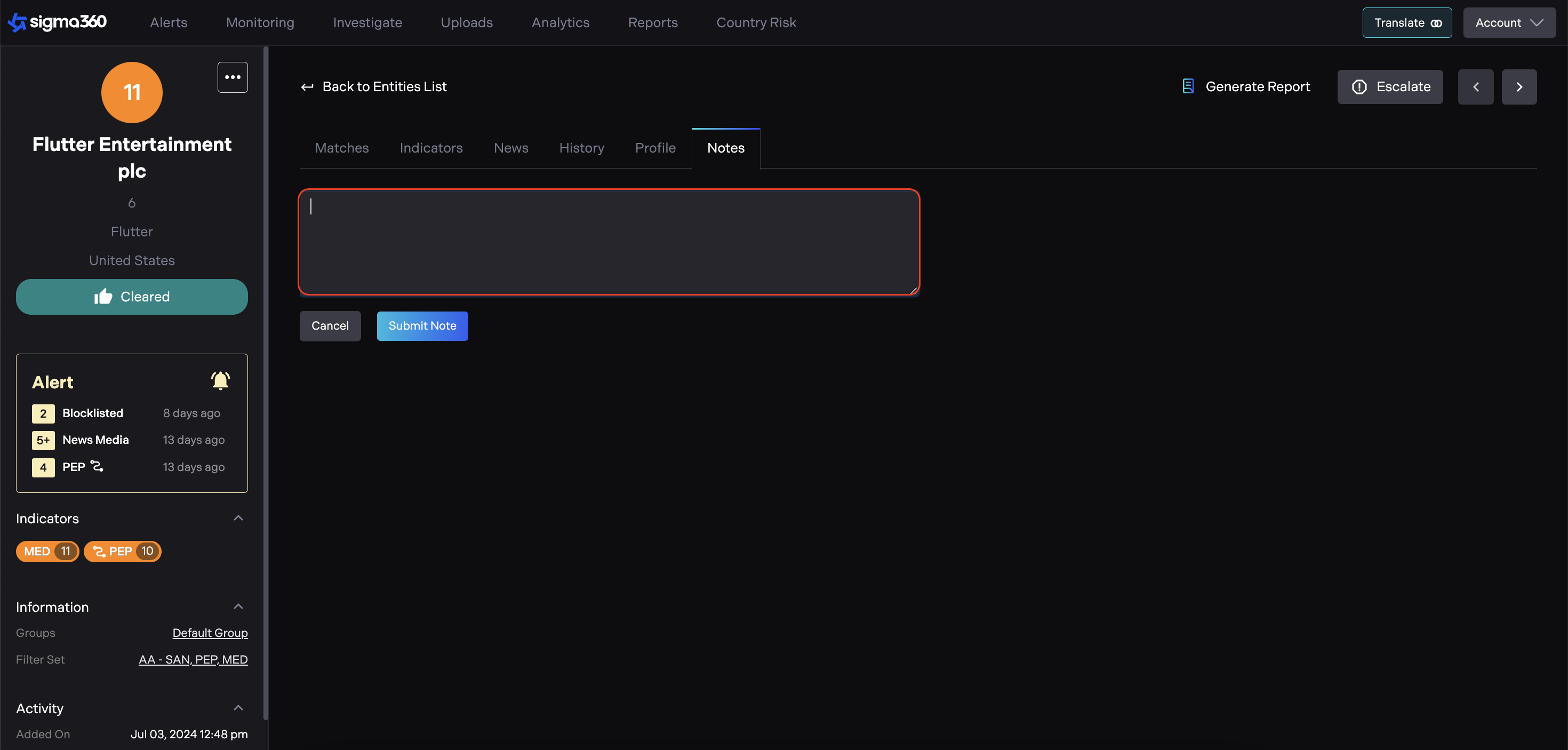
All created notes across all Entities are displayed on the Monitoring page in the “Notes” column.
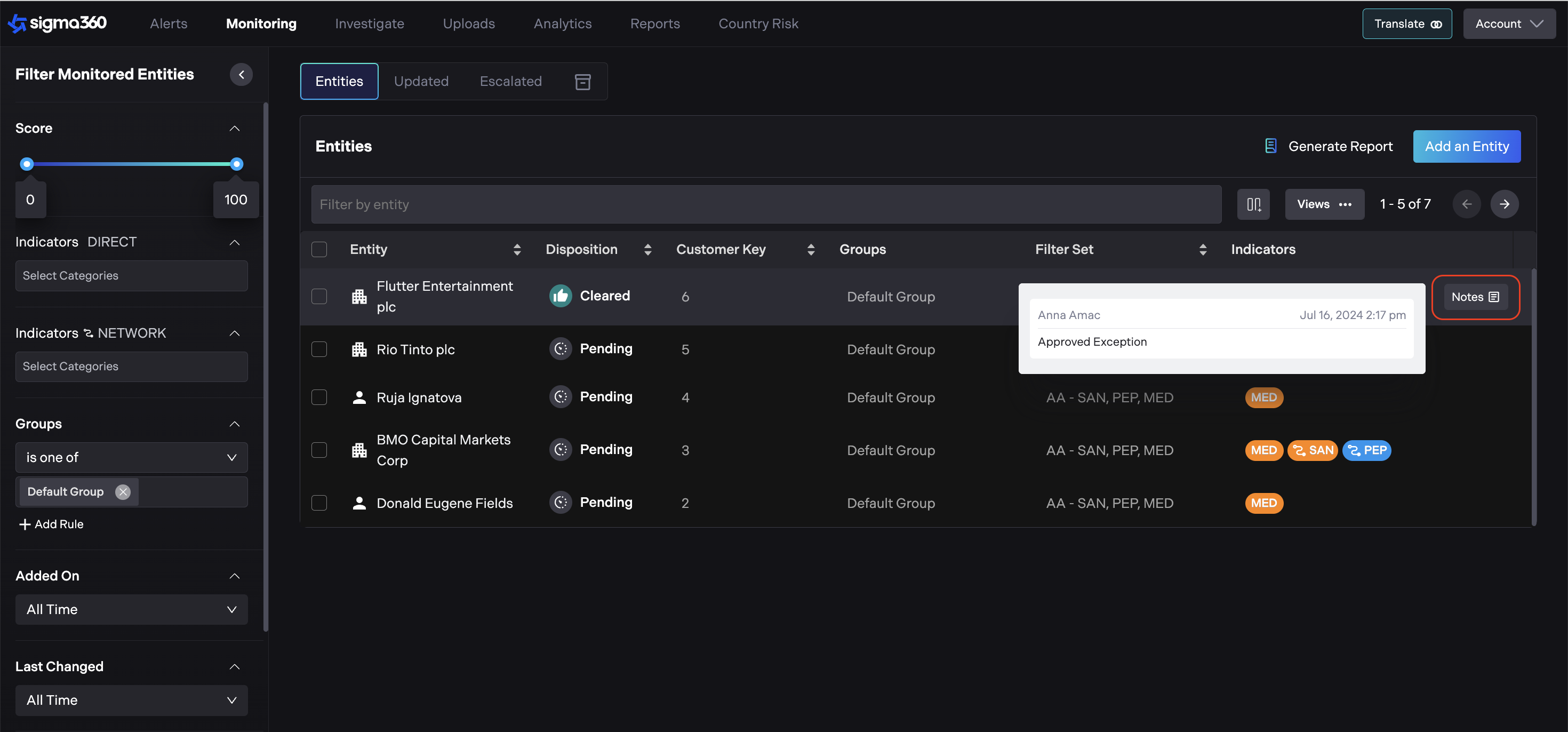
Please note that notes cannot be edited or deleted once created.
History
The History tab records various events related to the monitored entity from its initial upload to the present. These events provide a detailed log of actions and updates.
-
Entity Created: Indicates when an entity is created, specifying the user who created it and listing the initial indicators. This event can be expanded to view what matches and indicators were added.
-
Decision: Records decisions made regarding the entity, including the user who made the decision and the affected indicators. This event can be expanded to view what matches and indicators were changed.
-
Entity Escalated: Indicates when an entity is escalated, showing the user who performed the action.
-
Entity De-escalated: Indicates when an entity is de-escalated, showing the user who performed the action.
-
Alert Opened: Indicates when an alert is opened.
-
Alert Closed: Indicates when an alert is closed.
-
Filter Set Change: Indicates changes in the filter set, showing the user who made the change and the Indicators affected. This event can be expanded to view what matches and indicators were added or removed.
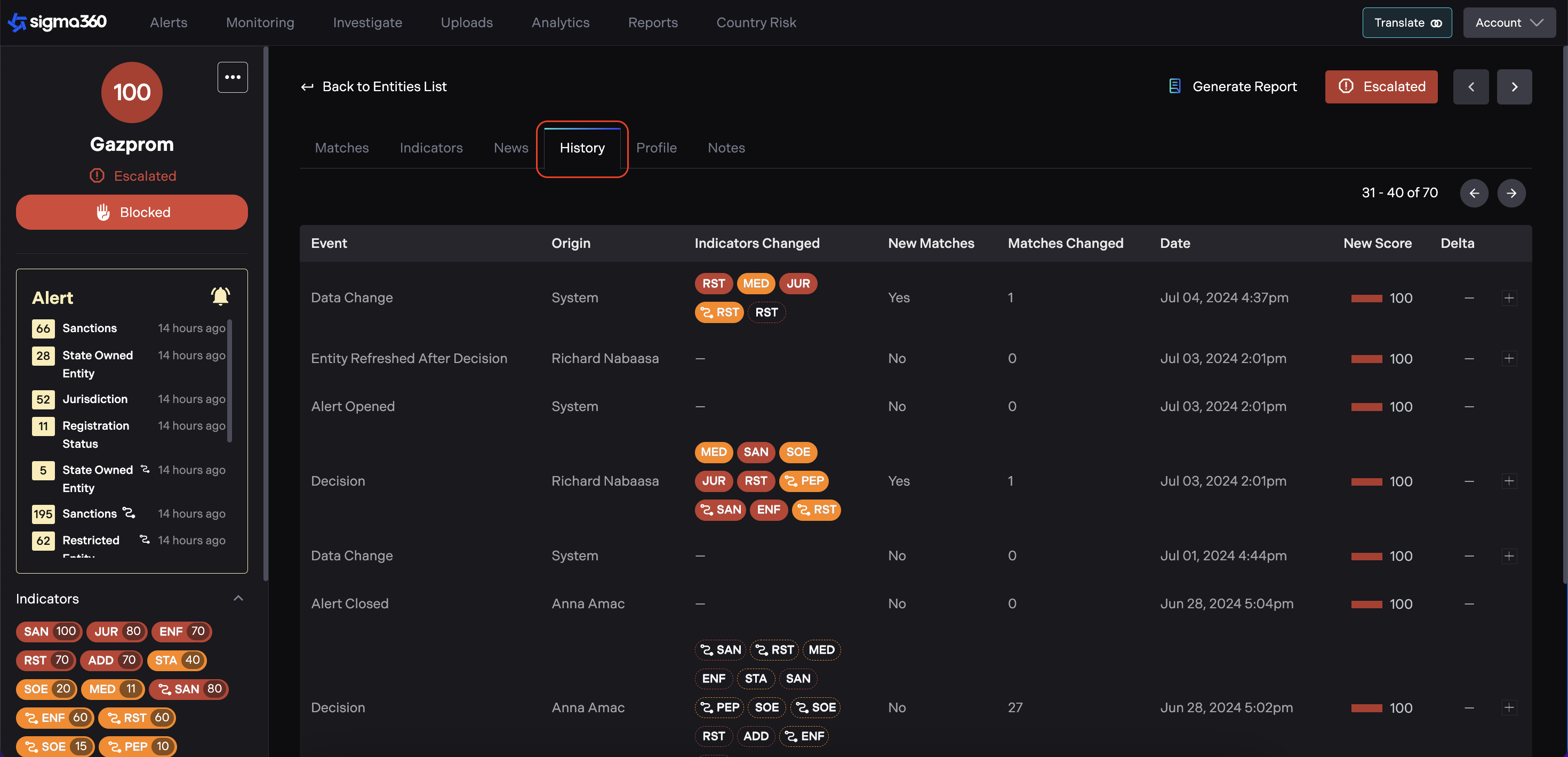
Each event entry includes the following details:
-
Origin: The user or system that initiated the event.
-
Indicators Changed: Lists the indicators that were added, removed, or modified during the event.
-
New Matches: Indicates whether new matches were added as a result of the event.
-
Matches Changed: Shows the number of matches that were affected.
-
Date: The timestamp of the event.
-
New Score: The updated score after the event.
-
Delta: The change in the score resulting from the event.